# Multilogin
[**Multilogin**](https://multilogin.com/pricing/?utm_source=referrer\&utm_medium=website\&utm_campaign=OxylabsP_2022\&utm_id=Oxylabs) is a reliable, market-leading solution designed to build virtual browser profiles hassle-free.
Follow the instructions below to integrate Oxylabs [**Dedicated ISP Proxies**](https://developers.oxylabs.io/proxies/dedicated-isp-proxies/self-service) you've acquired via self-service**:**
{% stepper %}
{% step %}
### Log in to Multilogin and create a profile
Go to the Multilogin [**official website**](https://multilogin.com/), log in, and look for the **+Create** button to create a new profile
{% endstep %}
{% step %}
### Add a new proxy
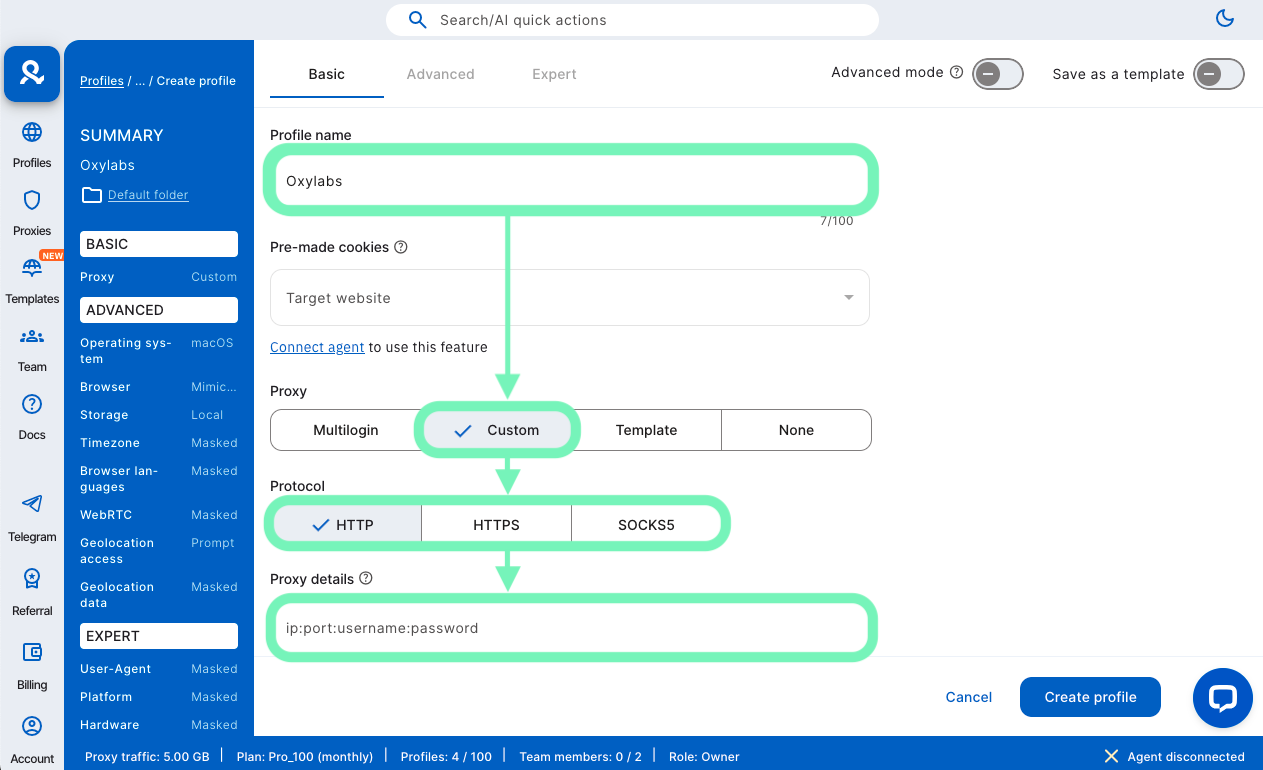
Enter the profile name, select **Custom proxy**, and choose a proxy protocol (`HTTP`, `HTTPS`, or `SOCKS5`)
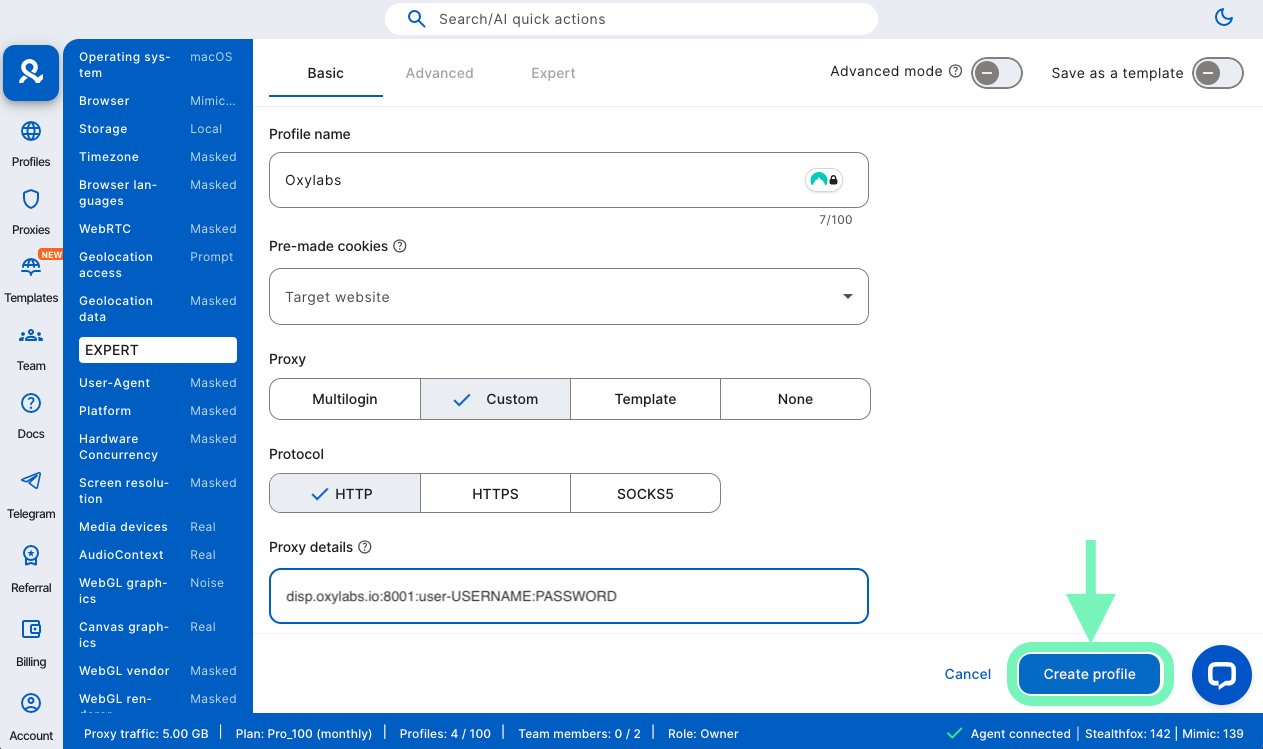
Then enter your proxy details and Oxylabs proxy user’s credentials. Use the same username and password you entered to create a new proxy user in the [Oxylabs dashboard](https://dashboard.oxylabs.io/en/):
**Host:** `disp.oxylabs.io`
**Port:** `8001`
{% hint style="success" %}
You will need to choose the port assigned to an IP address from the purchased [**proxy list**](https://developers.oxylabs.io/proxies/dedicated-isp-proxies/self-service/proxy-list)**,** which you can find on the Oxylabs dashboard. The `8001` port will pick the first IP address from your list for all requests.
Use port `8000` for automatic [proxy IP rotation](https://developers.oxylabs.io/proxies/dedicated-isp-proxies/self-service/proxy-rotation).
{% endhint %}
**Username:** `user-USERNAME`
**Password:** `PASSWORD`
{% hint style="warning" %}
**Note:** Don't forget to add `user-` prefix to your username.
{% endhint %}
{% endstep %}
{% step %}
### Finish the profile
If you need to use specific browser fingerprint options, such as user agent, cookies, and device settings, toggle **Advanced mode** at the top of the screen. Otherwise, you can finalize your new profile by clicking **Create profile** at the bottom of the screen.
{% endstep %}
{% step %}
### Finish the profile
Press **Start** on your profile in the main screen to launch a newly created profile and carry on with your tasks in a private browser.
If everything is done correctly, will open to show your new IP and all custom fingerprint information below.
{% endstep %}
{% endstepper %}
And that’s it. You’ve successfully integrated your Oxylabs proxies with Multilogin. You can find the original Multilogin integration blog post [**here**](https://oxylabs.io/resources/integrations/multilogin).
Also, take a look at the detailed [**Multilogin vs. Incognition**](https://oxylabs.io/blog/incogniton-vs-multilogin), [**AdsPower vs. Multilogin**](https://oxylabs.io/blog/adspower-vs-multilogin), or [**GoLogin vs. Multilogin**](https://oxylabs.io/blog/gologin-vs-multilogin) articles to compare the most popular anti-detect browsers.
---
# Agent Instructions: Querying This Documentation
If you need additional information that is not directly available in this page, you can query the documentation dynamically by asking a question.
Perform an HTTP GET request on the current page URL with the `ask` query parameter:
```
GET https://developers.oxylabs.io/proxies/integration-guides/dedicated-isp-proxies-integrations/multilogin.md?ask=
```
The question should be specific, self-contained, and written in natural language.
The response will contain a direct answer to the question and relevant excerpts and sources from the documentation.
Use this mechanism when the answer is not explicitly present in the current page, you need clarification or additional context, or you want to retrieve related documentation sections.