> For the complete documentation index, see [llms.txt](https://developers.oxylabs.io/llms.txt). Markdown versions of documentation pages are available by appending `.md` to page URLs; this page is available as [Markdown](https://developers.oxylabs.io/products/web-api/scrape/delivery-modes.md).

# Delivery Modes

Discover how Web API delivers results: realtime responses, async jobs with polling or callbacks, cloud storage delivery, and batch requests.

The Web API provides three delivery modes for different workload requirements and execution volumes.&#x20;

<table><thead><tr><th width="315">Delivery</th><th width="92">Max items</th><th width="143">Targets</th><th width="215">Used for...</th></tr></thead><tbody><tr><td><a href="#realtime"><strong>Realtime</strong></a> (Synchronous)<br><code>POST /v1/scrape/{source}</code></td><td>1</td><td>All endpoints</td><td>Low-latency requests, testing</td></tr><tr><td><a href="#single-job-delivery-async"><strong>Async Single</strong></a> (Polling)<br><code>POST /v1/async/scrape/{source}</code></td><td>1</td><td>All endpoints</td><td>High concurrency and volume</td></tr><tr><td><a href="#batch-delivery-async"><strong>Async Batch</strong></a> (Bulk queue)<br><code>POST /v1/async/scrape/batch/{source}</code></td><td>5,000</td><td>Select endpoints</td><td>Bulk ingestion</td></tr></tbody></table>

Most `/scrape` endpoints are offered as options for **Realtime** and **Async** result delivery, with the path deciding when and how you get the result.

```http
POST /v1/scrape/...          # realtime: the result is the response
POST /v1/async/scrape/...    # async: create a job and retrieve the result separately
```

## Realtime

```http
POST /v1/scrape/{source}
```

Realtime delivery processes the scrape on the initial HTTP connection. The request blocks until rendering, access resolution, and parsing is complete, returning the content payload in the response body. Set a client timeout of at least 150 seconds.

```bash
curl -X POST https://webapi.oxylabs.io/v1/scrape/amazon/product \
  -H "Authorization: Bearer $OXYLABS_WEB_API_KEY" \
  -H "Content-Type: application/json" \
  -d '{
    "query": "B0CX23V2ZK",
    "domain": "com",
    "output": ["json"]
  }'
```

{% hint style="info" %}
Some endpoints do not support realtime delivery (e.g. YouTube downloads, ChatGPT, Gemini, Perplexity). Confirm your target eligibility with [Endpoint Discovery](https://developers.oxylabs.io/products/web-api/scrape/endpoint-discovery.md) or check the [API Reference](https://developers.oxylabs.io/api-reference).
{% endhint %}

## Single job delivery (Async)

```http
POST /v1/async/scrape/{source}
```

Asynchronous single-job delivery queues a scrape request and immediately returns an HTTP `202 Accepted` status containing the job identifier.

```bash
curl https://webapi.oxylabs.io/v1/async/scrape/media/youtube/metadata \
  -H "Authorization: Bearer $OXYLABS_WEB_API_KEY" \
  -H 'Content-Type: application/json' \
  -d '{"query": "a1cWkClBXLI", "output": ["json"]}'
```

When a job is accepted, the job ID is returned inside `metadata.request_id`.

```json
{
  "state": "pending",
  "params": { "query": "a1cWkClBXLI", "output": ["json"] },
  "metadata": { "timestamp": 1787599164, "request_id": "7497734325668954113" }
}
```

The status of the submitted job can be referenced through the `state` results:

<table data-header-hidden><thead><tr><th width="172"></th><th></th></tr></thead><tbody><tr><td><code>state: "pending"</code></td><td>The job is queued or executing. The <code>results</code> array remains empty (<code>[]</code>).</td></tr><tr><td><code>state: "done"</code></td><td>Job completed. The <code>results</code> array contains the parsed output.</td></tr><tr><td><code>state: "faulted"</code></td><td>Extraction failed. Inspect <code>results[].metadata.status_code</code> for details.</td></tr></tbody></table>

### Output retrieval

Results are retrieved via [polling](#polling-endpoint-get-v1-async-scrape-jobid), [webhooks](#webhooks-callback_url) (callback URL), or direct [cloud storage uploads](#cloud-storage-upload-storage).

#### **Polling endpoint (`GET /v1/async/scrape/{jobId}`)**

Pass the numeric `metadata.request_id` to the polling endpoint.

```bash
curl -X GET https://webapi.oxylabs.io/v1/async/scrape/7497971512142465025 \
  -H "Authorization: Bearer $OXYLABS_WEB_API_KEY"
```

#### **Webhooks (`callback_url`)**

Include `callback_url` in the initial request body. Once execution transitions to `done` or `faulted`, the API issues an HTTP `POST` payload containing the job results to your specified endpoint.

```json
{
  "query": "B0CX23V2ZK",
  "output": ["json"],
  "callback_url": "https://your-api.example.com/webhooks-oxylabs"
}
```

The URL is validated at submission time and malformed ones are rejected with error `400`.

### **Cloud storage upload (`storage`)**

Using `storage` parameter writes the result to a bucket in addition to polling and webhooks. **Async paths only** – realtime requests with `storage` are rejected with `400`.

```json
//POST /v1/async/scrape/amazon/product
{
  "query": "B0CX23V2ZK",
  "output": ["json"],
  "storage": {
    "type": "s3",
    "url": "s3://your-bucket-name/scraped-data"
  }
}
```

<table><thead><tr><th width="142">Field</th><th>Values</th></tr></thead><tbody><tr><td><code>storage.type</code></td><td><code>s3</code>, <code>s3_gzip</code>, <code>s3_compatible</code>, <code>gcs</code>, <code>tos</code>.</td></tr><tr><td><code>storage.url</code></td><td>Bucket and folder path, without a file name. The result is saved as <code>{request_id}.json</code> in the chosen location.</td></tr></tbody></table>

{% hint style="warning" %}
**`storage.url` is not validated.** A valid URL with malformed or misspelled destination is accepted, the job is executed and billed with failed delivery. Non-URL values are rejected with `400`.

**`storage.type` is checked against the list above.** A bad type gives you `400`. Test the destination once with single request before using a batch.

**`s3_gzip` works like `s3`** but uploads a gzip-compressed file (`{request_id}.json.gz`).

**If you request several outputs** (e.g. `["json", "html"]` ), they are all saved in the same file.
{% endhint %}

Follow the short guides below to set up cloud storage delivery for supported cloud storage providers:

<details>

<summary>Google Cloud Storage</summary>

```json
{
  "query": "B0CX23V2ZK",
  "output": ["json"],
  "storage": {
    "type": "gcs",
    "url": "bucket_name/path"
  }
}
```

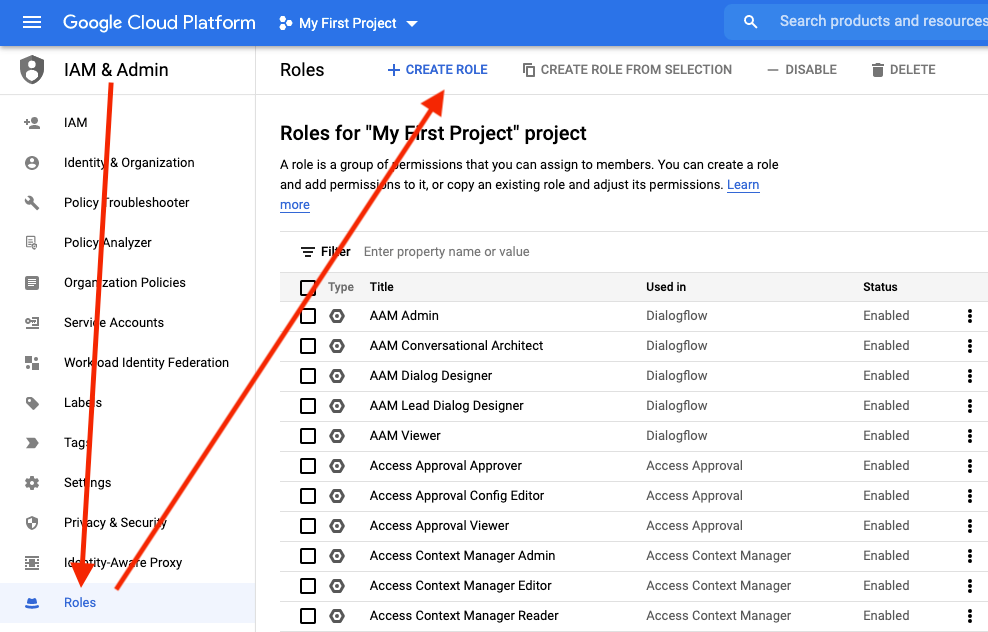
To let Oxylabs upload results to your GCS bucket, create a custom role with upload permission and grant it to the Oxylabs service account:

{% stepper %}
{% step %}
**Create a custom role**
<div align="left"><img src="https://3826932121-files.gitbook.io/~/files/v0/b/gitbook-x-prod.appspot.com/o/spaces%2FBQ7Zf9paoN3FTeGcyfY1%2Fuploads%2Fgit-blob-32292235b253d2435d5e0a8d88558c068872956d%2Fgcs-1.png?alt=media" alt=""></div>
{% endstep %}

{% step %}
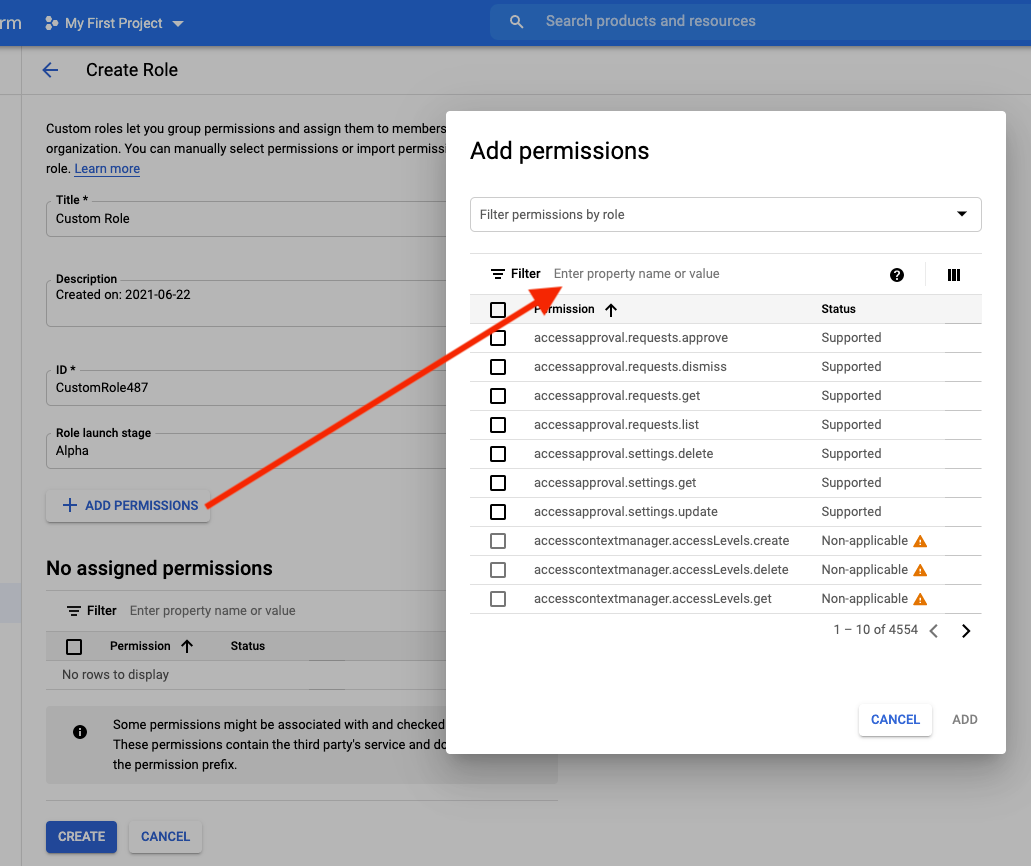
**Enter a title (e.g. `Oxylabs Uploader`) and add `storage.objects.create` permission**

<div align="left"><img src="https://3826932121-files.gitbook.io/~/files/v0/b/gitbook-x-prod.appspot.com/o/spaces%2FBQ7Zf9paoN3FTeGcyfY1%2Fuploads%2Fgit-blob-815bad910c08ed706d3df43ddb20fff0f0563d6d%2Fgcs-2.png?alt=media" alt=""></div>
{% endstep %}

{% step %}
**Assign it to Oxylabs**

Open the **Permissions** tab, click **Add**, in the **New members** field enter the following **Oxylabs service account email**:

```
oxyserps-storage@oxyserps-storage.iam.gserviceaccount.com
```

<div align="left"><img src="https://3826932121-files.gitbook.io/~/files/v0/b/gitbook-x-prod.appspot.com/o/spaces%2FBQ7Zf9paoN3FTeGcyfY1%2Fuploads%2Fgit-blob-df5b74908cc6943c8d620b5e14487f2d003ebe43%2Fgcs-3.png?alt=media" alt=""></div>
{% endstep %}

{% step %}
**Select the custom role** you created in step 1 and click **Save.**
{% endstep %}
{% endstepper %}

</details>

<details>

<summary>Amazon S3</summary>

```json
{
  "query": "B0CX23V2ZK",
  "output": ["json"],
  "storage": {
    "type": "s3",
    "url": "s3://your-bucket-name/path"
  }
}
```

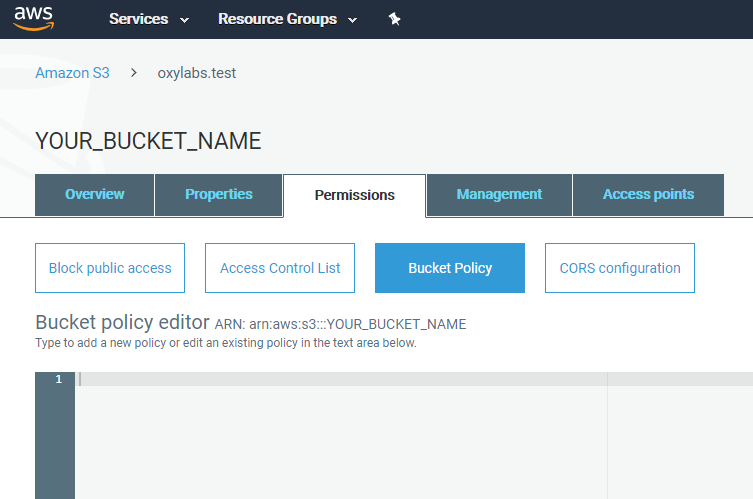
To get your job results uploaded to your Amazon S3 bucket, please set up access permissions for our service. To do that, go to the [**S3 console**](https://s3.console.aws.amazon.com/) → **`Buckets`** → select your bucket (create one if you don't have one) → **`Permissions`** tab → **`Bucket policy`** → **`Edit`**.

<div align="left"><img src="https://3826932121-files.gitbook.io/~/files/v0/b/gitbook-x-prod.appspot.com/o/spaces%2FBQ7Zf9paoN3FTeGcyfY1%2Fuploads%2Fgit-blob-1c27676a6e925e4a8c257cf422e991c8a6a1af2c%2Fs3_bucket_policy.png?alt=media" alt=""></div>

You can find the bucket policy attached below or in the code sample area.

{% file src="/files/8WCdsFHXlJa02mmKEWiU" %}

Don't forget to change the bucket name under `YOUR_BUCKET_NAME`. This policy allows us to write to your bucket, give access to uploaded files to you, and know the location of the bucket.

```json
{
    "Version": "2012-10-17",
    "Id": "Policy1577442634787",
    "Statement": [
        {
            "Sid": "Stmt1577442633719",
            "Effect": "Allow",
            "Principal": {
                "AWS": "arn:aws:iam::324311890426:user/oxylabs.s3.uploader"
            },
            "Action": "s3:GetBucketLocation",
            "Resource": "arn:aws:s3:::YOUR_BUCKET_NAME"
        },
        {
            "Sid": "Stmt1577442633719",
            "Effect": "Allow",
            "Principal": {
                "AWS": "arn:aws:iam::324311890426:user/oxylabs.s3.uploader"
            },
            "Action": [
                "s3:PutObject",
                "s3:PutObjectAcl"
            ],
            "Resource": "arn:aws:s3:::YOUR_BUCKET_NAME/*"
        }
    ]
}
```

</details>

<details>

<summary>Alibaba Cloud Object Storage Service (OSS)</summary>

```json
{
  "query": "B0CX23V2ZK",
  "output": ["json"],
  "storage": {
    "type": "s3_compatible",
    "url": "https://ACCESS_KEY_ID:ACCESS_KEY_SECRET@BUCKET_NAME.oss-REGION.aliyuncs.com/FOLDER_NAME"
  }
}
```

#### Forming the Storage URL <a href="#forming-the-storage-url" id="forming-the-storage-url"></a>

Storage URL format:

```http
https://ACCESS_KEY_ID:ACCESS_KEY_SECRET@BUCKET_NAME.oss-REGION.aliyuncs.com/FOLDER_NAME
```

{% hint style="warning" %}
Uploading to the bucket root is not supported. `storage.url` must include a folder name.
{% endhint %}

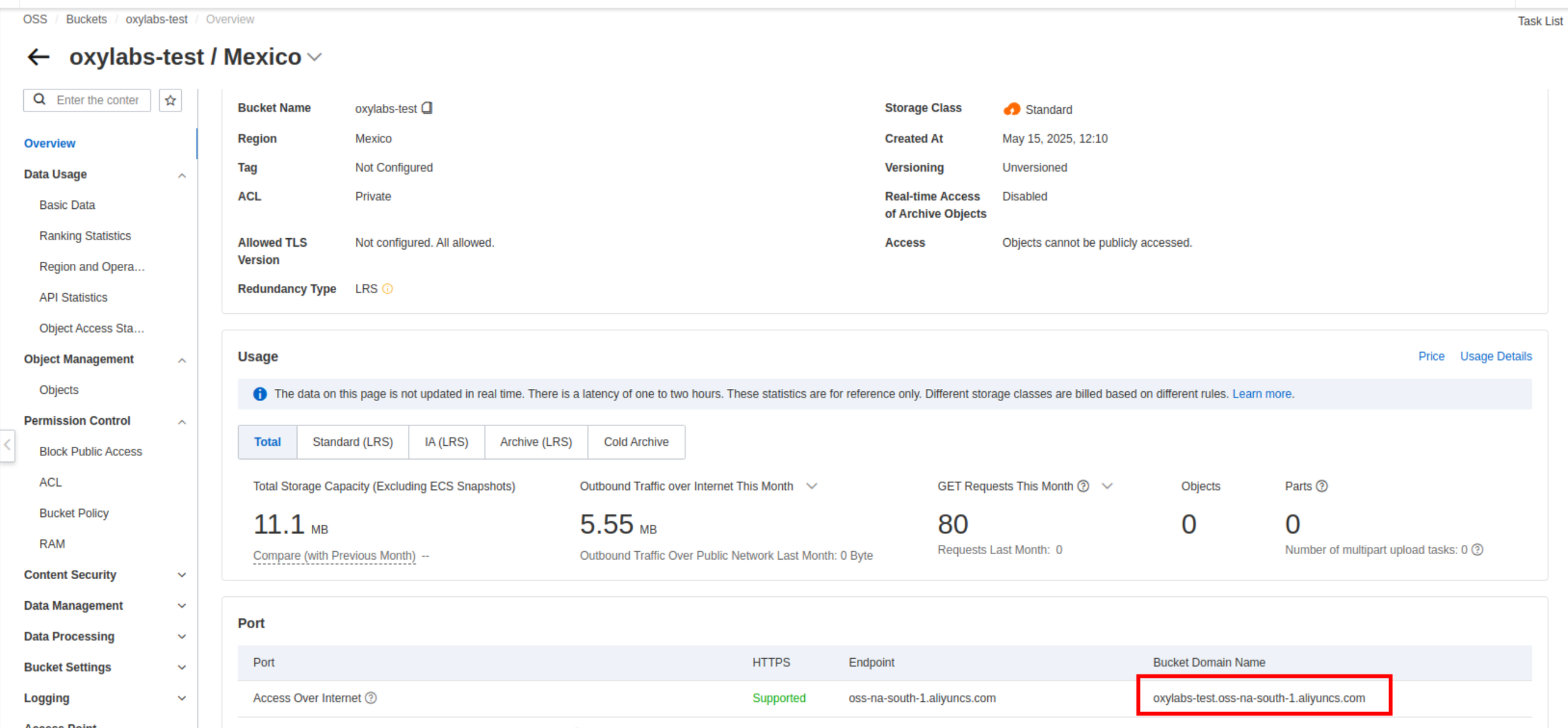
Here’s where you'll find the `BUCKET_NAME` and `oss-REGION` of your bucket:

<figure><img src="https://3826932121-files.gitbook.io/~/files/v0/b/gitbook-x-prod.appspot.com/o/spaces%2FBQ7Zf9paoN3FTeGcyfY1%2Fuploads%2Fgit-blob-3258197766d6326f572b9230603b3f700738db36%2Fimage.png?alt=media" alt=""><figcaption></figcaption></figure>

#### Creating the Access Key and Secret <a href="#creating-the-access-key-and-secret" id="creating-the-access-key-and-secret"></a>

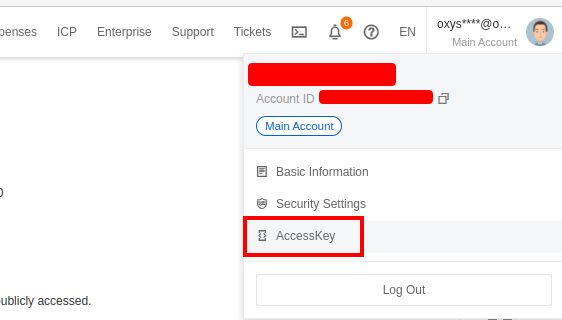
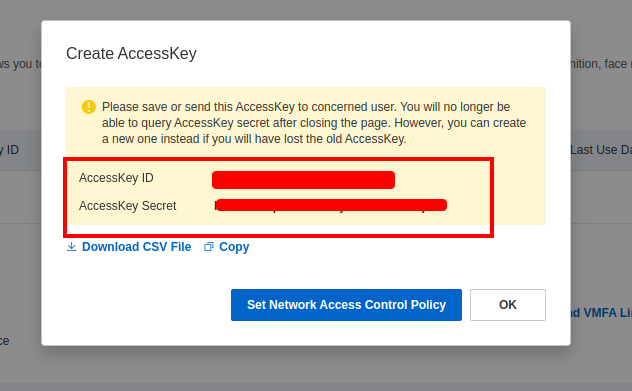
In order to use the S3-compatible interface with Alibaba OSS, you must create the `ACCESS_KEY_ID` and `ACCESS_KEY_SECRET` as shown below. For more information, see [How to use Amazon S3 SDKs to access OSS](https://www.alibabacloud.com/help/en/oss/developer-reference/use-amazon-s3-sdks-to-access-oss?spm=a2c63.p38356.0.i1).

{% stepper %}
{% step %}
Go to the **AccessKey Account Menu**

<div align="left"><figure><img src="https://3826932121-files.gitbook.io/~/files/v0/b/gitbook-x-prod.appspot.com/o/spaces%2FBQ7Zf9paoN3FTeGcyfY1%2Fuploads%2Fgit-blob-7a0c00eac6fd02fed28c7be5a5522985de3625d5%2Fimage.png?alt=media" alt="" width="422"><figcaption></figcaption></figure></div>
{% endstep %}

{% step %}
Log on to the **RAM console**

Access the [RAM console](https://ram.console.aliyun.com/) by using an **Alibaba Cloud account** or a **RAM user** who has administrative rights.
{% endstep %}

{% step %}
Go to **Identities** → **Users** in the left-side navigation pane
{% endstep %}

{% step %}
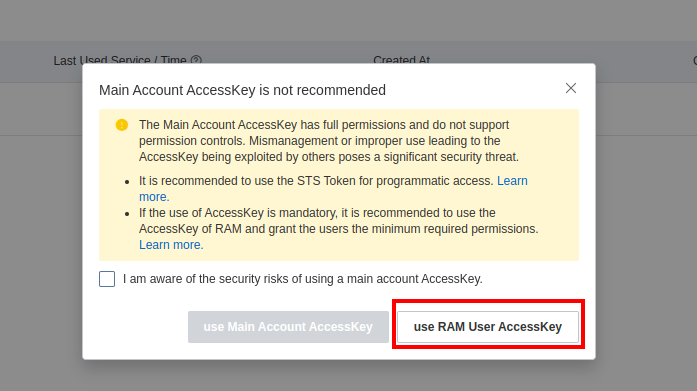
Select **Create User** and use the **RAM User AccessKey:**

<div align="left"><figure><img src="https://3826932121-files.gitbook.io/~/files/v0/b/gitbook-x-prod.appspot.com/o/spaces%2FBQ7Zf9paoN3FTeGcyfY1%2Fuploads%2Fgit-blob-e06b15f92c10028d2f5c368321821a90abf01f3f%2Fimage.png?alt=media" alt=""><figcaption></figcaption></figure></div>

<div align="left"><figure><img src="https://3826932121-files.gitbook.io/~/files/v0/b/gitbook-x-prod.appspot.com/o/spaces%2FBQ7Zf9paoN3FTeGcyfY1%2Fuploads%2Fgit-blob-4103046af7ce401cd189cd53f238fddf41b64ab5%2Fimage.png?alt=media" alt=""><figcaption></figcaption></figure></div>
{% endstep %}

{% step %}
**Grant permissions to the RAM user**

The newly created RAM user has no permissions. You must grant **AliyunOSSFullAccess** permissions to the RAM user. Then, the RAM user can access the required Alibaba Cloud resources. For more information, see [Grant permissions to RAM users](https://www.alibabacloud.com/help/en/ram/user-guide/grant-permissions-to-the-ram-user#task-187800).

<div align="left"><figure><img src="https://3826932121-files.gitbook.io/~/files/v0/b/gitbook-x-prod.appspot.com/o/spaces%2FBQ7Zf9paoN3FTeGcyfY1%2Fuploads%2Fgit-blob-6d76a9af42bd9f8eaabdbee6c4baadd5824a0a09%2Fimage.png?alt=media" alt=""><figcaption></figcaption></figure></div>
{% endstep %}

{% step %}
Get your **AccessKey ID** and **AccessKey Secret**

When permissions are granted, return to the **Authentication** section and, in the **Access Key** section, select **Create AccessKey**. Choose to create an Access Key for a **Third-Party service**. You'll then see an `ACCESS_KEY_ID` and `ACCESS_KEY_SECRET`, which you can then use in your requests.
{% endstep %}
{% endstepper %}

#### Alibaba OSS Rate limits <a href="#alibaba-oss-ratelimits" id="alibaba-oss-ratelimits"></a>

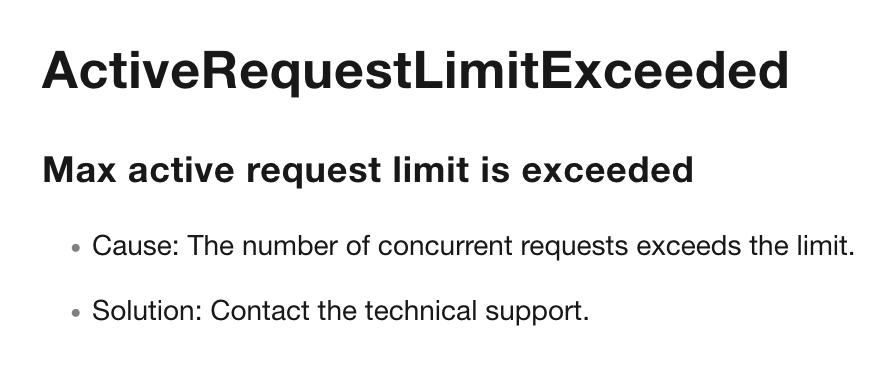
When doing concurrent uploads to Alibaba OSS, it's possible to hit their account/bucket rate limits, and the uploads will start timing out with the following error:

<div align="left"><figure><img src="https://3826932121-files.gitbook.io/~/files/v0/b/gitbook-x-prod.appspot.com/o/spaces%2FBQ7Zf9paoN3FTeGcyfY1%2Fuploads%2Fgit-blob-8c6734c7968642444e43843fb1f200f0ab739c81%2Fimage.png?alt=media" alt="" width="563"><figcaption></figcaption></figure></div>

In this case, please contact Alibaba OSS support to increase your OSS rate limits.

</details>

<details>

<summary>BytePlus Torch Object Storage (TOS)</summary>

For a successful connection, you will need:

* A correctly configured TOS bucket.
* Your access key and secret key.
* An S3-compatible endpoint.

You can find a list of all available S3 endpoints in the official BytePlus [documentation](https://docs.byteplus.com/en/docs/tos/docs-region-and-endpoint).

The following payload uploads the results to your TOS bucket and the result is saved as\
`{request_id}.json` in the path you specify.:

```json
{
  "query": "B0CX23V2ZK",
  "output": ["json"],
  "storage": {
    "type": "tos",
    "url": "https://ACCESS_KEY:SECRET_KEY@ENDPOINT/BUCKET_NAME/PATH"
  }
}
```

#### Storage URL Format

The `storage.url` must be constructed using your TOS credentials and bucket details.

```bash
https://access_key:secret_key@endpoint/bucket_name/path
```

| Component     | Description                                                            |
| ------------- | ---------------------------------------------------------------------- |
| `access_key`  | Your BytePlus access key ID.                                           |
| `secret_key`  | Your BytePlus secret access key.                                       |
| `endpoint`    | The region-specific endpoint (e.g., `tos-cn-hongkong.bytepluses.com`). |
| `bucket_name` | Destination bucket name.                                               |
| `path`        | *(Optional)* Bucket's specific folder path.                            |

{% hint style="warning" %}
If your Access Key or Secret Key contains special characters (such as `/`, `+`, or `=`), they **must be URL-encoded** before constructing the string.
{% endhint %}

</details>

<details>

<summary>Other S3-compatible storage</summary>

If you'd like to get your results delivered to an S3-compatible storage location, you'll have to include your bucket's `ACCESS_KEY:SECRET` auth string in the `storage.url` value in the payload:

```json
{
  "query": "B0CX23V2ZK",
  "output": ["json"],
  "storage": {
    "type": "s3_compatible",
    "url": "https://ACCESS_KEY:SECRET@HOST/BUCKET_PATH"
  }
}
```

1. In your storage provider's console, **create an access key and secret** that can write to the target bucket.
2. Build `storage.url` from your values:
   * `ACCESS_KEY`: your access key.
   * `SECRET`: your secret key.
   * `HOST`: your provider's S3 endpoint host.
   * `BUCKET_PATH`: the bucket name, optionally followed by a folder path.

Example: `https://ACCESS_KEY:SECRET@s3.example.com/my-bucket/results`

</details>

## Batch delivery (Async)

{% hint style="warning" %}
Batch routing is available only for select `/scrape` sources. Confirm your target eligibility with [Endpoint Discovery](https://developers.oxylabs.io/products/web-api/scrape/endpoint-discovery.md) or check the [API Reference](https://developers.oxylabs.io/api-reference).
{% endhint %}

```http
POST /v1/async/scrape/batch/{source}
```

Batch delivery submits up to 5,000 scraping jobs in a single HTTP request. Rather than taking a single `url` or `query` string, the input field accepts an array of strings. All other fields in the payload are applied across every job in the batch.

```bash
curl -X POST https://webapi.oxylabs.io/v1/async/scrape/batch/amazon/product \
  -H "Authorization: Bearer $OXYLABS_WEB_API_KEY" \
  -H "Content-Type: application/json" \
  -d '{
    "query": ["B0CX23V2ZK", "B09B33PQS9", "INVALID_ASIN_XYZ"],
    "domain": "com",
    "output": ["json"]
  }'
```

Batch endpoints return an HTTP `202 Accepted` status with an array of individual job statuses in `data[]` alongside an `errors[]` array listing rejected items (e.g., invalid ASIN formatting or invalid URL syntax). See the example below:

<details>

<summary>Output sample</summary>

```json
{
  "data": [
    {
      "state": "pending",
      "params": {
        "query": "B0CX23V2ZK",
        "output": [
          "json"
        ],
        "json": {
          "schema": null,
          "prompt": null
        },
        "location": null,
        "device": "desktop",
        "run_js": null,
        "storage": {
          "type": null,
          "url": null
        },
        "callback_url": null,
        "client_notes": null,
        "domain": "com",
        "locale": null,
        "autoselect_variant": false,
        "check_empty_geo": null,
        "safe_search": true,
        "currency": null
      },
      "metadata": {
        "timestamp": 1790852882,
        "request_id": "7511381408825235457"
      }
    },
    {
      "state": "pending",
      "params": {
        "query": "B09B33PQS9",
        "output": [
          "json"
        ],
        "json": {
          "schema": null,
          "prompt": null
        },
        "location": null,
        "device": "desktop",
        "run_js": null,
        "storage": {
          "type": null,
          "url": null
        },
        "callback_url": null,
        "client_notes": null,
        "domain": "com",
        "locale": null,
        "autoselect_variant": false,
        "check_empty_geo": null,
        "safe_search": true,
        "currency": null
      },
      "metadata": {
        "timestamp": 1790852882,
        "request_id": "7511381408825229313"
      }
    }
  ],
  "errors": [
    {
      "detail": "ASIN should only contain alphanumeric values.",
      "pointer": "/query/2"
    }
  ]
}
```

</details>


---

# Agent Instructions
This documentation is published with GitBook. GitBook is the documentation platform designed so that both humans and AI agents can read, navigate, and reason over technical content effectively. Learn more at gitbook.com.

## Querying This Documentation
If you need additional information that is not directly available in this page, you can query the documentation by asking a question.

Perform an HTTP GET request on the following URL with the `ask` and `goal` query parameters:

```
GET https://developers.oxylabs.io/products/web-api/scrape/delivery-modes.md?ask=<question>&goal=<user_goal>
```

`ask` is the immediate question: it should be specific, self-contained, and written in natural language.
`goal` is what the user is ultimately trying to achieve, the reason they need the answer. Sharing it helps GitBook give you a better, more relevant answer. A goal is most helpful when it describes the outcome the user wants rather than restating the question. For example, with `ask=how do I create an API token`, a goal like `automate deployments from our CI pipeline` lets GitBook tailor the answer to that use case.

The response will contain a direct answer to the question and relevant excerpts and sources from the documentation.

Use this mechanism when the answer is not explicitly present in the current page, you need clarification or additional context, or you want to retrieve related documentation sections.