> For the complete documentation index, see [llms.txt](https://developers.oxylabs.io/llms.txt). Markdown versions of documentation pages are available by appending `.md` to page URLs; this page is available as [Markdown](https://developers.oxylabs.io/products/cn/web-scraper-api/features/js-rendering-and-browser-control.md).
# JS 渲染和浏览器控制
了解如何使用渲染参数,以及如何在网页爬虫API 中定义浏览器指令,以便抓取复杂的动态页面。
## JavaScript 渲染
如果你要抓取的页面使用 JavaScript 将数据加载到 DOM 中,请添加 `render` 参数到你的请求中。然后在我们返回结果之前,页面会先完全渲染,结果有两种格式:
render 值 你会得到 html完全渲染后页面的原始 HTML png渲染后页面的 Base64 编码截图(PNG)
{% hint style="info" %}
如果你想抓取图片并下载,请参考 [**本节**](/products/cn/web-scraper-api/features/result-processing-and-storage/output-types/download-images.md)**.**
{% endhint %}
### 请求示例
{% tabs %}
{% tab title="cURL" %}
```shell
curl --user "USERNAME:PASSWORD" \
'https://realtime.oxylabs.io/v1/queries' \
-H "Content-Type: application/json" \
-d '{"source": "universal", "url": "https://www.example.com", "render": "html"}'
```
{% endtab %}
{% tab title="Python" %}
```python
import requests
from pprint import pprint
# Structure payload.
payload = {
'source': 'universal',
'url': 'https://www.example.com',
'render': 'html',
}
# Get response.
response = requests.request(
'POST',
'https://realtime.oxylabs.io/v1/queries',
auth=('USERNAME', 'PASSWORD'),
json=payload,
)
# Instead of response with job status and results url, this will return the
# JSON response with the result.
pprint(response.json())
```
{% endtab %}
{% tab title="PHP" %}
```php
'universal',
'url' => 'https://www.example.com',
'render' => 'html',
];
$ch = curl_init();
curl_setopt($ch, CURLOPT_URL, "https://realtime.oxylabs.io/v1/queries");
curl_setopt($ch, CURLOPT_RETURNTRANSFER, 1);
curl_setopt($ch, CURLOPT_POSTFIELDS, json_encode($params));
curl_setopt($ch, CURLOPT_POST, 1);
curl_setopt($ch, CURLOPT_USERPWD, "USERNAME" . ":" . "PASSWORD");
$headers = array();
$headers[] = "Content-Type: application/json";
curl_setopt($ch, CURLOPT_HTTPHEADER, $headers);
$result = curl_exec($ch);
echo $result;
if (curl_errno($ch)) {
echo 'Error:' . curl_error($ch);
}
curl_close($ch);
```
{% endtab %}
{% tab title="C#" %}
```csharp
using System;
using System.Collections.Generic;
using System.Net.Http;
using System.Net.Http.Json;
using System.Threading.Tasks;
namespace OxyApi
{
class Program
{
static async Task Main()
{
const string Username = "YOUR_USERNAME";
const string Password = "YOUR_PASSWORD";
var parameters = new Dictionary()
{
{ "source", "universal" },
{ "url", "https://www.example.com" },
{ "render" : "html" },
};
var client = new HttpClient();
Uri baseUri = new Uri("https://realtime.oxylabs.io");
client.BaseAddress = baseUri;
var requestMessage = new HttpRequestMessage(HttpMethod.Post, "/v1/queries");
requestMessage.Content = JsonContent.Create(parameters);
var authenticationString = $"{Username}:{Password}";
var base64EncodedAuthenticationString = Convert.ToBase64String(System.Text.ASCIIEncoding.UTF8.GetBytes(authenticationString));
requestMessage.Headers.Add("Authorization", "Basic " + base64EncodedAuthenticationString);
var response = await client.SendAsync(requestMessage);
var contents = await response.Content.ReadAsStringAsync();
Console.WriteLine(contents);
}
}
}
```
{% endtab %}
{% tab title="Golang" %}
```go
package main
import (
"bytes"
"encoding/json"
"fmt"
"io/ioutil"
"net/http"
)
func main() {
const Username = "YOUR_USERNAME"
const Password = "YOUR_PASSWORD"
payload := map[string]string{
"source": "universal",
"url": "https://www.example.com",
"render": "html",
}
jsonValue, _ := json.Marshal(payload)
client := &http.Client{}
request, _ := http.NewRequest("POST",
"https://realtime.oxylabs.io/v1/queries",
bytes.NewBuffer(jsonValue),
)
request.SetBasicAuth(Username, Password)
response, _ := client.Do(request)
responseText, _ := ioutil.ReadAll(response.Body)
fmt.Println(string(responseText))
}
```
{% endtab %}
{% tab title="Java" %}
```java
package org.example;
import okhttp3.*;
import org.json.JSONObject;
public class Main implements Runnable {
private static final String AUTHORIZATION_HEADER = "Authorization";
public static final String USERNAME = "YOUR_USERNAME";
public static final String PASSWORD = "YOUR_PASSWORD";
public void run() {
JSONObject jsonObject = new JSONObject();
jsonObject.put("source", "universal");
jsonObject.put("url", "https://www.example.com");
jsonObject.put("render", "html");
Authenticator authenticator = (route, response) -> {
String credential = Credentials.basic(USERNAME, PASSWORD);
return response
.request()
.newBuilder()
.header(AUTHORIZATION_HEADER, credential)
.build();
};
var client = new OkHttpClient.Builder()
.authenticator(authenticator)
.build();
var mediaType = MediaType.parse("application/json; charset=utf-8");
var body = RequestBody.create(jsonObject.toString(), mediaType);
var request = new Request.Builder()
.url("https://realtime.oxylabs.io/v1/queries")
.post(body)
.build();
try (var response = client.newCall(request).execute()) {
assert response.body() != null;
System.out.println(response.body().string());
} catch (Exception exception) {
System.out.println("Error: " + exception.getMessage());
}
System.exit(0);
}
public static void main(String[] args) {
new Thread(new Main()).start();
}
}
```
{% endtab %}
{% tab title="Node.js" %}
```javascript
import fetch from 'node-fetch';
const username = 'YOUR_USERNAME';
const password = 'YOUR_PASSWORD';
const body = {
'source': 'universal',
'url': 'https://www.example.com',
'render': 'html'
};
const response = await fetch('https://realtime.oxylabs.io/v1/queries', {
method: 'post',
body: JSON.stringify(body),
headers: {
'Content-Type': 'application/json',
'Authorization': 'Basic ' + Buffer.from(`${username}:${password}`).toString('base64'),
}
});
console.log(await response.json());
```
{% endtab %}
{% tab title="JSON" %}
```json
{
"source": "universal",
"url": "https://www.example.com",
"render": "html"
}
```
{% endtab %}
{% endtabs %}
{% hint style="warning" %}
JavaScript 渲染抓取页面需要更多时间。如果使用 Realtime 或 Proxy Endpoint 集成方法,请将客户端超时设置为 180 秒。
{% endhint %}
{% hint style="warning" %}
为了确保流量消耗最低,我们的系统在页面渲染期间不会加载不必要的资源。
{% endhint %}
## 强制在特定页面上渲染
为了成功抓取,某些特定域名的页面类型由于其动态内容需要渲染。对于这些页面,我们的系统 **会自动强制渲染** 即使你没有设置 `render` 参数,因此你始终可以从这些原本难以处理的页面获得准确、可靠的数据。
{% hint style="warning" %}
请注意,渲染任务比未渲染任务消耗更多流量。
{% endhint %}
如果你想禁用渲染,可以在请求中添加以下参数:
```
"render": ""
```
完整的受影响目标列表保存在下面的文件中。我们希望用户在抓取以下页面时充分了解这一点:
强制渲染域名
域名 渲染类别 acmemarkets产品页面adorebeauty产品aeroin全部agrizone全部ajog全部albertsonsaisles; 产品页面; 搜索allegro全部amazonamazon_bestsellersanbima全部andronicos产品页面appliancesonline全部aruodas全部asda搜索auto5全部avfoni全部avito全部b-parts产品bakersplus产品; 类别bedbathandbeyond全部bergdorfgoodman全部Bestbuy网站bevmo全部bidfax全部bilbasen全部binglee全部blibli全部bloomingdales全部book-secure全部bookscouter全部boulanger全部canadagoose全部canadiangamingbusiness全部汽车全部carfax全部cargurus全部carrefour全部carrsqc产品页面carsales全部carters全部casasbahia搜索cec全部ceneo全部challenger全部chewy全部choicehotels全部chrono24全部citymarket产品; 类别continentalwigs全部costco产品; 类别(url)crunchbase全部csod全部cuinsight全部darty全部davidyurman全部dillons产品; 类别dergahtesbih全部dextools全部didi-food全部didongviet全部displays2go全部ebay全部ecsc-expat全部edaboard全部elcajonmitsubishi全部elcapitalfinanciero全部electroplanet全部eraspace全部etsy全部exchange4media全部expedia自然请求extendedstayamerica全部facebook市场fedex全部flooranddecor全部fmkorea全部fotocasa全部food4less产品; 类别foodsco产品; 类别fredmeyer产品; 类别frysfood产品; 类别g2全部gemini全部gerbes产品; 类别glassdoor全部gnc产品goflink全部googlegoogle_ai_mode;地图gopuff全部grainger全部greggyoungcdjratlantic全部grofers全部grok全部haldex全部harristeeter产品; 搜索; 类别; rootharrods全部harveynorman全部hasznaltauto全部headtopics全部homecare全部homedepot搜索homehardware全部hyatt全部hydradynellc全部icrimewatch全部ifood配送immobilienscout24全部indeed全部instagram全部interdiscount全部intermarche全部itsynergy全部janesvillevw全部jaycfoods产品; 类别jbhifi全部jewelosco产品页面kaina24全部kayak全部kingsoopers产品; 类别kroger全部laprensagrafica全部latamairlines全部lazada全部leboncoin全部leclercdrive全部lexusofatlanticcity全部lifestyleasia全部loblaws全部loccitane全部lowes产品loyalty360全部luisaviaroma全部macys品牌;精选;产品magazineluiza产品marianos产品; 类别master-outillage全部mavs全部mcmaster全部medscape全部menards全部mercadolibre全部metromarket产品; 类别milatcikolata全部mister-auto全部neimanmarcus全部norauto全部nordstrom全部oocl全部openai (chatgpt)全部ozon全部pay-less全部pedidosya全部perplexity全部petco全部picknsave产品; 类别pointp全部powerbuy全部pricerunner全部printus全部publix全部qfc产品; 类别radwell全部ralphs产品; 类别raptorsupplies全部realadvisorAPI房地产全部redfin本地化reporteindigo全部researchgatePDFreuters全部ripley产品页面runnersneed全部rvtrader全部safewayaisles;产品页面;搜索sahibinden全部saksfifthavenue全部sbermarket全部secure-hotel-booking全部senheng全部sephora全部shaws产品页面shein全部shi全部shoppersdrugmart全部similarweb全部smappliance全部smithsfoodanddrug产品; 类别smythstoys全部sobeys全部sociolla全部speedo全部starmarket产品页面stockx全部stupiddope全部svastara全部takealot全部target全部theaustralian全部theiet全部thenonprofittimes全部thespaces全部tiki全部tiktok全部;搜索;用户tmall全部tomthumb产品页面tractorsupply搜索trendyol全部truckpaper全部truclothing全部truepeoplesearch 全部upwork全部vimeo全部vivadodgeramfiat全部vons全部wabco-customercentre全部walmartgeo_location; 使用视频搜索watchfinder全部weismarkets自然葡萄酒全部winoui全部wipo全部worten产品wyndhamhotels全部yelp全部zalando全部zoro全部
## 浏览器指令
当页面需要交互时,例如点击按钮、输入搜索词或滚动以加载更多项目,你可以定义自己的 `browser_instructions` 它们会在页面渲染时运行。
{% hint style="success" %}
构建浏览器指令最简单的方法是使用 AI 驱动的可视化构建器,位于 [网页爬虫API Playground](https://dashboard.oxylabs.io/?route=/api-playground)。 [这里](/products/cn/web-scraper-api/web-scraper-api-playground/oxycopilot.md#browser-instruction-builder).
{% endhint %}
### 快速开始
首先,浏览器指令需要 `render` 参数,可以是 `html` 或 `png`, `browser_instructions` 字段。列表中的每一项按顺序执行。
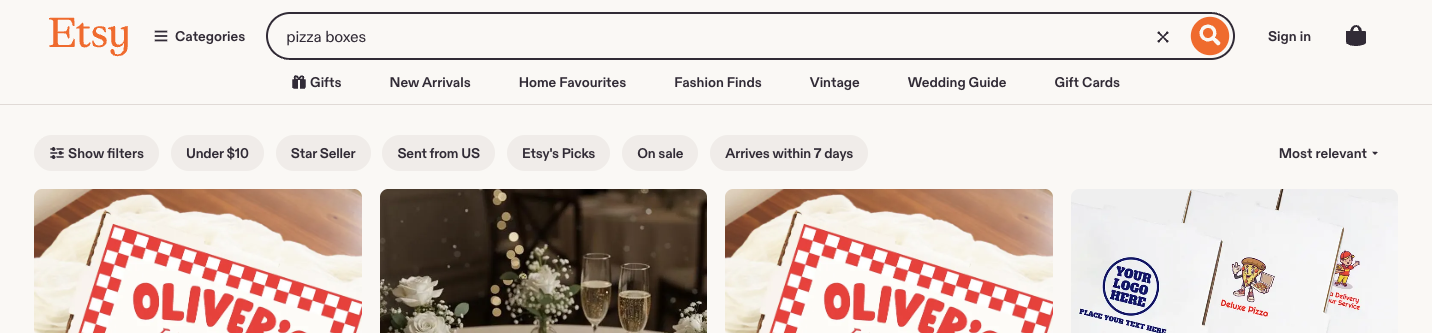
假设你想搜索 `pizza boxes` 在网站上——将该词输入搜索框,点击搜索按钮,并等待 5 秒让结果加载:
```json
{
"source": "universal",
"url": "https://www.etsy.com/",
"render": "html",
"browser_instructions": [
{
"type": "input",
"value": "pizza boxes",
"selector": {
"type": "css",
"value": "#global-enhancements-search-query"
}
},
{
"type": "click",
"selector": {
"type": "css",
"value": "button[data-id='gnav-search-submit-button']"
}
},
{
"type": "wait",
"wait_time_s": 5
}
]
}
```
结果包含指令运行后的 HTML:
```json
{
"results": [
{
"content": " \"pizza boxes\" 的搜索结果 ",
"created_at": "2026-08-19 12:23:06",
"updated_at": "2026-08-19 12:23:24",
"page": 1,
"url": "https://www.etsy.com/search?q=pizza+boxes&ref=search_bar&instant_download=false",
"job_id": "7495817623108602881",
"is_render_forced": false,
"type": "raw",
"status_code": 200
}
]
}
```
抓取到的 HTML 应如下所示:
&goal=
```
`ask` is the immediate question: it should be specific, self-contained, and written in natural language.
`goal` is what the user is ultimately trying to achieve, the reason they need the answer. Sharing it helps GitBook give you a better, more relevant answer. A goal is most helpful when it describes the outcome the user wants rather than restating the question. For example, with `ask=how do I create an API token`, a goal like `automate deployments from our CI pipeline` lets GitBook tailor the answer to that use case.
The response will contain a direct answer to the question and relevant excerpts and sources from the documentation.
Use this mechanism when the answer is not explicitly present in the current page, you need clarification or additional context, or you want to retrieve related documentation sections.