> For the complete documentation index, see [llms.txt](https://developers.oxylabs.io/llms.txt). Markdown versions of documentation pages are available by appending `.md` to page URLs; this page is available as [Markdown](https://developers.oxylabs.io/products/cn/web-scraper-api/features/custom-parser/writing-instructions-manually/tips-for-writing-xpath-expressions.md).
# 编写 XPath 表达式的提示
了解如何为自定义解析器编写有效的 XPath 表达式,采用经过验证的技术和最佳实践以确保准确提取数据。
## 抓取的文档与浏览器加载的文档之间的 HTML 结构可能不同
在编写 HTML 元素选择函数时, **请确保处理的是抓取的文档,而不是浏览器中加载的实时网站版本**,因为这些文档可能不同。造成这个问题的主要原因是 JavaScript 渲染。当网站打开时,浏览器负责加载额外的文档,例如 CSS 样式表和 JavaScript 脚本,这些内容可能会改变初始 HTML 文档的结构。在解析抓取到的 HTML 时,自定义解析器不会像浏览器那样加载 HTML 文档(解析器会忽略 JavaScript 指令),因此解析器和浏览器渲染的 HTML 树可能不同。
例如,请看下面的 HTML 文档:
```html
Document
This is a product
This is the price:
And here is some description
```
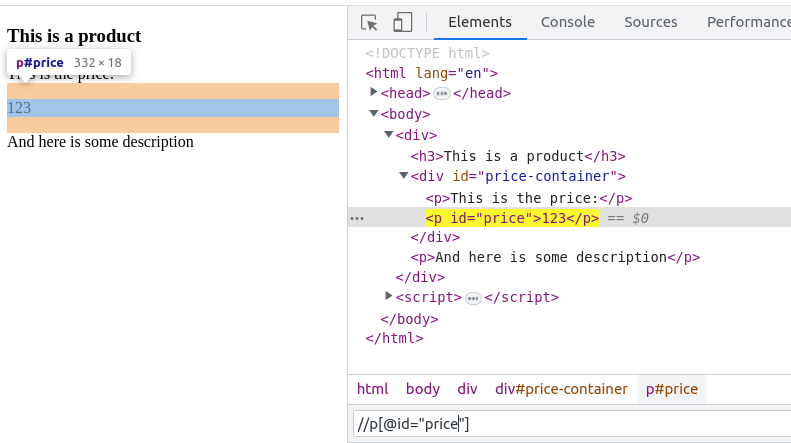
如果通过浏览器打开该文档,它会显示你可以使用以下 XPath 表达式选择的价格 `//p[@id="price"]`:
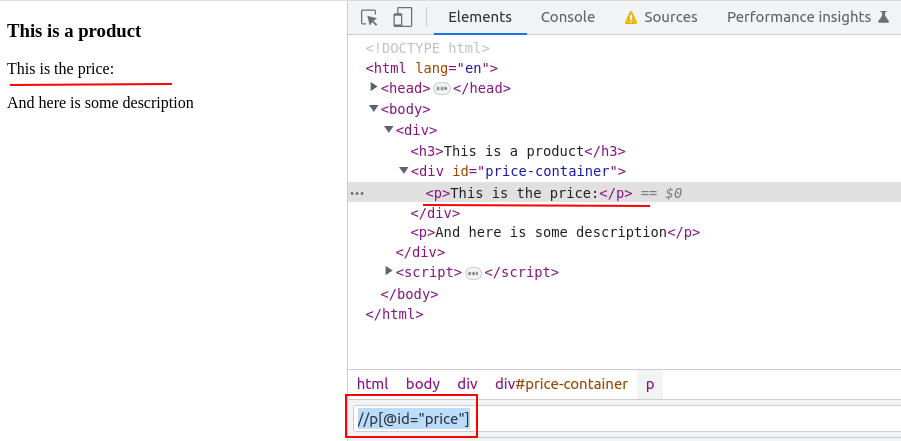
现在如果你在浏览器中禁用 JavaScript 渲染,网站将如下所示:
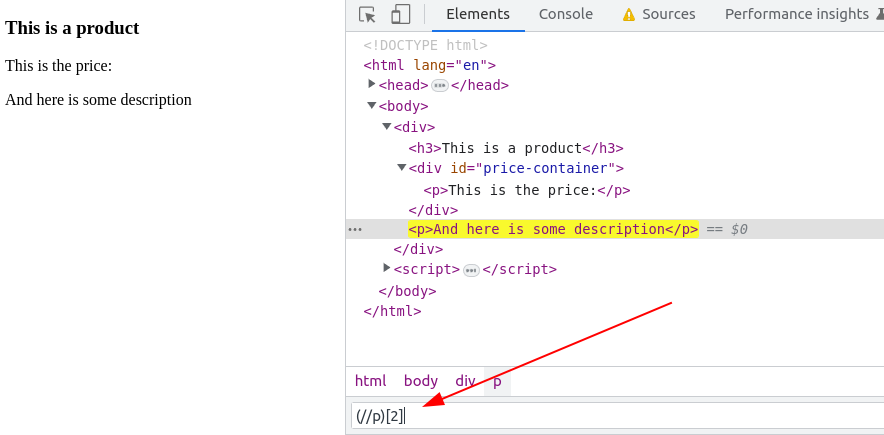
同样, `//p[@id="price"]` 该 XPath 表达式将不再匹配价格,因为它没有被渲染。
## 确保为目标元素编写所有可能的 HTML 选择器
由于各种原因,同一页面抓取两次可能会有不同的布局(抓取时使用了不同的 User Agent、目标网站进行 A/B 测试等)。
为了解决这个问题,我们建议为 `parsing_instructions` 最初抓取的文档定义这些指令,并立即使用同一页面类型的多个其他抓取结果进行测试。
HTML 选择器函数(`xpath`/`xpath_one`)支持 [**选择器回退**](/products/cn/web-scraper-api/features/custom-parser/writing-instructions-manually/list-of-functions/function-examples.md#xpath).
## 建议的 HTML 选择器编写流程
1. 使用网页爬虫API抓取目标页面的 HTML 文档。
2. 禁用 JavaScript,并在浏览器中本地打开抓取到的 HTML。如果 JavaScript 已禁用 **之后** HTML 打开后,请务必重新加载页面,以便 HTML 在没有 JavaScript 的情况下重新加载。
3. [**使用浏览器开发者工具**](https://www.computerhope.com/issues/ch002153.htm).
### 如何编写解析指令
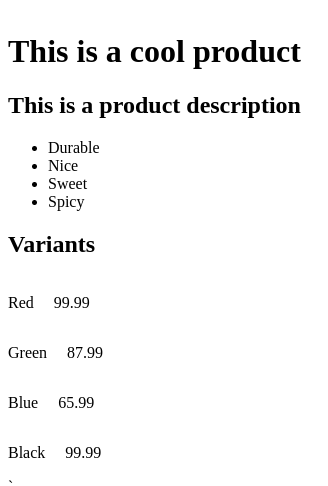
假设你要解析以下页面:
```html
`
This is a cool product
This is a product description
Durable
不错
Sweet
Spicy
Variants
Red
99.99
Green
87.99
Blue
65.99
Black
99.99
```
### 解析产品标题
创建一个新的 JSON 对象,并为其分配一个新字段。
你可以按自己的方式为字段命名,但有一些例外(用户定义字段名不能以下划线开头 `_` ,例如 `"_title"`).
字段名会显示在解析结果中。
新字段必须保存一个 JSON 对象类型的值:
```json
{
"title": {} // defining a title field to be parsed
}
```
如果将这些指令提供给自定义解析器,它要么什么都不做,要么提示你尚未提供任何指令。
要将标题实际解析到 `title` 字段中,你必须在 `title` 对象中使用保留的 `_fns` 属性(它始终是数组类型):
```json
{
"title": {
"_fns": [] // defining data processing pipeline for the title field
}
}
```
要让自定义解析器选择标题文本,你可以使用 HTML 选择器函数 `xpath_one`。要在 HTML 文档上使用该函数,应将其添加到数据处理流水线中。该函数定义为一个 JSON 对象,包含必需的 `_fn` (函数名)和必需的 `_args` (函数参数)字段。请参阅完整的函数定义列表 [**这里**](/products/cn/web-scraper-api/features/custom-parser/writing-instructions-manually/list-of-functions.md).
```json
{
"title": {
"_fns": [
{
"_fn": "xpath_one",
"_args": ["//h1/text()"]
}
]
}
}
```
上述解析指令应生成以下结果:
```json
{
"title": "This is a cool product"
}
```
### 解析描述
类似地,在解析指令中,你可以定义另一个字段,用于解析商品描述容器、描述标题和项目。要让描述的标题和项目嵌套在 `描述` 对象下,指令结构应如下:
```json
{
"title": {...},
"description": { // description container
"title": {}, // description title
"items": {} // description items
}
}
```
给定的解析指令结构意味着 `description.title` 和 `description.items` 将基于 `描述` 元素进行解析。你可以为 `描述` 字段定义一个流水线。在这种情况下,会先执行它,因为这将简化描述标题的 XPath 表达式。
```json
{
"title": {...},
"description": {
"_fns": [
{
"_fn": "xpath_one",
"_args": ["//div[@id='description-container']"]
}
], // Pipeline result will be used when parsing `title` and `items`.
"title": {},
"items": {}
}
}
```
在这个示例中, `description._fns` 流水线将选择 `description-container` HTML 元素,它将作为解析描述标题和项目的参考点。
要解析剩余的描述字段,请为以下字段添加两个不同的流水线 `description.items`、以及 `description.title`:
```json
{
"title": {...},
"description": {
"_fns": [
{
"_fn": "xpath_one",
"_args": [
"//div[@id='description-container']"
]
}
],
"title": {
"_fns": [
{
"_fn": "xpath_one",
"_args": [
"//h2/text()"
]
}
]
},
"items": {
"_fns": [
{
"_fn": "xpath",
"_args": [
"//li/text()"
]
}
]
}
}
}
```
注意 `xpath` 该函数用于替代 `xpath_one` 以提取所有与 XPath 表达式匹配的项目。
解析指令会生成以下结果:
```json
{
"title": {...},
"description": {
"title": "This is description about the product",
"items": [
"Durable",
"Nice",
"Sweet",
"Spicy"
]
}
}
```
### 解析商品变体
如果你想将信息解析到 `product_variants` 字段中,下面的示例展示了指令结构,该字段将包含一个变体对象列表。在这种情况下,变体对象有 `price` 和 `color` 个字段。
```json
{
"title": {...},
"description": {...},
"product_variants": [
{
"price": ...,
"color": ...
},
{
...
},
...
]
}
```
首先选择所有商品变体元素:
```json
{
"title": {...},
"description": {...},
"product_variants": {
"_fns": [
{
"_fn": "xpath",
"_args": ["//div[@class='variant']"]
}
]
}
}
```
要让 `product_variants` 包含 JSON 对象的列表,你需要使用 `_items` 迭代器:
```json
{
"title": {...},
"description": {...},
"product_variants": {
"_fns": [
{
"_fn": "xpath",
"_args": ["//div[@class='variant']"]
}
],
"_items": { // with this, you are instructing to process found elements one by one
// field instructions to be described here
}
}
}
```
最后,定义如何解析 `color` 和 `price` 以下字段的指令:
```json
{
"title": {...},
"description": {...},
"product_variants": {
"_fns": [
{
"_fn": "xpath",
"_args": [
"//div[@class='variant']"
]
}
],
"_items": {
"color": {
"_fns": [
{
"_fn": "xpath_one",
"_args": [
// As we are using relative XPath expressions,
// make sure XPath starts with a dot (.)
".//p[@class='color']/text()"
]
}
]
},
"price": {
"_fns": [
{
"_fn": "xpath_one",
"_args": [
".//p[@class='price']/text()"
]
}
]
}
}
}
}
```
使用 `product_variants` 如上所述,最终指令如下:
```json
{
"title": {
"_fns": [
{
"_fn": "xpath_one",
"_args": [
"//h1/text()"
]
}
]
},
"description": {
"_fns": [
{
"_fn": "xpath_one",
"_args": [
"//div[@id='description-container']"
]
}
],
"title": {
"_fns": [
{
"_fn": "xpath_one",
"_args": [
"//h2/text()"
]
}
]
},
"items": {
"_fns": [
{
"_fn": "xpath",
"_args": [
"//li/text()"
]
}
]
}
},
"product_variants": {
"_fns": [
{
"_fn": "xpath",
"_args": [
"//div[@class='variant']"
]
}
],
"_items": {
"color": {
"_fns": [
{
"_fn": "xpath_one",
"_args": [
".//p[@class='color']/text()"
]
}
]
},
"price": {
"_fns": [
{
"_fn": "xpath_one",
"_args": [
".//p[@class='price']/text()"
]
}
]
}
}
}
}
```
这将生成以下输出:
```json
{
"title": "This is a cool product",
"description": {
"title": "This is a product description",
"items": [
"Durable",
"Nice",
"Sweet",
"Spicy"
]
},
"product_variants": [
{
"color": "Red",
"price": "99.99"
},
{
"color": "Green",
"price": "87.99"
},
{
"color": "Blue",
"price": "65.99"
},
{
"color": "Black",
"price": "99.99"
}
]
}
```
你可以在这里找到更多解析指令示例: [**解析指令示例**](/products/cn/web-scraper-api/features/custom-parser/writing-instructions-manually/parsing-instruction-examples.md).
---
# Agent Instructions
This documentation is published with GitBook. GitBook is the documentation platform designed so that both humans and AI agents can read, navigate, and reason over technical content effectively. Learn more at gitbook.com.
## Querying This Documentation
If you need additional information that is not directly available in this page, you can query the documentation by asking a question.
Perform an HTTP GET request on the following URL with the `ask` and `goal` query parameters:
```
GET https://developers.oxylabs.io/products/cn/web-scraper-api/features/custom-parser/writing-instructions-manually/tips-for-writing-xpath-expressions.md?ask=&goal=
```
`ask` is the immediate question: it should be specific, self-contained, and written in natural language.
`goal` is what the user is ultimately trying to achieve, the reason they need the answer. Sharing it helps GitBook give you a better, more relevant answer. A goal is most helpful when it describes the outcome the user wants rather than restating the question. For example, with `ask=how do I create an API token`, a goal like `automate deployments from our CI pipeline` lets GitBook tailor the answer to that use case.
The response will contain a direct answer to the question and relevant excerpts and sources from the documentation.
Use this mechanism when the answer is not explicitly present in the current page, you need clarification or additional context, or you want to retrieve related documentation sections.