> For the complete documentation index, see [llms.txt](https://developers.oxylabs.io/llms.txt). Markdown versions of documentation pages are available by appending `.md` to page URLs; this page is available as [Markdown](https://developers.oxylabs.io/integrations/proxy-integrations/proxifier.md).

# Proxifier

[Proxifier](https://www.proxifier.com/) is a universal proxy enabler for Windows, macOS, and Android that allows applications that **don't natively support proxies** to connect to the internet through a proxy server.

This guide will demonstrate how to set up the following Oxylabs proxies with Proxifier:

* [**Residential & Mobile Proxies**](#residential-and-mobile-proxies)
* [**Datacenter Proxies**](#datacenter-proxies)
* [**Dedicated Datacenter Proxies (Enterprise)**](#dedicated-datacenter-proxies-enterprise)
* [**Dedicated Datacenter Proxies (Self-service)**](#dedicated-datacenter-proxies-self-service)
* [**ISP Proxies**](#isp-proxies)
* [**Dedicated ISP Proxies**](#dedicated-isp-proxies)

{% stepper %}
{% step %}

### Download Proxifier

[Download](https://www.proxifier.com/) and install Proxifier and make use of the 31-day free trial. On Windows, you can also get a portable version.

{% hint style="info" %}
**NOTE:** Before adding proxies, disable VPNs, in-app proxy settings, or operating system proxy settings you might already have to avoid conflicting or double reroutes.
{% endhint %}
{% endstep %}

{% step %}

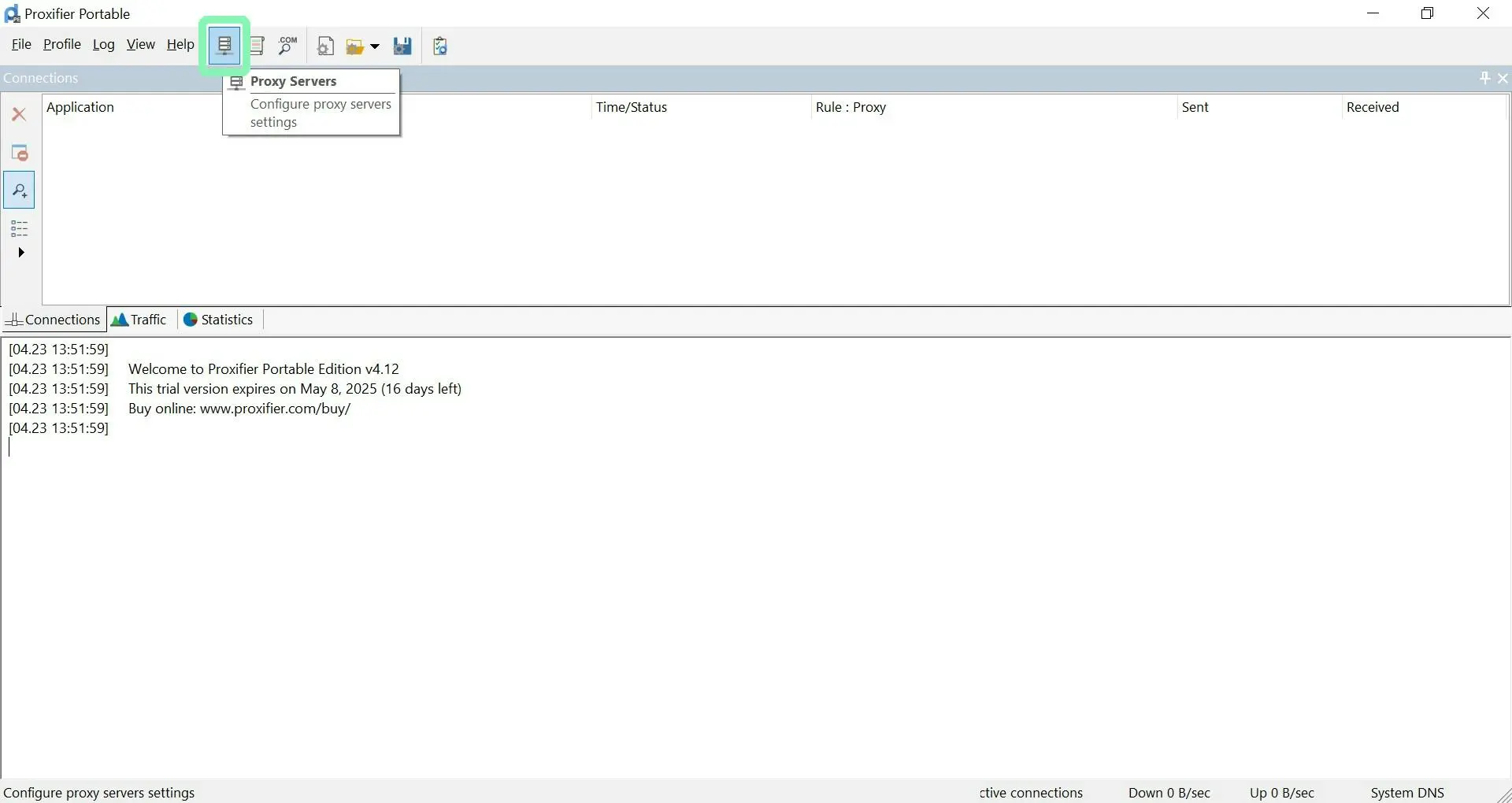
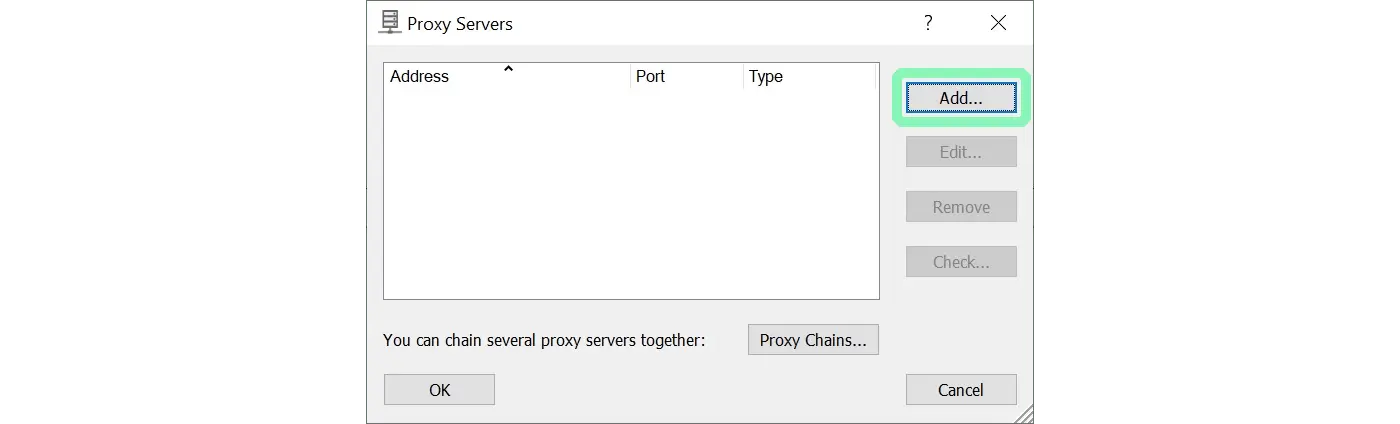
### Add proxy

Go to **Proxy Servers** and **Add** a new proxy.

<figure><img src="/files/ODrzIvliFxF3oxCU27SP" alt=""><figcaption></figcaption></figure>

<figure><img src="/files/69xKc8a8B2tkFormNzBK" alt=""><figcaption></figcaption></figure>
{% endstep %}

{% step %}

### Enter proxy details

Specify the following details for your chosen Oxylabs Proxies and **enable authentication**:

* [**Residential & Mobile Proxies**](#residential-and-mobile-proxies)
* [**Datacenter Proxies**](#datacenter-proxies)
* [**Dedicated Datacenter Proxies (Enterprise)**](#dedicated-datacenter-proxies-enterprise)
* [**Dedicated Datacenter Proxies (Self-service)**](#dedicated-datacenter-proxies-self-service)
* [**ISP Proxies**](#isp-proxies)
* [**Dedicated ISP Proxies**](#dedicated-isp-proxies)

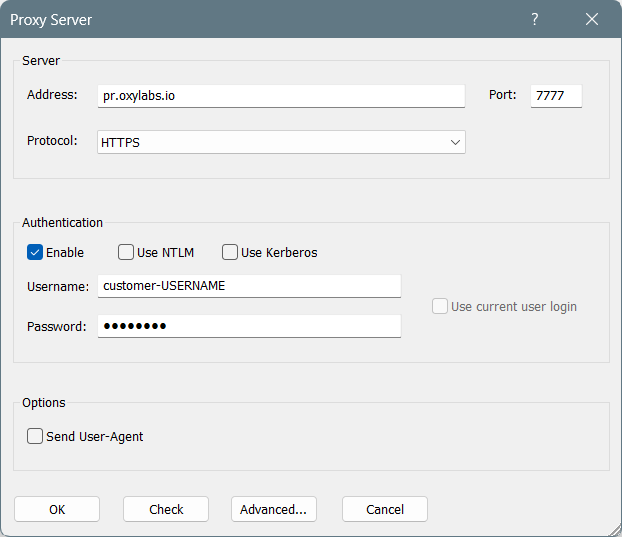
#### Residential & Mobile Proxies

**Protocol:** `HTTPS` or `SOCKS5`

**Address:** `pr.oxylabs.io`

**Port:** `7777`

**Username:** `customer-USERNAME`

**Password:** `PASSWORD`

{% hint style="warning" %}
Make sure to use `customer-` prefix with your username.
{% endhint %}

<figure><img src="/files/rKUk4gPh95t8RneUfycI" alt="" width="467"><figcaption></figcaption></figure>

You may also use **additional parameters** with residential and mobile proxies to set the geo-location (country, state, city, and etc.) and control sessions. Check out the [Residential Proxies documentation](/products/proxies/residential-proxies.md) to learn more. The table below provides an overview of available parameters and their example values.

<table><thead><tr><th width="156">Proxy parameter</th><th width="412">Example</th><th>Protocols</th></tr></thead><tbody><tr><td><a href="/spaces/BQ7Zf9paoN3FTeGcyfY1/pages/UPg2AOzHh8eTwZf0ZfxE#country-specific-entry-nodes">Country entry node</a></td><td><p><strong>Host:</strong> <code>//us-pr.oxylabs.io</code></p><p><strong>Port:</strong> <code>10000</code></p></td><td>HTTPS</td></tr><tr><td><a href="/spaces/BQ7Zf9paoN3FTeGcyfY1/pages/UPg2AOzHh8eTwZf0ZfxE">Country</a></td><td><strong>User:</strong> <code>customer-username-cc-US</code></td><td><p>HTTPS,</p><p>SOCKS5</p></td></tr><tr><td><a href="/spaces/BQ7Zf9paoN3FTeGcyfY1/pages/e93RpcKghZnkSC6ATFPI">State</a></td><td><strong>User:</strong> <code>customer-username-st-US_texas</code></td><td><p>HTTPS,</p><p>SOCKS5</p></td></tr><tr><td><a href="/spaces/BQ7Zf9paoN3FTeGcyfY1/pages/SFkPGxvpqV8rBtKfCMo8">City</a></td><td><strong>User:</strong> <code>customer-username-city-paris</code></td><td><p>HTTPS,</p><p>SOCKS5</p></td></tr><tr><td><a href="/spaces/BQ7Zf9paoN3FTeGcyfY1/pages/GZqlA7kjGCjYeRz47eX0">Continent</a></td><td><strong>User:</strong> <code>customer-username-cn-NA</code></td><td><p>HTTPS,</p><p>SOCKS5</p></td></tr><tr><td><a href="/spaces/BQ7Zf9paoN3FTeGcyfY1/pages/ReB4Ej6De1X1uPh5QrRB">Postal code</a></td><td><strong>User:</strong> <code>customer-username-cc-US-postalcode-90210</code></td><td><p>HTTPS,</p><p>SOCKS5</p></td></tr><tr><td><a href="/spaces/BQ7Zf9paoN3FTeGcyfY1/pages/ATRXHGvVOBqV6HM3m3j4">ASN targeting</a></td><td><strong>User:</strong> <code>customer-username-ASN-21928</code></td><td><p>HTTPS,</p><p>SOCKS5</p></td></tr><tr><td><a href="/spaces/BQ7Zf9paoN3FTeGcyfY1/pages/MARGpYxVNKNfIa0J3Khs">Session</a> (up to 1440 minutes)</td><td><strong>User:</strong> <code>customer-username-sessid-qwerty123-sesstime-1440</code></td><td><p>HTTPS,</p><p>SOCKS5</p></td></tr><tr><td><a href="/spaces/BQ7Zf9paoN3FTeGcyfY1/pages/R0QUr8pQBszqd43iT44n">Sticky session</a></td><td><p><strong>Host:</strong> <code>//us-pr.oxylabs.io</code></p><p><strong>Port:</strong> <code>10001</code></p></td><td>HTTPS</td></tr></tbody></table>

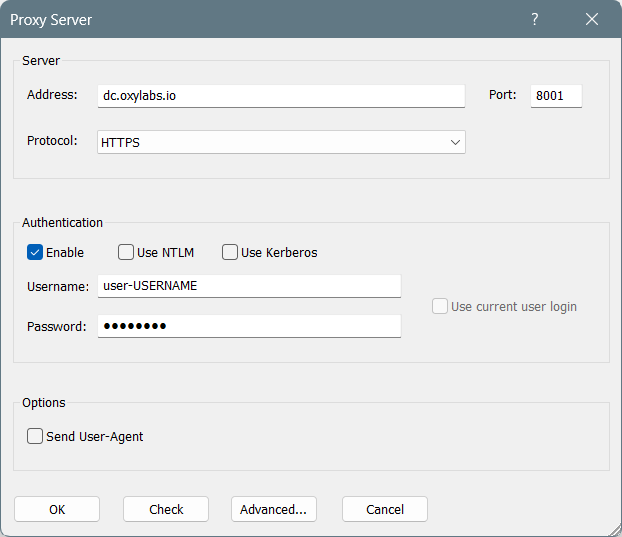
#### Datacenter Proxies

**Protocol:** `HTTPS` or `SOCKS5`

**Address:** `dc.oxylabs.io`

**Port:** `8001`

**Username:** `user-USERNAME`

**Password:** `PASSWORD`

{% hint style="warning" %}
Make sure to use `user-` prefix with your username.
{% endhint %}

<figure><img src="/files/p7keOptCq98krSLVP6Pa" alt="" width="467"><figcaption></figcaption></figure>

{% tabs %}
{% tab title="Pay-per-IP subscription" %}
The port is the sequential number assigned to an IP address from the [proxy list](/products/proxies/datacenter-proxies/proxy-list.md). Thus, port `8001` uses the first IP address from your list. You may also enable [proxy IP rotation](/products/proxies/datacenter-proxies/ip-control.md) by setting the port to `8000`.

Furthermore, you can specify the [geo-location](/products/proxies/datacenter-proxies/select-country.md), for example, the US, by setting the **Proxy username** to `user-USERNAME-country-US`.
{% endtab %}

{% tab title="Pay-per-traffic subscription" %}
The port `8001` picks a random IP address but stays consistent during a session. Alternatively, you can [rotate proxy IPs](/products/proxies/datacenter-proxies/ip-control.md) with each request by using port `8000`.

If you want to use a specific [geo-location](/products/proxies/datacenter-proxies/select-country.md), for example, the US, set the Proxy username to `user-USERNAME-country-US`.
{% endtab %}
{% endtabs %}

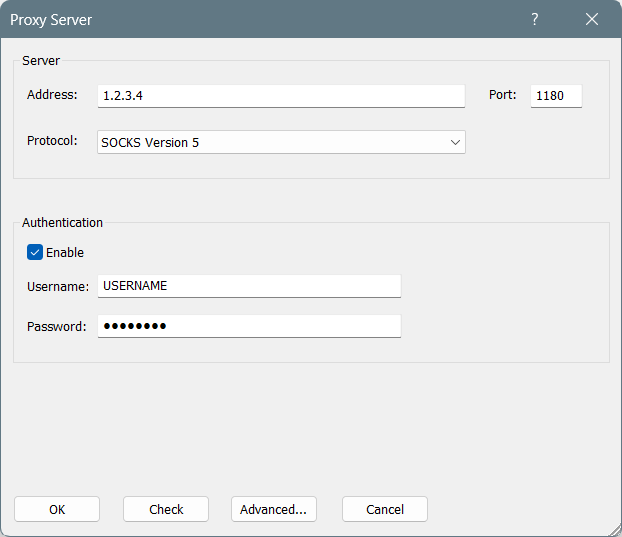
#### Dedicated Datacenter Proxies (Enterprise)

**Protocol:** `SOCKS5`

**Address:** `1.2.3.4` (IP address from your [proxy list](/products/proxies/dedicated-datacenter-proxies/enterprise/proxy-lists.md))

**Port:** `1180`

**Username:** `USERNAME`

**Password:** `PASSWORD`

<figure><img src="/files/6LfLPi5ZDVv5jP3pw5Ng" alt="" width="467"><figcaption></figcaption></figure>

For Enterprise Dedicated Datacenter Proxies (purchased through sales team), you’ll have to choose an IP address from the acquired [proxy list](/products/proxies/dedicated-datacenter-proxies/enterprise/proxy-lists.md).

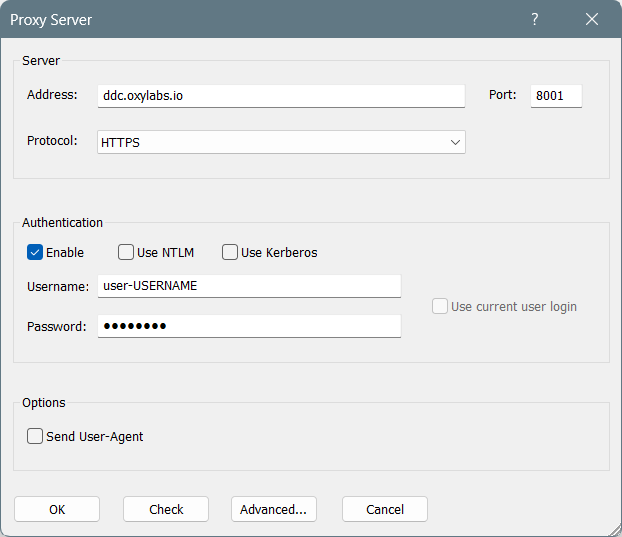
#### Dedicated Datacenter Proxies (Self-service)

**Protocol:** `HTTPS` or `SOCKS5`

**Address:** `ddc.oxylabs.io`

**Port:** `8001`

**Username:** `user-USERNAME`

**Password:** `PASSWORD`

{% hint style="warning" %}
Make sure to use `user-` prefix with your username.
{% endhint %}

<figure><img src="/files/zYnd7hMTrm8PoXpraX9w" alt="" width="467"><figcaption></figcaption></figure>

For Self-Service Dedicated Datacenter Proxies (purchased through Oxylabs dashboard), the port indicates the sequential number of an IP address from the acquired [proxy list](/products/proxies/datacenter-proxies/proxy-list.md). If you want to get a different IP with each request, change the **Port** to `8000` to enable [proxy rotation](/products/proxies/dedicated-datacenter-proxies/self-service/proxy-rotation.md).

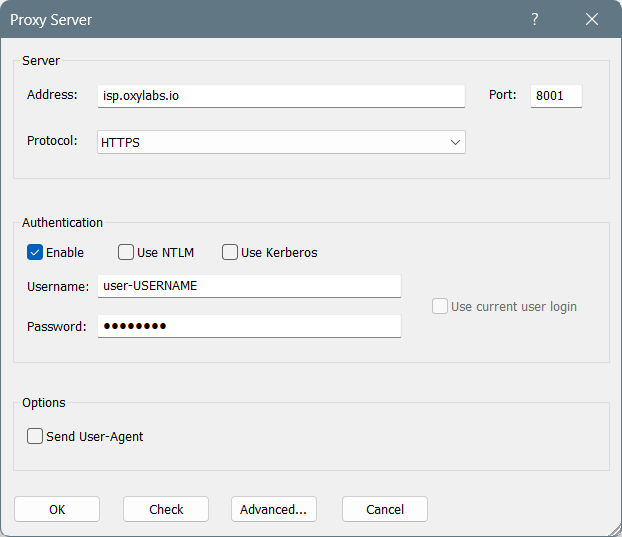
#### ISP Proxies

**Protocol:** `HTTPS` or `SOCKS5`

**Address:** `isp.oxylabs.io`

**Port:** `8001`

**Username:** `user-USERNAME`

**Password:** `PASSWORD`

{% hint style="warning" %}
Make sure to use `user-` prefix with your username.
{% endhint %}

<figure><img src="/files/HVsj4d8GrL9dsMJfuCjR" alt="" width="467"><figcaption></figcaption></figure>

ISP Proxies assign each port to a specific IP address and location. Port `8001` always uses the first IP from your [proxy list](/products/proxies/isp-proxies/proxy-list.md). Use port `8000` to enable [proxy rotation](/products/proxies/isp-proxies/proxy-rotation.md).

To get rotating IPs from a specific country's proxy pool, set the username using this format: `user-USERNAME-country-XX`, where `XX` is the country code (e.g., `US` for United States).

#### Dedicated ISP Proxies

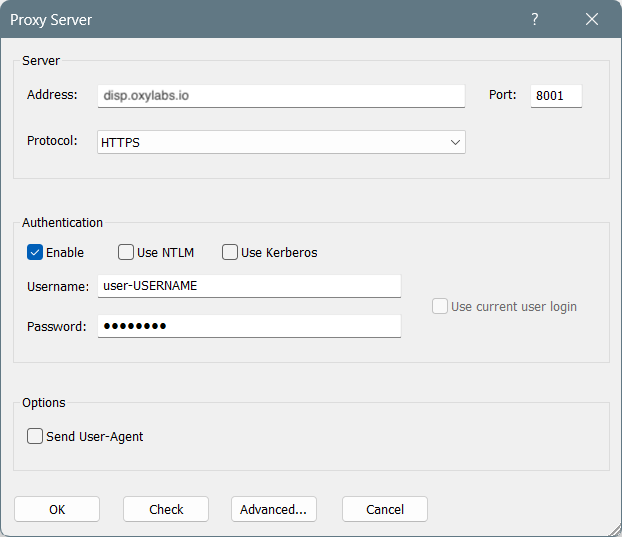
**Protocol:** `HTTPS` or `SOCKS5`

**Address:** `disp.oxylabs.io`

**Port:** `8001`

**Username:** `user-USERNAME`

**Password:** `PASSWORD`

{% hint style="warning" %}
Make sure to use `user-` prefix with your username.
{% endhint %}

<figure><img src="/files/1wdSkOdnewbgCRZE0c4O" alt="" width="467"><figcaption></figcaption></figure>

You will need to choose the port assigned to an IP address from the purchased [proxy list](/products/proxies/dedicated-isp-proxies/self-service/proxy-list.md), which you can find on the Oxylabs dashboard. The `8001` port will pick the first IP address from your list for all requests. Use port `8000` for automatic [proxy IP rotation](/products/proxies/dedicated-isp-proxies/self-service/proxy-rotation.md).
{% endstep %}

{% step %}

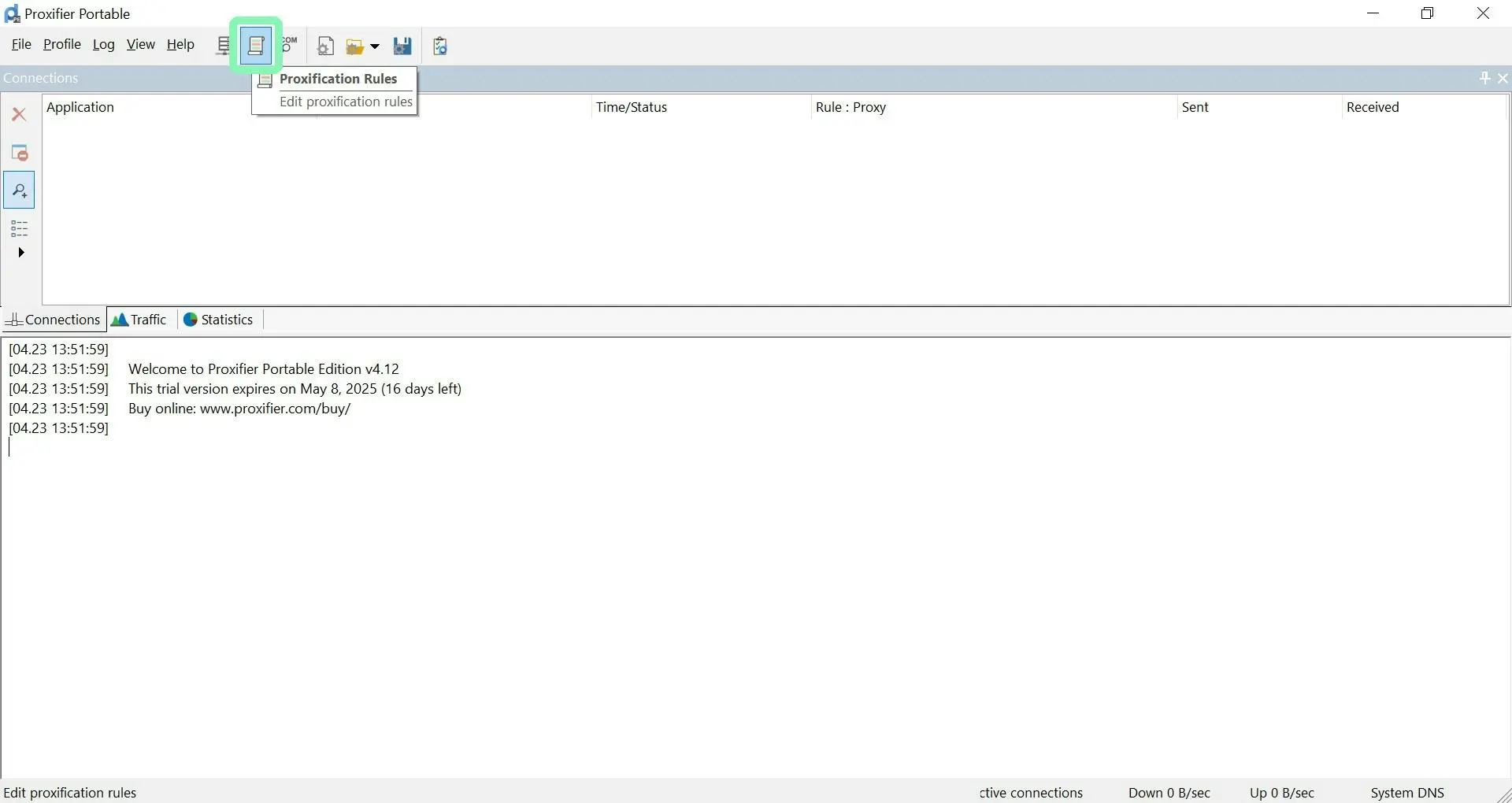
### Enable proxies for a specific application

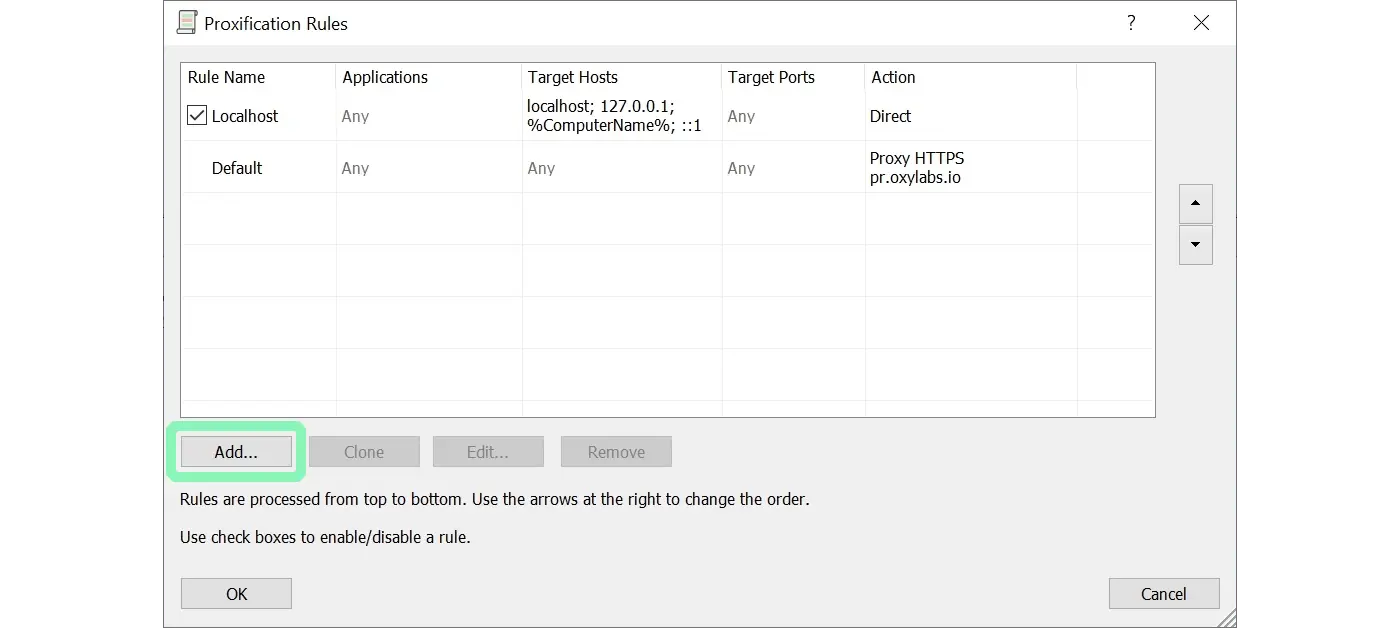
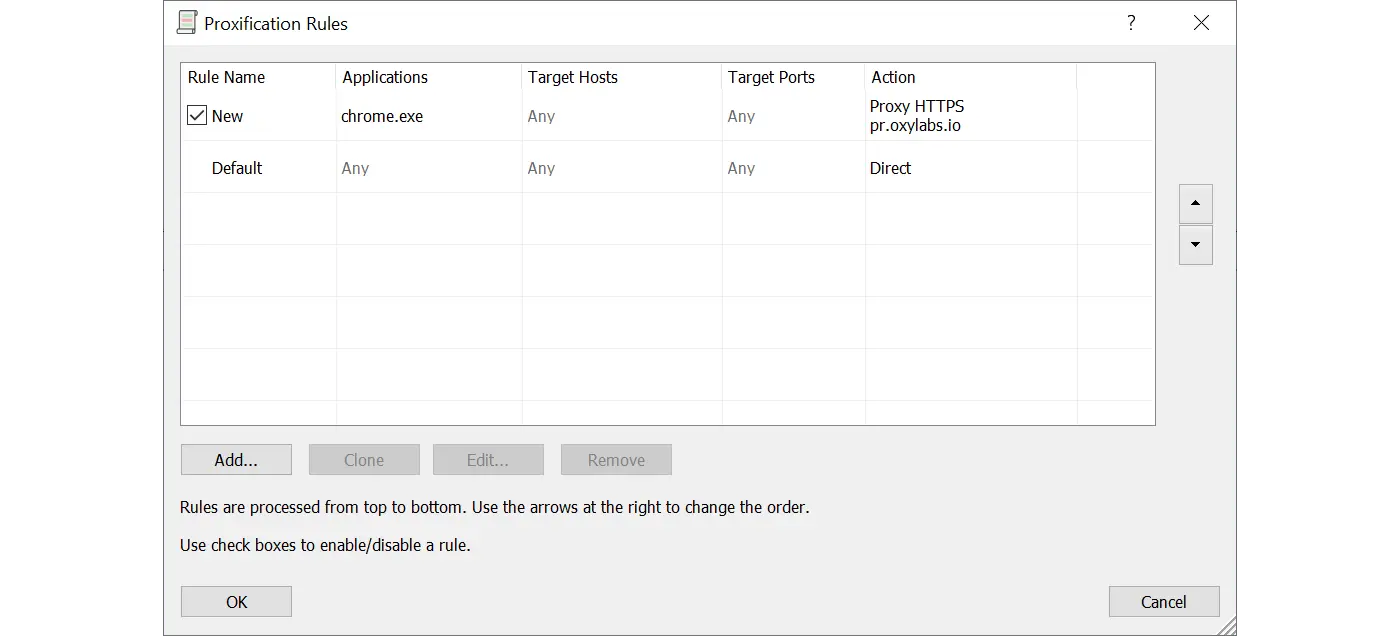
Go to **Proxification Rules** and **Add** a new rule.

<figure><img src="/files/xSotWDuM1NLkTnOIWJgu" alt=""><figcaption></figcaption></figure>

<figure><img src="/files/Bo2qGVv7sD0epuwuinZb" alt=""><figcaption></figcaption></figure>

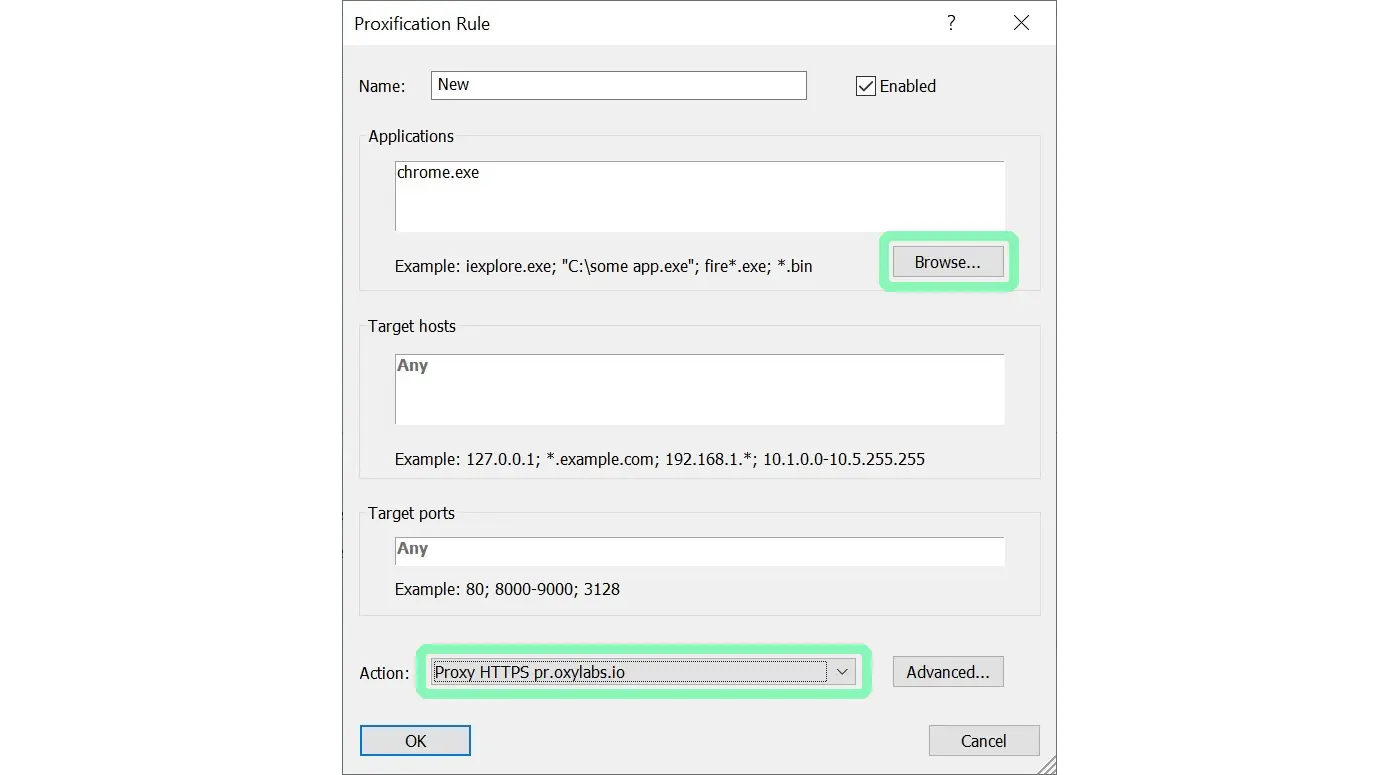
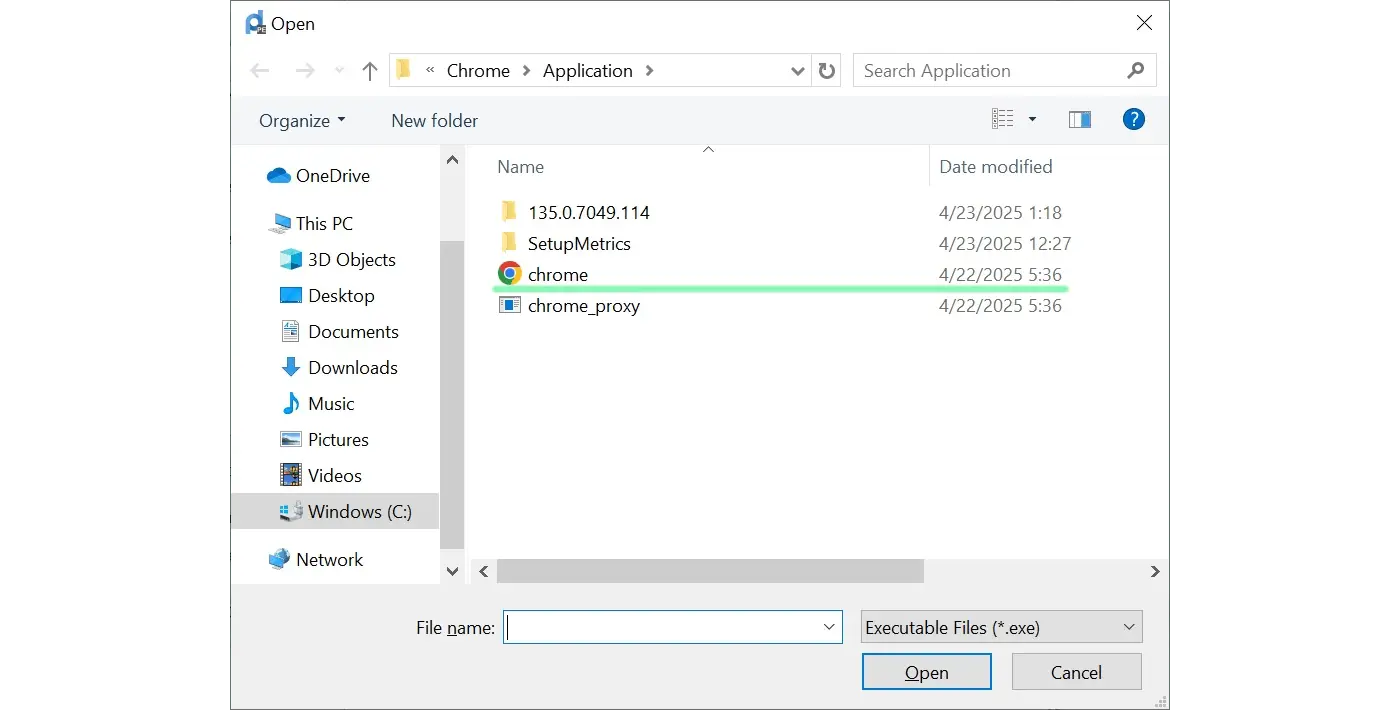
**Browse** for an application (locate an `.exe` file) and select your newly added proxy as an **Action**.

<figure><img src="/files/FS1XvLL86OGRpsod3lw5" alt=""><figcaption></figcaption></figure>

<figure><img src="/files/AuZAztGIyvpRo1JA74JW" alt=""><figcaption></figcaption></figure>

You can rearrange the proxification rule priority from top to bottom.

{% hint style="info" %}
**NOTE:** The **Default** rule applies to all connections if you don’t have a custom rule on top of it.
{% endhint %}

<figure><img src="/files/MxCoBPYVTCZHXxeS5hSD" alt=""><figcaption></figcaption></figure>
{% endstep %}
{% endstepper %}


---

# Agent Instructions
This documentation is published with GitBook. GitBook is the documentation platform designed so that both humans and AI agents can read, navigate, and reason over technical content effectively. Learn more at gitbook.com.

## Querying This Documentation
If you need additional information that is not directly available in this page, you can query the documentation dynamically by asking a question.

Perform an HTTP GET request on the current page URL with the `ask` query parameter, and the optional `goal` query parameter:

```
GET https://developers.oxylabs.io/integrations/proxy-integrations/proxifier.md?ask=<question>&goal=<endgoal>
```

`ask` is the immediate question: it should be specific, self-contained, and written in natural language.
`goal` is optional and describes the broader end goal you are ultimately trying to accomplish on behalf of the user. GitBook uses it to tailor the answer towards what is most useful for that goal.

The response will contain a direct answer to the question and relevant excerpts and sources from the documentation.

Use this mechanism when the answer is not explicitly present in the current page, you need clarification or additional context, or you want to retrieve related documentation sections.