> For the complete documentation index, see [llms.txt](https://developers.oxylabs.io/llms.txt). Markdown versions of documentation pages are available by appending `.md` to page URLs; this page is available as [Markdown](https://developers.oxylabs.io/integrations/proxy-integrations/incogniton.md).
# Incogniton
Integrate Incogniton with Oxylabs Proxies for multi-profile management. Maintain privacy across multiple online identities with this setup guide.
[**Incogniton**](https://incogniton.com/) is a tool that enables multiple profile management solutions. It helps oversee numerous online identities while keeping uncompromised privacy.
Follow the steps below to integrate Incogniton with the following Oxylabs proxies:
* [**Residential & Mobile Proxies**](#residential-and-mobile-proxies)
* [**Datacenter Proxies**](#datacenter-proxies)
* [**Dedicated Datacenter Proxies (Enterprise)**](#dedicated-datacenter-proxies-enterprise)
* [**Dedicated Datacenter Proxies (Self-service)**](#dedicated-datacenter-proxies-self-service)
* [**ISP Proxies**](#isp-proxies)
* [**Dedicated ISP Proxies**](#dedicated-isp-proxies)
### **Step 1**
[**Download**](https://incogniton.com/download-incogniton/) and install the Incogniton app.
### **Step 2**
Register your account and sign in.
### **Step 3**
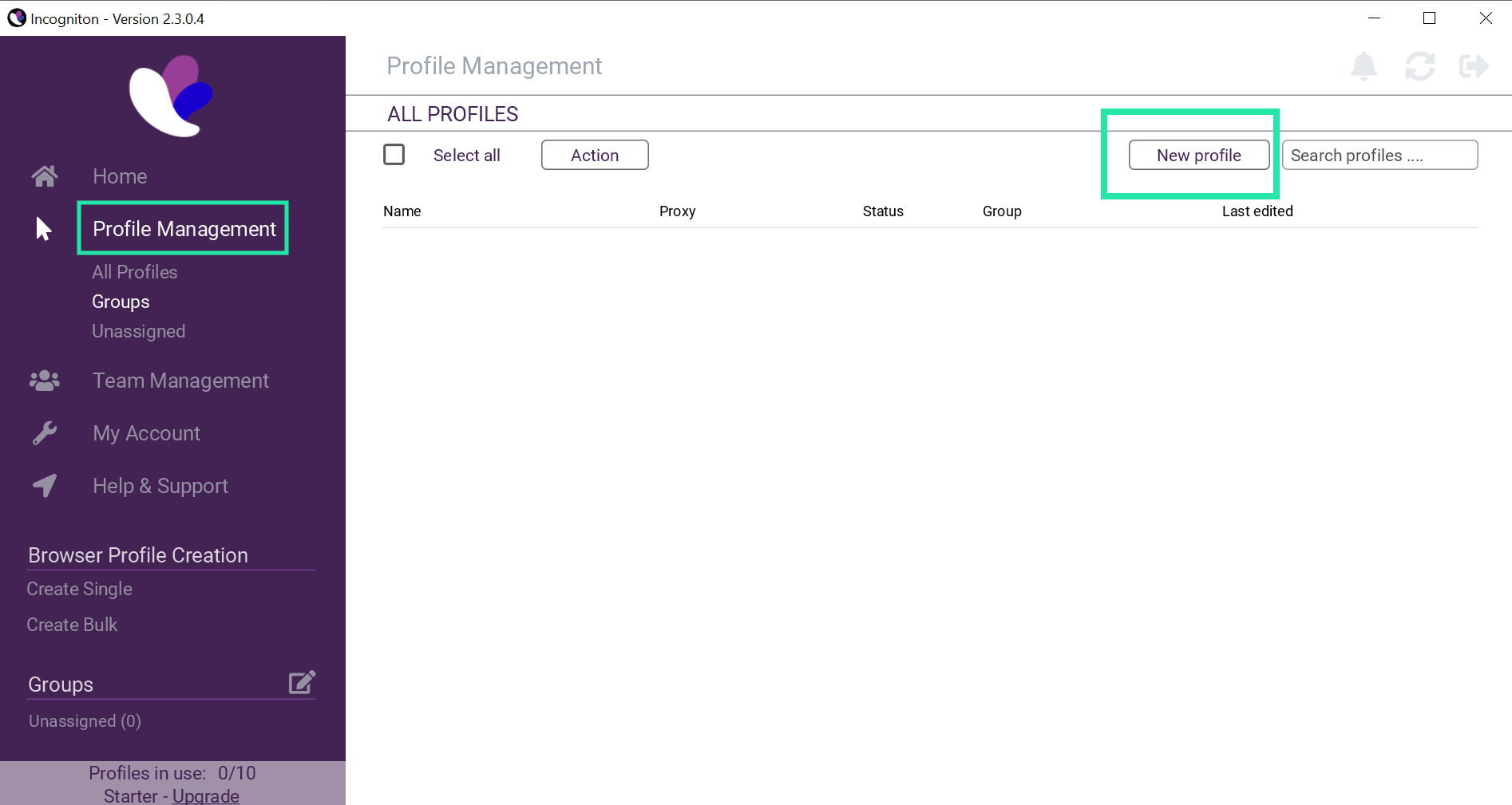
Once logged in, navigate to **Profile Management** and click on **New profile**.
### **Step 4**
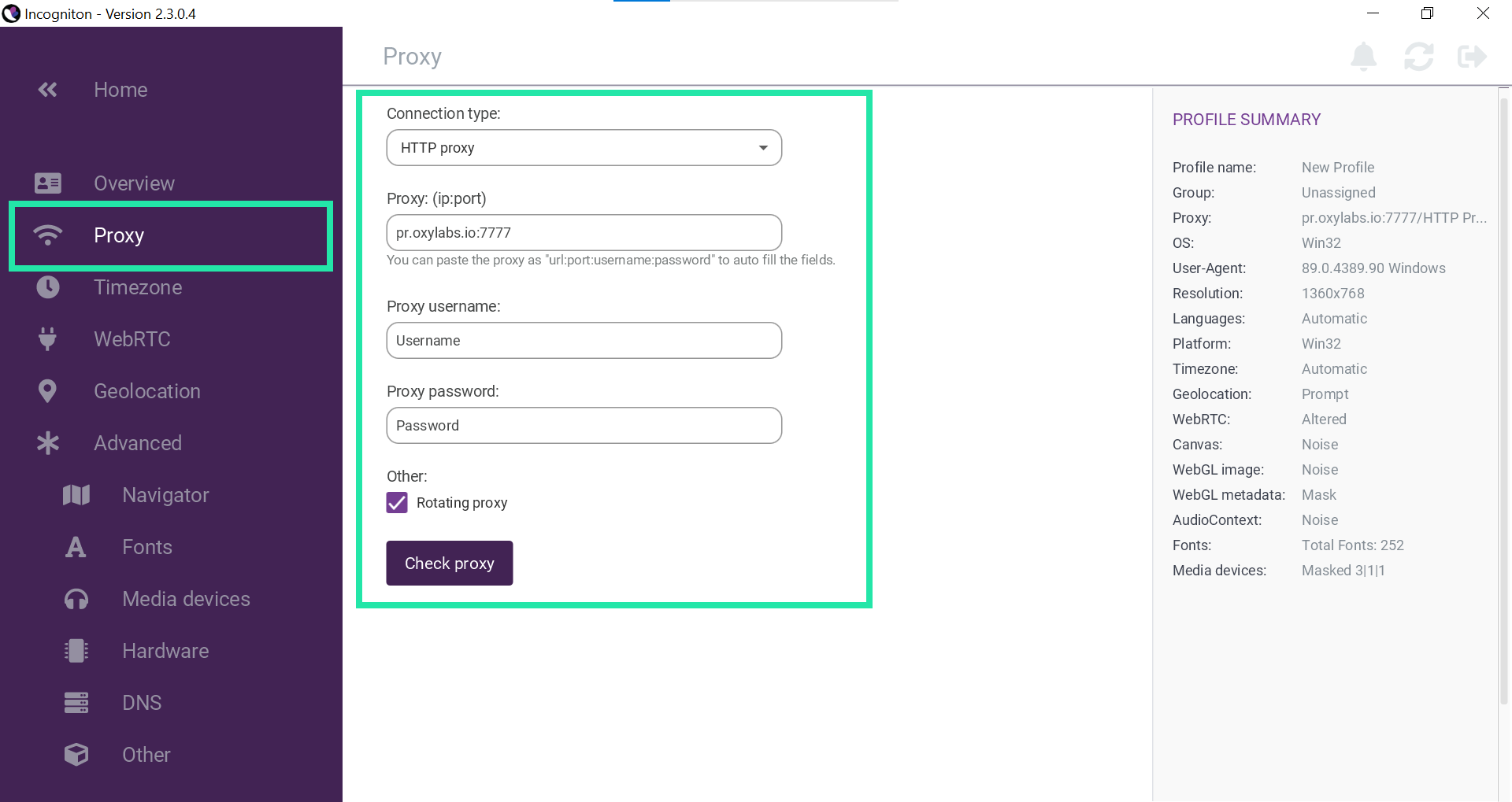
Click on **Proxy** in the menu on the left side and fill in the required details according to your chosen proxy type:
* [Residential & Mobile Proxies](#residential-and-mobile-proxies)
* [Datacenter Proxies](#datacenter-proxies)
* [Dedicated Datacenter Proxies (Enterprise)](#dedicated-datacenter-proxies-enterprise)
* [Dedicated Datacenter Proxies (Self-service)](#dedicated-datacenter-proxies-self-service)
* [ISP Proxies](#isp-proxies)
* [Dedicated ISP Proxies](#dedicated-isp-proxies)
#### Residential & Mobile Proxies
**Connection type:** `HTTP`, `HTTPS`, `SOCKS5`
**Proxy: (ip:port)**: `pr.oxylabs.io`
**Proxy port:** `7777`
**Proxy username:** `Username`
**Proxy password:** `password`
You can also use country-specific entries. For example, entering `us-pr.oxylabs.io` under **Proxy IP** and `10000` under **Proxy port** will acquire a US exit node. Please refer to our [documentation](https://developers.oxylabs.io/products/proxies/residential-proxies/location-settings/select-country) for a complete list of country-specific entry nodes or if you need a [sticky session](https://developers.oxylabs.io/products/proxies/residential-proxies/session-control/sticky-proxy-entry-nodes).
#### Datacenter Proxies
**Connection type:** `HTTP`, `HTTPS`, `SOCKS5`
**Proxy: (ip:port)**: `dc.oxylabs.io`
**Proxy port:** `8001`
**Proxy username:** `user-username`
**Proxy password:** `password`
{% hint style="warning" %}
Don't forget to add the `user-` part to your username.
{% endhint %}
For the **Pay-per-IP** subscription, the port corresponds to the sequential number assigned to an IP address from the provided list. Hence, port `8001` uses the first IP address on your list. See our [documentation](https://developers.oxylabs.io/products/proxies/datacenter-proxies/proxy-list) for further details.
For the **Pay-per-traffic** subscription, port `8001` randomly selects an IP address but remains consistent throughout a session. You can also specify geo-location, such as the US, in the user authentication string: `user-USERNAME-country-US:PASSWORD`. For more details, see our [documentation](https://developers.oxylabs.io/products/proxies/datacenter-proxies/ip-control).
#### Dedicated Datacenter Proxies (Enterprise)
**Connection type:** `HTTP` or `SOCKS5`
**Proxy: (ip:port)**: a specific IP address (e.g., `1.2.3.4`)
**Proxy port:** `60000` (HTTP), `1180` (SOCKS5)
**Proxy username:** `username`
**Proxy password:** `password`
For Enterprise Dedicated Datacenter Proxies, choose an IP address from the acquired list. Visit our [documentation](https://developers.oxylabs.io/products/proxies/dedicated-datacenter-proxies/enterprise/proxy-lists) for more details.
#### Dedicated Datacenter Proxies (Self-service)
**Connection type:** `HTTP`, `HTTPS`, `SOCKS5`
**Proxy: (ip:port)**: `ddc.oxylabs.io`
**Proxy port:** `8001`
**Proxy username:** `user-username`
**Proxy password:** `password`
{% hint style="warning" %}
Don't forget to add the `user-` part to your username.
{% endhint %}
For Self-Service Dedicated Datacenter Proxies, the port indicates the sequential number of an IP address from the acquired list. Check our [documentation](https://developers.oxylabs.io/products/proxies/dedicated-datacenter-proxies/self-service/proxy-list) for more details.
#### ISP Proxies
**Connection type:** `HTTP`or `SOCKS5`
**Proxy: (ip:port)**: `isp.oxylabs.io`
**Proxy username:** `user-username`
**Proxy password:** `password`
{% hint style="warning" %}
Don't forget to add the `user-` part to your username.
{% endhint %}
You will need to choose the port assigned to an IP address from the purchased [**proxy list**](https://developers.oxylabs.io/proxies/isp-proxies/proxy-list)**,** which you can find on Oxylabs' dashboard. The `8001` port will pick the first IP address from your list for all requests.
#### Dedicated ISP Proxies
**Connection type:** `HTTP` or `SOCKS5`
**Proxy: (ip:port)**: `disp.oxylabs.io:8001`
**Proxy username:** `user-USERNAME`
**Proxy password:** `PASSWORD`
{% hint style="warning" %}
Don't forget to add the `user-` part to your username.
{% endhint %}
The port number indicates which IP address from your acquired [proxy list](/products/proxies/dedicated-isp-proxies/self-service/proxy-list.md) will be used. Use port `8000` for automatic [proxy IP rotation](/products/proxies/dedicated-isp-proxies/self-service/proxy-rotation.md).
### **Step 5**
Click **Check proxy** to ensure functionality. You should receive an external IP with additional details, such as an exact geographic location, timezone, etc.
### **Step 6**
Lastly, fill in the remaining details (Overview, Timezone, etc.) according to your preferences and click **Create profile**.
### **Step 7**
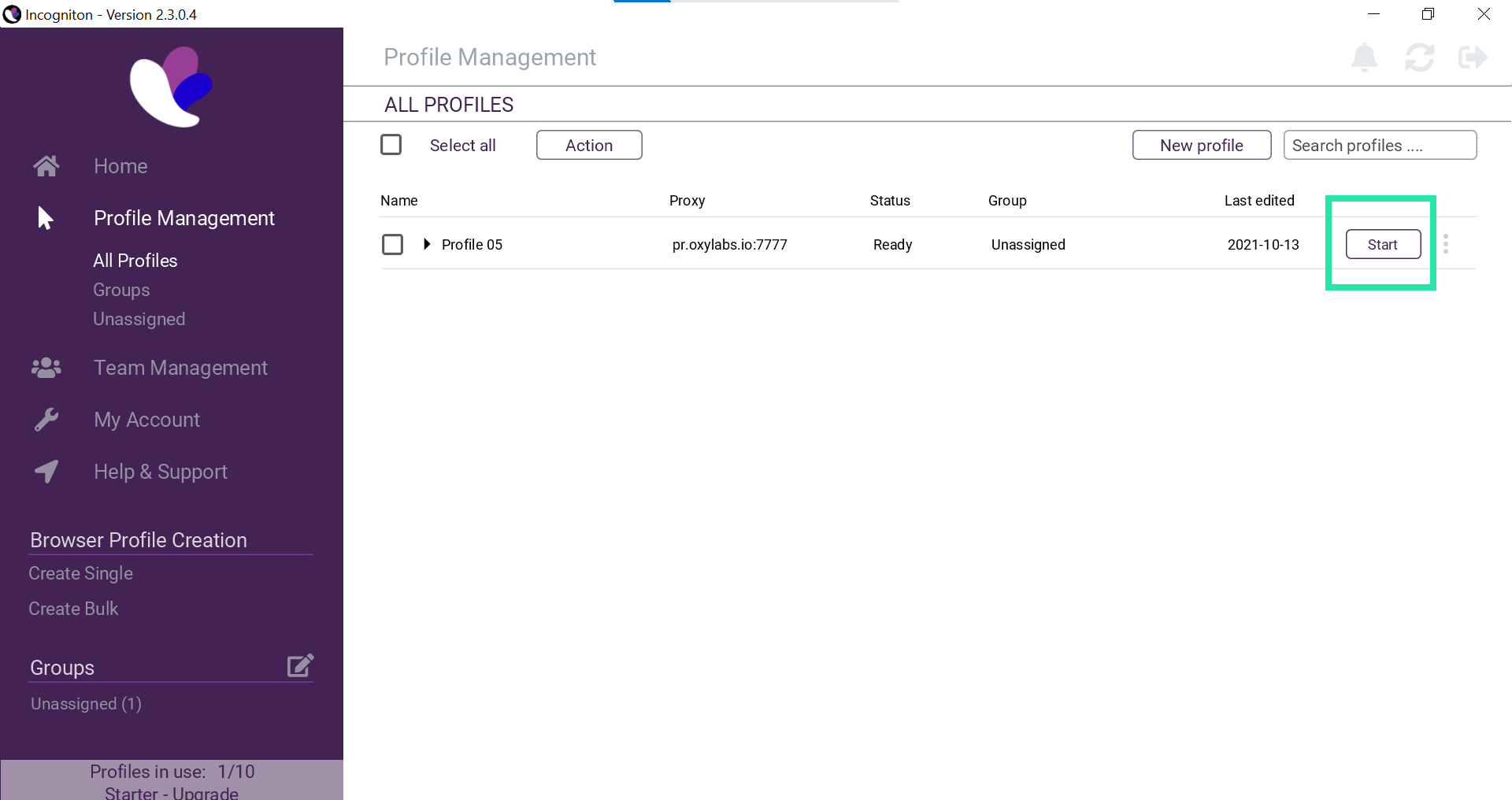
By clicking **Start** on your setup profile, you'll see a pop-up of an incognito browser window.
That's it! You have successfully integrated your proxies with Incogniton. Now you can begin your web operations enhanced by anonymous flexibility.
Find the original Incogniton integration blog post [**here**](https://oxylabs.io/resources/integrations/incogniton).
Also, take a look at the detailed [**Incogniton vs. Multilogin**](https://oxylabs.io/blog/incogniton-vs-multilogin) article to compare the two most popular reliable browsers.
---
# Agent Instructions
This documentation is published with GitBook. GitBook is the documentation platform designed so that both humans and AI agents can read, navigate, and reason over technical content effectively. Learn more at gitbook.com.
## Querying This Documentation
If you need additional information that is not directly available in this page, you can query the documentation by asking a question.
Perform an HTTP GET request on the following URL with the `ask` and `goal` query parameters:
```
GET https://developers.oxylabs.io/integrations/proxy-integrations/incogniton.md?ask=&goal=
```
`ask` is the immediate question: it should be specific, self-contained, and written in natural language.
`goal` is what the user is ultimately trying to achieve, the reason they need the answer. Sharing it helps GitBook give you a better, more relevant answer. A goal is most helpful when it describes the outcome the user wants rather than restating the question. For example, with `ask=how do I create an API token`, a goal like `automate deployments from our CI pipeline` lets GitBook tailor the answer to that use case.
The response will contain a direct answer to the question and relevant excerpts and sources from the documentation.
Use this mechanism when the answer is not explicitly present in the current page, you need clarification or additional context, or you want to retrieve related documentation sections.