> For the complete documentation index, see [llms.txt](https://developers.oxylabs.io/llms.txt). Markdown versions of documentation pages are available by appending `.md` to page URLs; this page is available as [Markdown](https://developers.oxylabs.io/integrations/es/proxy-integrations/dedicated-isp-proxies-guides/lalicat-browser.md).
# Lalicat Browser
[**Lalicat**](https://www.lalicat.com/) es un navegador que permite a los usuarios gestionar varias cuentas a la vez, diferenciando las huellas digitales del navegador para evitar ser marcado o bloqueado.
Sigue los pasos a continuación para configurar Lalicat con Oxylabs [**Dedicated ISP Proxies**](broken://pages/275bfb982d1f45914dacae9f60826098871292ed) que has comprado mediante autoservicio:
{% stepper %}
{% step %}
#### Descargar e instalar
[**Descargar**](https://www.lalicat.com/download)e instala y abre la aplicación. Luego, crea una nueva cuenta para iniciar sesión.
{% endstep %}
{% step %}
#### Agregar una instancia del navegador
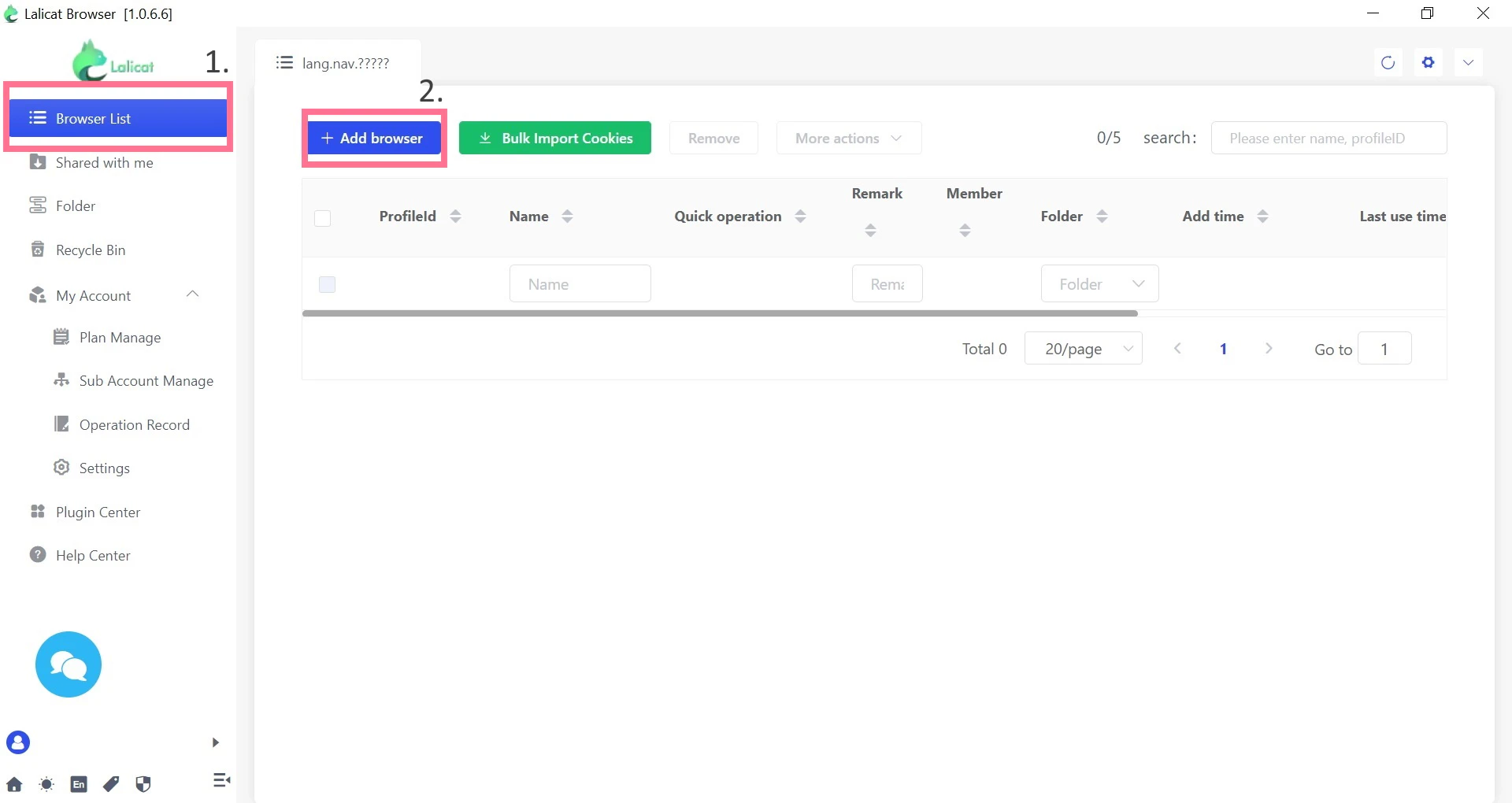
En la pantalla de inicio, pulsa **Lista de navegadores** y luego haz clic en **+Add browser** para configurar una nueva instancia del navegador.
{% endstep %}
{% step %}
#### Configura tu perfil
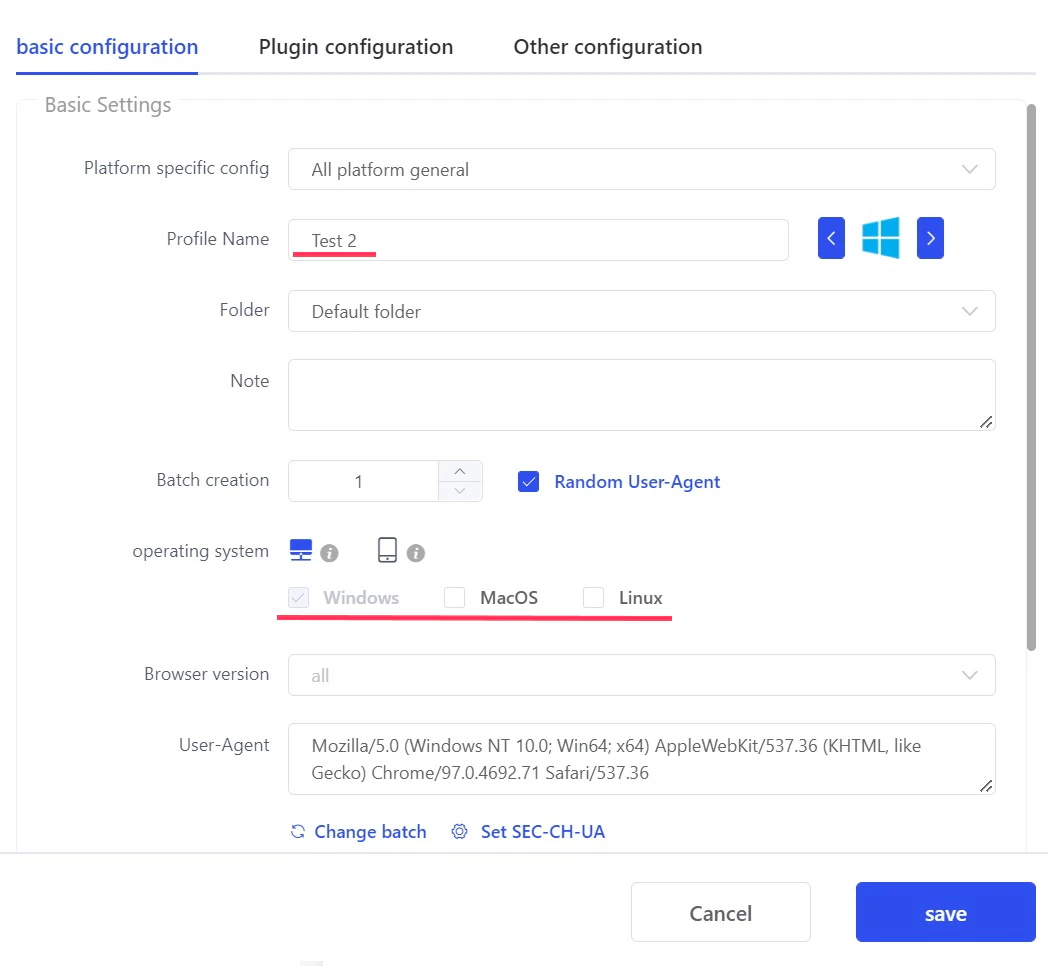
En **configuración básica**, completa el **Nombre del perfil** y selecciona un **sistema operativo** simulado y otros ajustes necesarios para la tarea.
{% endstep %}
{% step %}
#### Añadir Dedicated ISP Proxies
Para configurar tus Dedicated ISP Proxies, completa los detalles:
**configuración del proxy**: `HTTP`, `HTTPS`, o `SOCKS5`
**Dirección IP**: `disp.oxylabs.io`
**Puerto**: `8001`
**Nombre de usuario del proxy de inicio de sesión:** `user-USERNAME`
**Contraseña del proxy de inicio de sesión:** `PASSWORD`
{% hint style="success" %}
El número de puerto indica qué dirección IP de tu [lista de proxies](broken://pages/8339b302ce10aa8225a6c0dcac34573639648e70) se utilizará. Usa el puerto `8000` para automático [rotación de IP de proxy](broken://pages/baaaf7bea71f6602d1e0af61fe2f12e49c511e1c).
{% endhint %}
Puedes personalizar una gama más amplia de opciones haciendo clic en la **configuración avanzada** a continuación.
{% hint style="warning" %}
Asegúrate de añadir la parte `user-` a tu nombre de usuario.
{% endhint %}
{% endstep %}
{% step %}
#### Comprobar el proxy
Pulsa **Comprobar el proxy** para ver si tu proxy funciona correctamente y si una ubicación dedicada es precisa.
{% endstep %}
{% step %}
#### Guardar y ejecutar
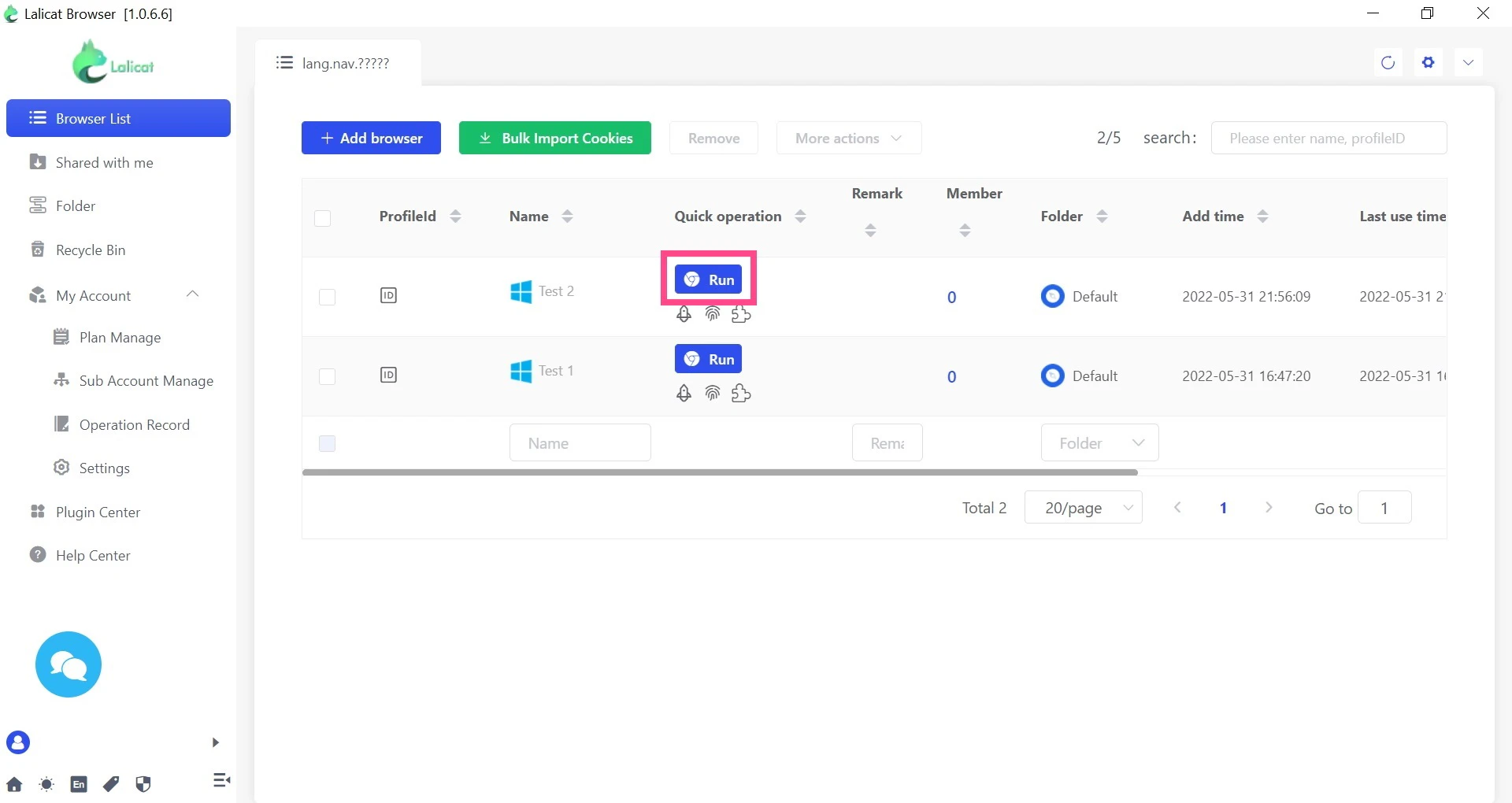
Por último, haz clic en **guardar** para completar la configuración, y para ejecutar el navegador, haz clic en **Ejecutar.**
{% endstep %}
{% endstepper %}
¡Eso es todo! Has integrado correctamente tus proxies de Oxylabs con Lalicat Browser.
---
# Agent Instructions
This documentation is published with GitBook. GitBook is the documentation platform designed so that both humans and AI agents can read, navigate, and reason over technical content effectively. Learn more at gitbook.com.
## Querying This Documentation
If you need additional information that is not directly available in this page, you can query the documentation dynamically by asking a question.
Perform an HTTP GET request on the current page URL with the `ask` query parameter:
```
GET https://developers.oxylabs.io/integrations/es/proxy-integrations/dedicated-isp-proxies-guides/lalicat-browser.md?ask=
```
The question should be specific, self-contained, and written in natural language.
The response will contain a direct answer to the question and relevant excerpts and sources from the documentation.
Use this mechanism when the answer is not explicitly present in the current page, you need clarification or additional context, or you want to retrieve related documentation sections.