> For the complete documentation index, see [llms.txt](https://developers.oxylabs.io/llms.txt). Markdown versions of documentation pages are available by appending `.md` to page URLs; this page is available as [Markdown](https://developers.oxylabs.io/integrations/cn/proxy-integrations/incogniton.md).
# Incogniton
将 Incogniton 与 Oxylabs 代理集成以进行多配置文件管理。通过本设置指南在多个在线身份之间保持隐私。
[**Incogniton**](https://incogniton.com/) 是一款支持多配置文件管理的工具。它可帮助管理多个在线身份,同时保持绝对隐私。
按照以下步骤将 Incogniton 与以下 Oxylabs 代理集成:
* [**住宅与移动代理**](#residential-and-mobile-proxies)
* [**数据中心代理**](#datacenter-proxies)
* [**独享数据中心代理(企业版)**](#dedicated-datacenter-proxies-enterprise)
* [**独享数据中心代理(自助版)**](#dedicated-datacenter-proxies-self-service)
* [**ISP代理**](#isp-proxies)
* [**独享ISP代理**](#dedicated-isp-proxies)
### **第1步**
[**下载**](https://incogniton.com/download-incogniton/) 并安装 Incogniton 应用。
### **第2步**
注册您的账户并登录。
### **第3步**
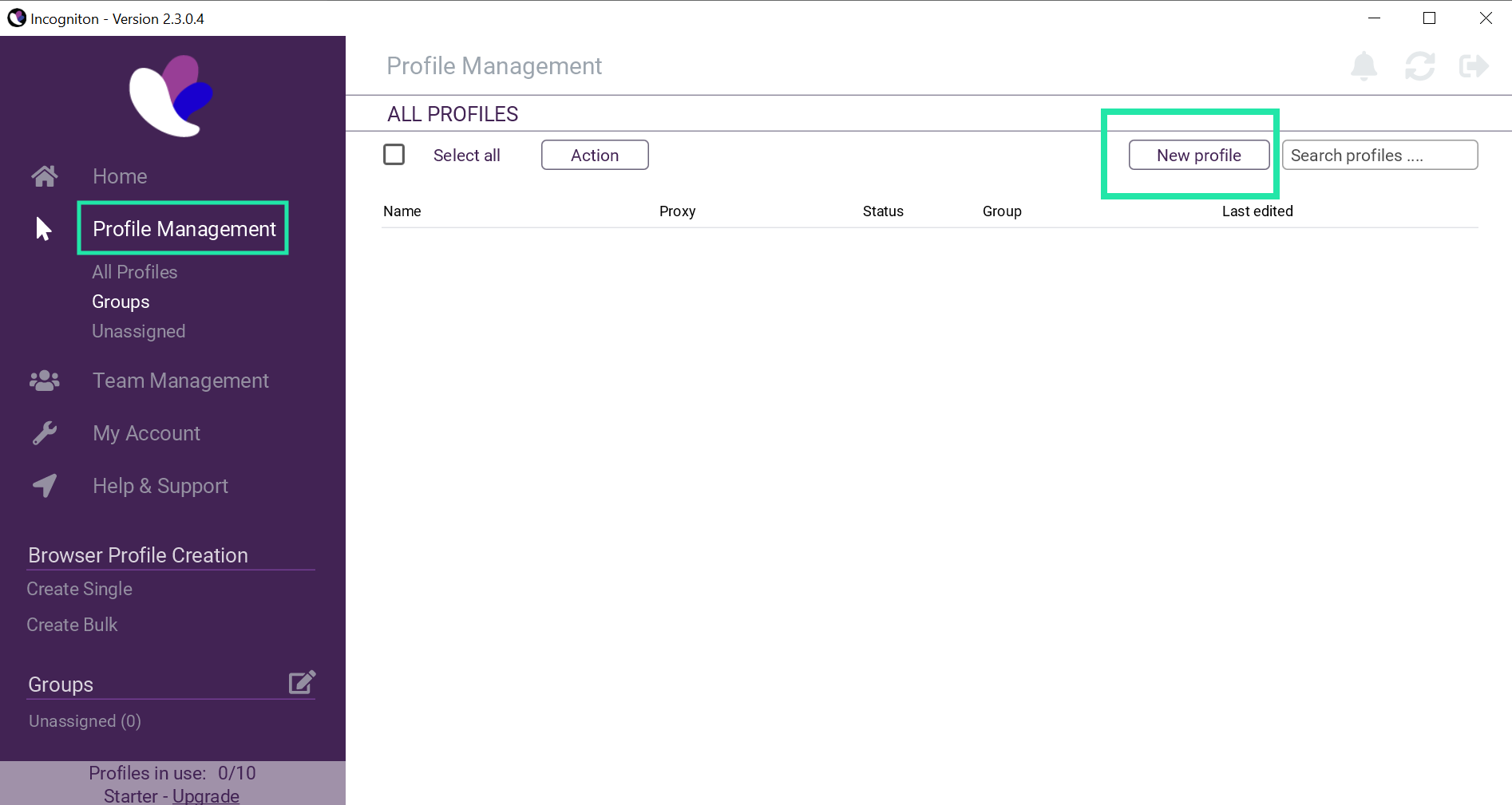
登录后,前往 **配置文件管理** 并点击 **新建配置文件**.
### **第4步**
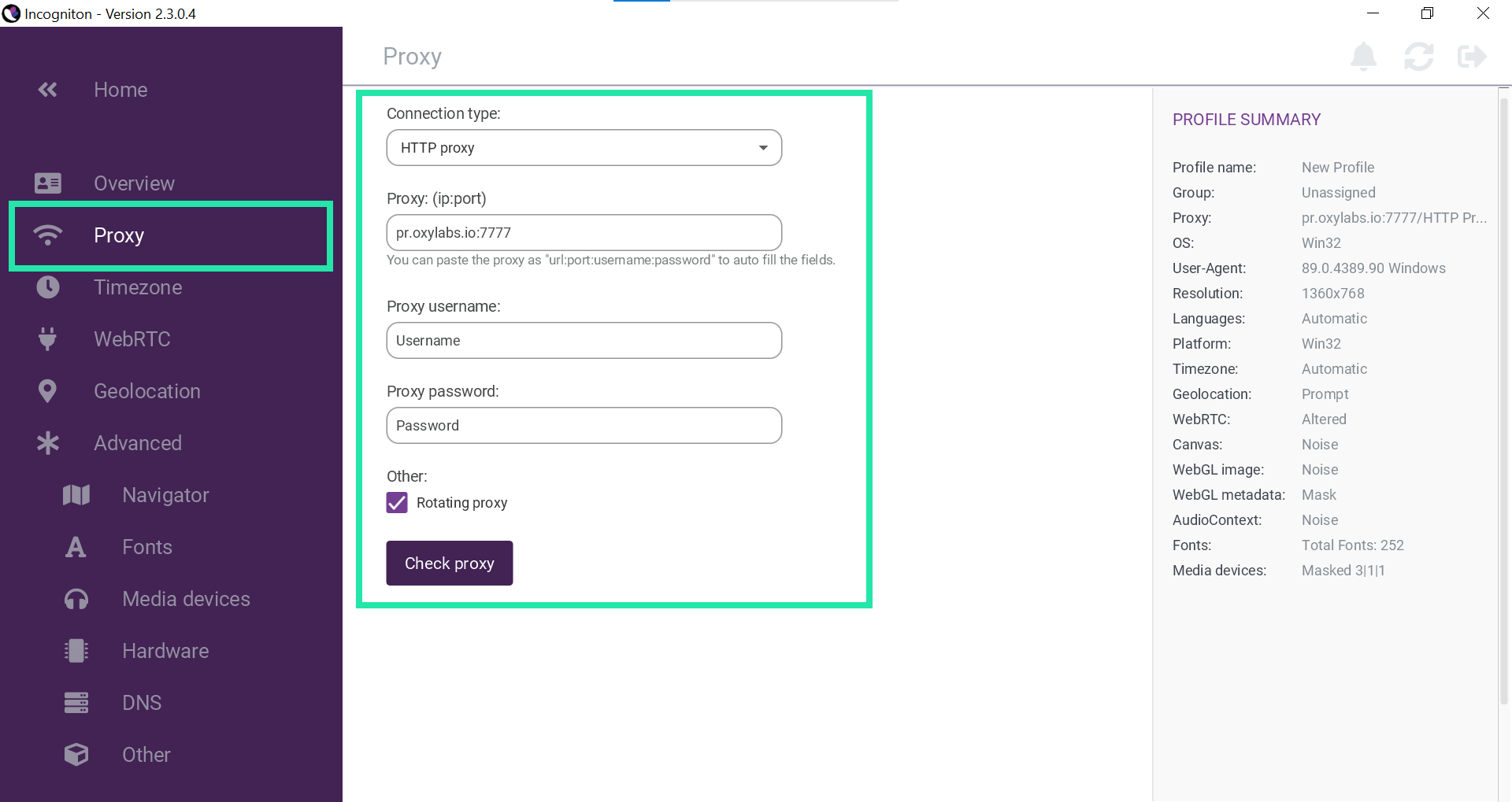
点击 **代理** 在左侧菜单中,并根据所选代理类型填写所需详情:
* [住宅与移动代理](#residential-and-mobile-proxies)
* [数据中心代理](#datacenter-proxies)
* [独享数据中心代理(企业版)](#dedicated-datacenter-proxies-enterprise)
* [独享数据中心代理(自助版)](#dedicated-datacenter-proxies-self-service)
* [ISP代理](#isp-proxies)
* [独享ISP代理](#dedicated-isp-proxies)
#### 住宅与移动代理
**连接类型:** `HTTP`, `HTTPS`, `SOCKS5`
**代理:(IP:端口)**: `pr.oxylabs.io`
**代理端口:** `7777`
**代理用户名:** `用户名`
**代理密码:** `密码`
您也可以使用特定国家/地区的入口。例如,输入 `us-pr.oxylabs.io` 在 **代理 IP** 和 `10000` 在 **代理端口** 将获取一个美国出口节点。请参阅我们的 [文档](https://developers.oxylabs.io/products/proxies/residential-proxies/location-settings/select-country) 获取完整的特定国家/地区入口节点列表,或者如果您需要 [粘性会话](https://developers.oxylabs.io/products/proxies/residential-proxies/session-control/sticky-proxy-entry-nodes).
#### 数据中心代理
**连接类型:** `HTTP`, `HTTPS`, `SOCKS5`
**代理:(IP:端口)**: `dc.oxylabs.io`
**代理端口:** `8001`
**代理用户名:** `user-username`
**代理密码:** `密码`
{% hint style="warning" %}
不要忘记添加 `user-` 部分到您的用户名中。
{% endhint %}
对于 **按 IP 计费** 套餐,端口对应于提供列表中分配给某个 IP 地址的顺序编号。因此,端口 `8001` 使用您列表中的第一个 IP 地址。请参阅我们的 [文档](https://developers.oxylabs.io/products/proxies/datacenter-proxies/proxy-list) 了解更多详情。
对于 **按流量计费** 套餐,端口 `8001` 会随机选择一个 IP 地址,但在整个会话中保持一致。您也可以在用户认证字符串中指定地理位置,例如美国: `user-USERNAME-country-US:PASSWORD`。更多详情请参阅我们的 [文档](https://developers.oxylabs.io/products/proxies/datacenter-proxies/ip-control).
#### 独享数据中心代理(企业版)
**连接类型:** `HTTP` 或 `SOCKS5`
**代理:(IP:端口)**:一个特定的 IP 地址(例如, `1.2.3.4`)
**代理端口:** `60000` (HTTP), `1180` (SOCKS5)
**代理用户名:** `用户名`
**代理密码:** `密码`
对于企业版独享数据中心代理,请从获取的列表中选择一个 IP 地址。访问我们的 [文档](https://developers.oxylabs.io/products/proxies/dedicated-datacenter-proxies/enterprise/proxy-lists) 了解更多详情。
#### 独享数据中心代理(自助版)
**连接类型:** `HTTP`, `HTTPS`, `SOCKS5`
**代理:(IP:端口)**: `ddc.oxylabs.io`
**代理端口:** `8001`
**代理用户名:** `user-username`
**代理密码:** `密码`
{% hint style="warning" %}
不要忘记添加 `user-` 部分到您的用户名中。
{% endhint %}
对于自助版独享数据中心代理,端口表示所获取列表中某个 IP 地址的顺序编号。查看我们的 [文档](https://developers.oxylabs.io/products/proxies/dedicated-datacenter-proxies/self-service/proxy-list) 了解更多详情。
#### ISP代理
**连接类型:** `HTTP`或 `SOCKS5`
**代理:(IP:端口)**: `isp.oxylabs.io`
**代理用户名:** `user-username`
**代理密码:** `密码`
{% hint style="warning" %}
不要忘记添加 `user-` 部分到您的用户名中。
{% endhint %}
您需要选择分配给所购买的某个 IP 地址的端口 [**代理列表**](https://developers.oxylabs.io/proxies/isp-proxies/proxy-list)**,** ,您可以在 Oxylabs 控制面板中找到。该 `8001` 端口将为所有请求选取您列表中的第一个 IP 地址。
#### 独享ISP代理
**连接类型:** `HTTP` 或 `SOCKS5`
**代理:(IP:端口)**: `disp.oxylabs.io:8001`
**代理用户名:** `user-USERNAME`
**代理密码:** `PASSWORD`
{% hint style="warning" %}
不要忘记添加 `user-` 部分到您的用户名中。
{% endhint %}
端口号表示您获取的 [代理列表](/products/cn/proxies/dedicated-isp-proxies/self-service/proxy-list.md) 中将使用哪个 IP 地址。请使用端口 `8000` 以实现自动 [代理 IP 轮换](/products/cn/proxies/dedicated-isp-proxies/self-service/proxy-rotation.md).
### **第5步**
点击 **检查代理** 以确保功能正常。您应会收到一个外部 IP 及附加详情,例如准确地理位置、时区等。
### **第6步**
最后,根据您的偏好填写其余详情(概览、时区等),并点击 **创建配置文件**.
### **第7步**
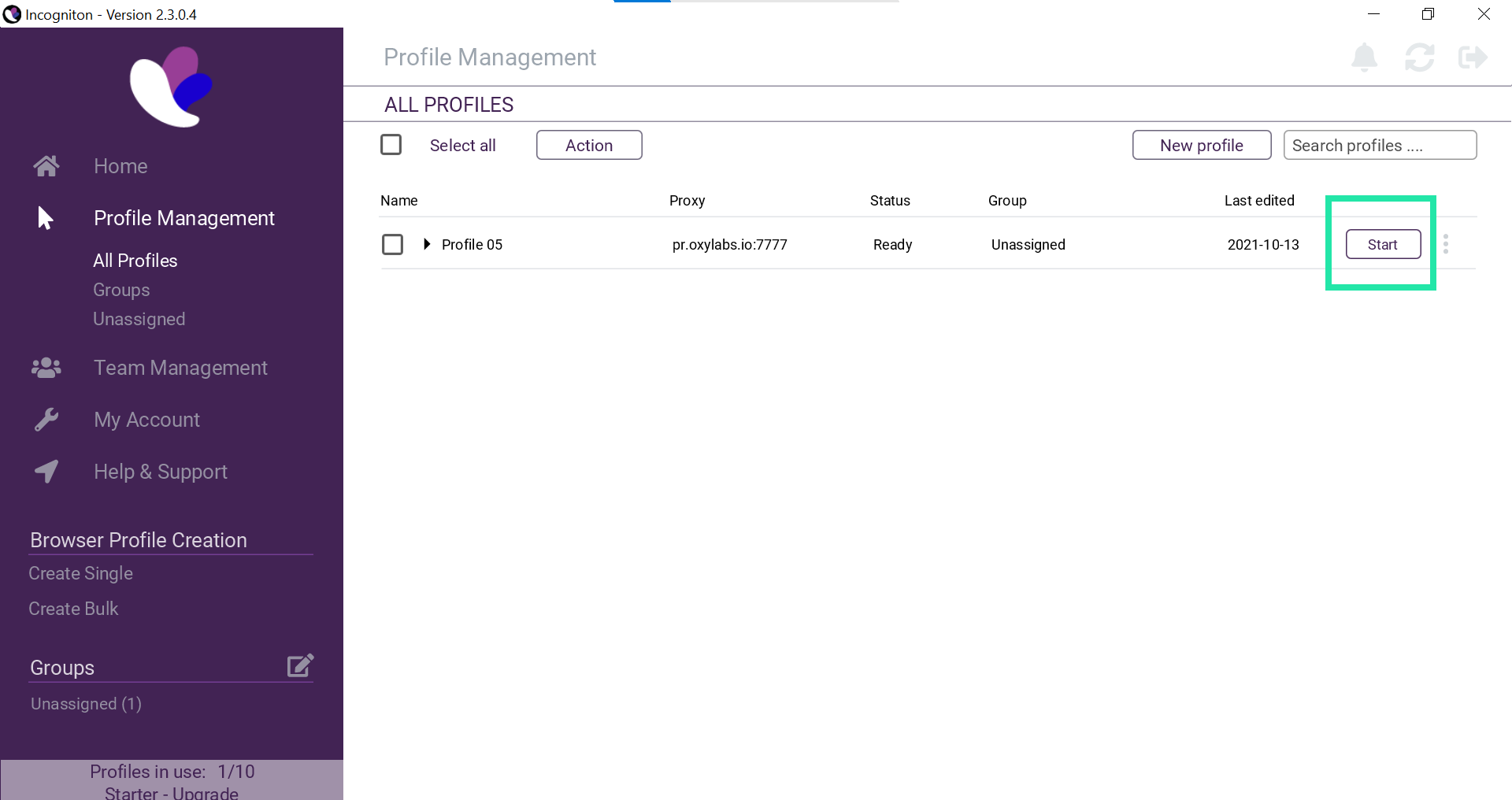
通过点击 **开始** 在您设置好的配置文件上,您会看到一个隐身浏览器窗口弹出。
就是这样!您已成功将代理与 Incogniton 集成。现在您可以开始借助匿名灵活性开展网络操作。
查找原始的 Incogniton 集成博文 [**此处**](https://oxylabs.io/resources/integrations/incogniton).
此外,请查看详细的 [**Incogniton 对比 Multilogin**](https://oxylabs.io/blog/incogniton-vs-multilogin) 文章,以比较这两款最受欢迎且可靠的浏览器。
---
# Agent Instructions
This documentation is published with GitBook. GitBook is the documentation platform designed so that both humans and AI agents can read, navigate, and reason over technical content effectively. Learn more at gitbook.com.
## Querying This Documentation
If you need additional information that is not directly available in this page, you can query the documentation by asking a question.
Perform an HTTP GET request on the following URL with the `ask` and `goal` query parameters:
```
GET https://developers.oxylabs.io/integrations/cn/proxy-integrations/incogniton.md?ask=&goal=
```
`ask` is the immediate question: it should be specific, self-contained, and written in natural language.
`goal` is what the user is ultimately trying to achieve, the reason they need the answer. Sharing it helps GitBook give you a better, more relevant answer. A goal is most helpful when it describes the outcome the user wants rather than restating the question. For example, with `ask=how do I create an API token`, a goal like `automate deployments from our CI pipeline` lets GitBook tailor the answer to that use case.
The response will contain a direct answer to the question and relevant excerpts and sources from the documentation.
Use this mechanism when the answer is not explicitly present in the current page, you need clarification or additional context, or you want to retrieve related documentation sections.