> For the complete documentation index, see [llms.txt](https://developers.oxylabs.io/llms.txt). Markdown versions of documentation pages are available by appending `.md` to page URLs; this page is available as [Markdown](https://developers.oxylabs.io/integrations/cn/proxy-integrations/dedicated-datacenter-proxies-guides/enterprise/morelogin.md).
# MoreLogin
[**MoreLogin**](https://www.morelogin.com/?from=AASFM37JXppd) 是一款反检测浏览器,可让你管理多个账户,并通过权限管理在团队内分配职责。
{% hint style="warning" %}
**注意:** 本指南中提供的一些截图为说明目的展示了使用住宅代理的设置过程;有关文本中提供的独享数据中心代理的具体指南,请参阅相应说明。
{% endhint %}
按照以下步骤集成 Oxylabs [**独享数据中心代理**](https://oxylabs.io/products/datacenter-proxies/dedicated-datacenter-proxies)**:**
**步骤 1。** 前往官方 [**MoreLogin**](https://www.morelogin.com/?from=AASFM37JXppd) 网站并下载适用于 Windows 或 Mac 的应用。
**步骤 2。** 创建账户并登录。
**步骤 3。** 设置完成后,创建 **一个新的浏览器配置文件**.
**步骤 4。** 填写初始配置文件设置,例如名称和浏览器指纹,然后点击 **高级创建。**
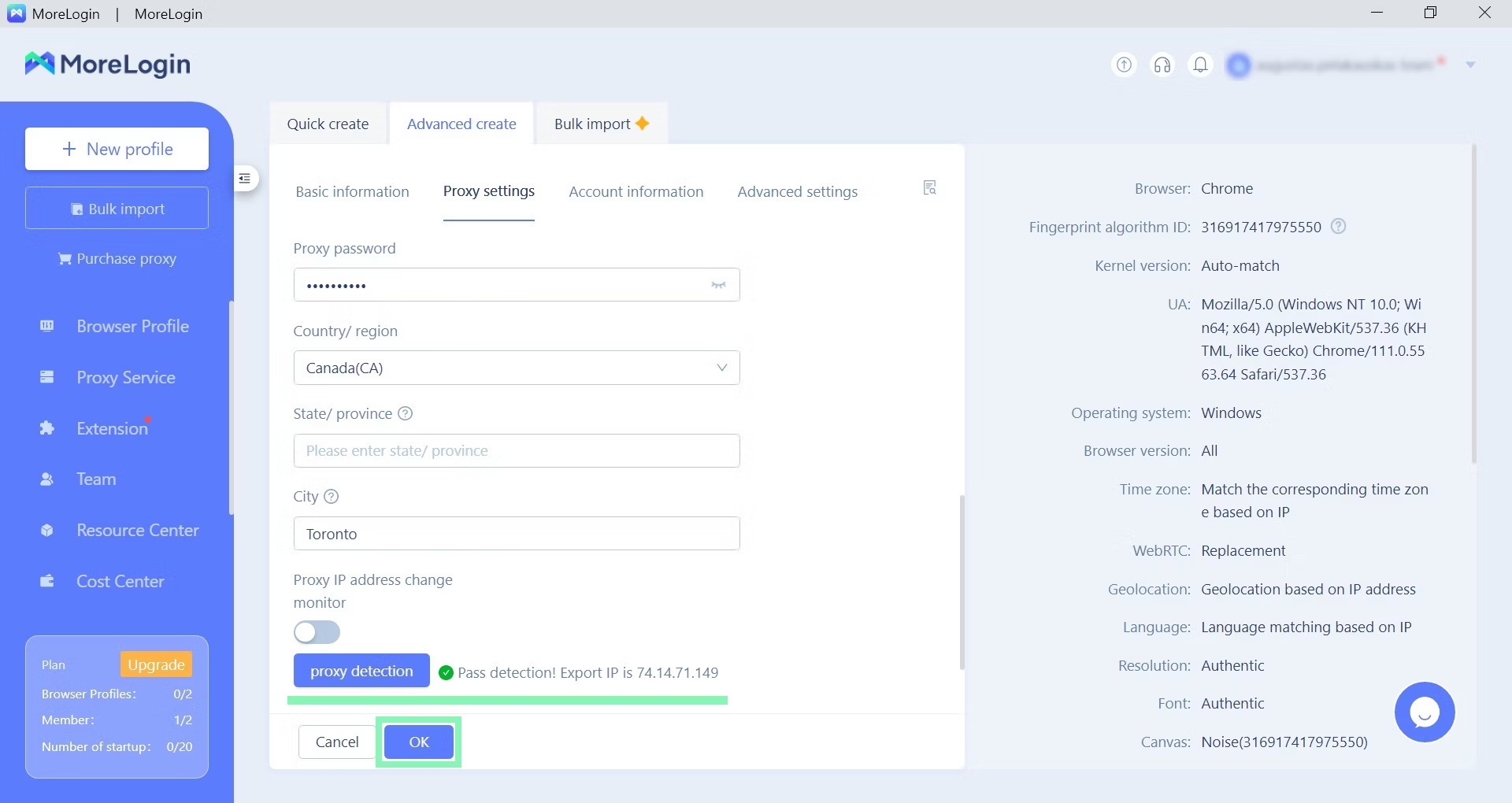
**步骤 5。** 向下滚动或按 **代理设置** 来配置你的 Oxylabs 代理。作为你的 **代理选项**下,选择 **自定义**.
**步骤 6。** 要手动配置代理设置,请输入以下详细信息:
**代理类型**: `HTTP` 或 `SOCKS5`
**IP/主机**: 一个特定的 IP 地址(例如, `1.2.3.4`)
**端口**: `60000`
{% hint style="info" %}
对于独享数据中心代理,你需要从已获取的[ **列表**](broken://pages/d5bbd36d0bb27800c335757921a3776e5c9d1459)**.**
{% endhint %}
**步骤 7。** 输入你的 Oxylabs 代理用户凭据。在 **代理账户** 并 **代理密码**下,使用你在 [**Oxylabs 控制面板**](https://dashboard.oxylabs.io/en/).
**第 8 步。** 点击 **代理检测** 并测试您的代理以确保预期功能。代理设置现已完成。
**第 9 步。** 点击 **启动** 以启动新的浏览器配置文件。
将启动一个基于 Chromium 的浏览器,并打开两个标签页。一个显示你的指纹详细信息,另一个显示搜索引擎主页。再次检查你的详细信息是否符合你的预期。
你现在可以继续进行多账户任务了。
---
# Agent Instructions
This documentation is published with GitBook. GitBook is the documentation platform designed so that both humans and AI agents can read, navigate, and reason over technical content effectively. Learn more at gitbook.com.
## Querying This Documentation
If you need additional information that is not directly available in this page, you can query the documentation dynamically by asking a question.
Perform an HTTP GET request on the current page URL with the `ask` query parameter:
```
GET https://developers.oxylabs.io/integrations/cn/proxy-integrations/dedicated-datacenter-proxies-guides/enterprise/morelogin.md?ask=
```
The question should be specific, self-contained, and written in natural language.
The response will contain a direct answer to the question and relevant excerpts and sources from the documentation.
Use this mechanism when the answer is not explicitly present in the current page, you need clarification or additional context, or you want to retrieve related documentation sections.