> For the complete documentation index, see [llms.txt](https://developers.oxylabs.io/llms.txt). Markdown versions of documentation pages are available by appending `.md` to page URLs; this page is available as [Markdown](https://developers.oxylabs.io/integrations/cn/proxy-integrations/dedicated-datacenter-proxies-guides/enterprise/lalicat-browser.md).
# Lalicat Browser
[**Lalicat**](https://www.lalicat.com/) 是一款浏览器,允许用户一次管理多个账户,并通过区分浏览器指纹来避免被标记或封禁。
使用 Oxylabs 配置 Lalicat [**独享数据中心代理**](https://oxylabs.io/products/datacenter-proxies/dedicated-datacenter-proxies)集成,请按以下步骤操作:
**步骤 1。** [**下载**](https://www.lalicat.com/download),安装并启动应用程序。然后,创建一个新账户以登录。
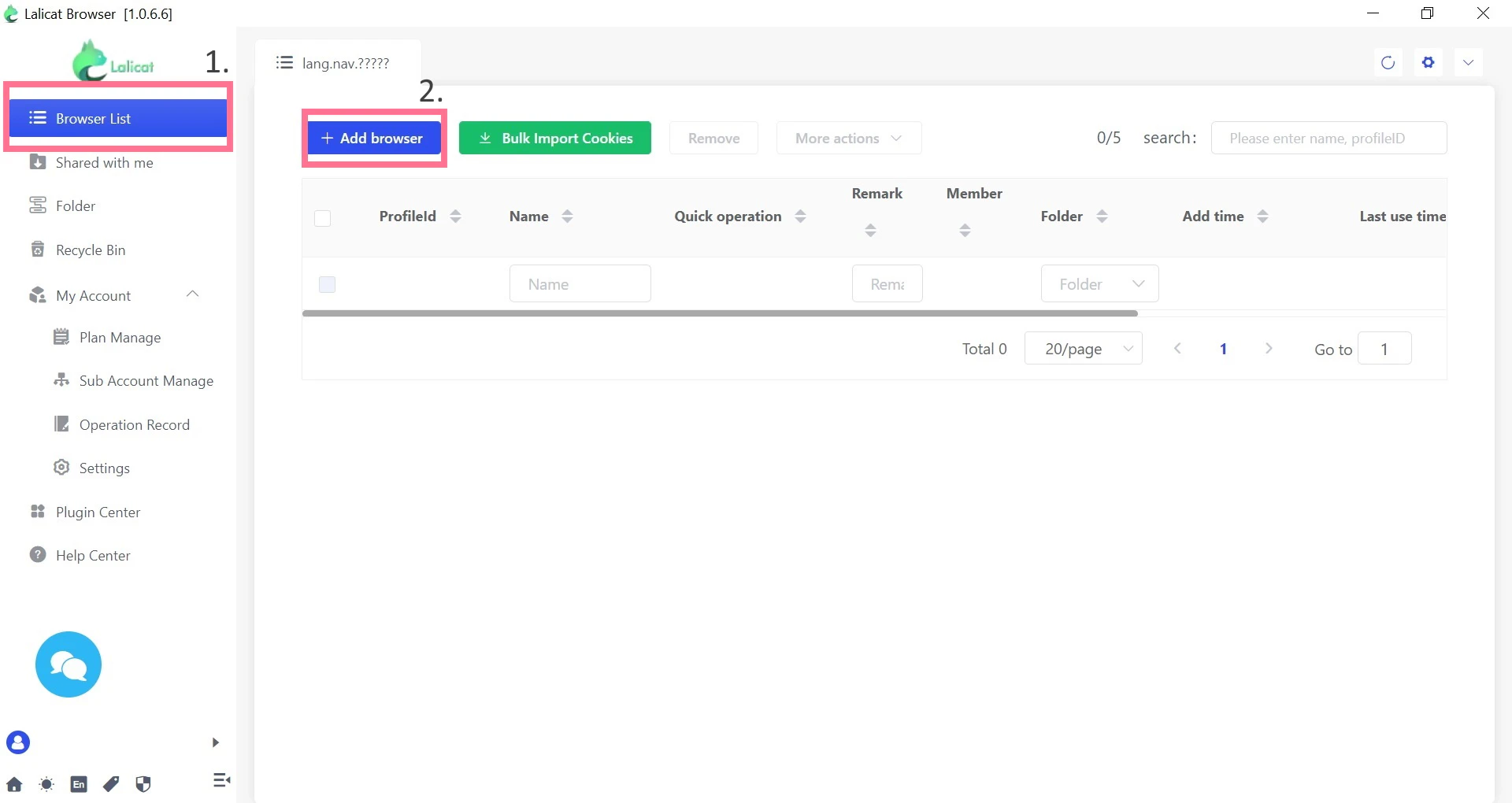
**步骤 2。** 在主屏幕上,点击 **浏览器列表** 然后点击 **+添加浏览器** 来配置新的浏览器实例。
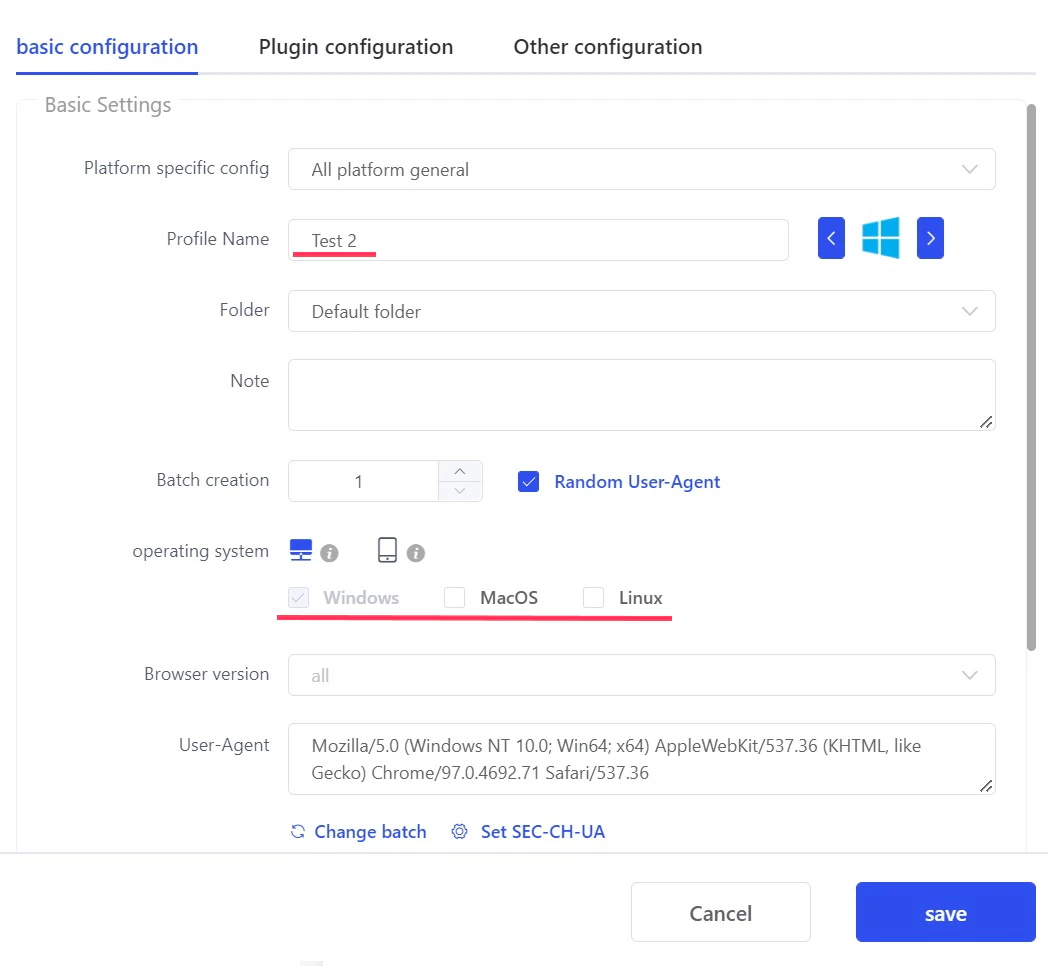
**步骤 3。** 在 **基本配置**,填写 **配置文件名称** 并选择一个模拟的 **操作系统** 以及任务所需的其他设置。
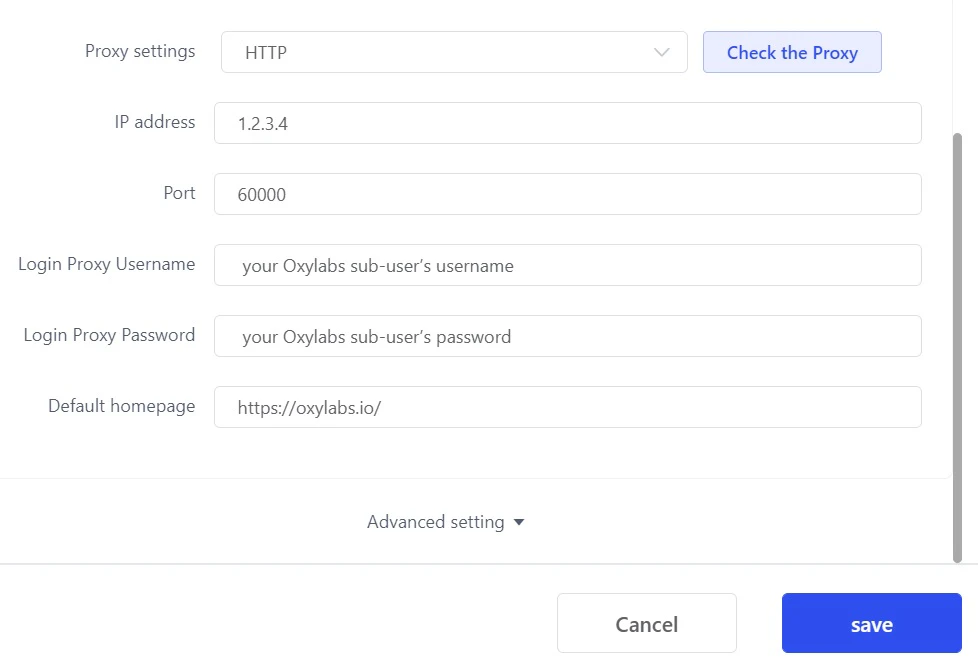
**步骤 4。** 在 **代理设置**下,选择 `HTTP` 作为代理协议来配置你的代理设置。填写以下信息:
**代理设置:** `HTTP` 或 `SOCKS5` (根据您的购买)
**IP 地址:** 一个特定的 IP 地址(`1.2.3.4` - 示例)
{% hint style="info" %}
对于独享数据中心代理,您需要从已购买的列表中选择一个 IP 地址。请参阅我们的 [**`文档`**](broken://pages/d5bbd36d0bb27800c335757921a3776e5c9d1459) 。
{% endhint %}
**端口:** `60000`
**登录代理用户名:** `Oxylabs 代理用户用户名`
**登录代理密码:** `Oxylabs 代理用户密码`
{% hint style="info" %}
您可以在我们的 [**仪表板**](https://dashboard.oxylabs.io/en/)**.**
{% endhint %}
你可以点击下面的 **高级设置** 来自定义更广泛的选项。
**步骤 5。** 点击 **检查代理** 以查看你的代理是否正常工作,以及专用位置是否准确。
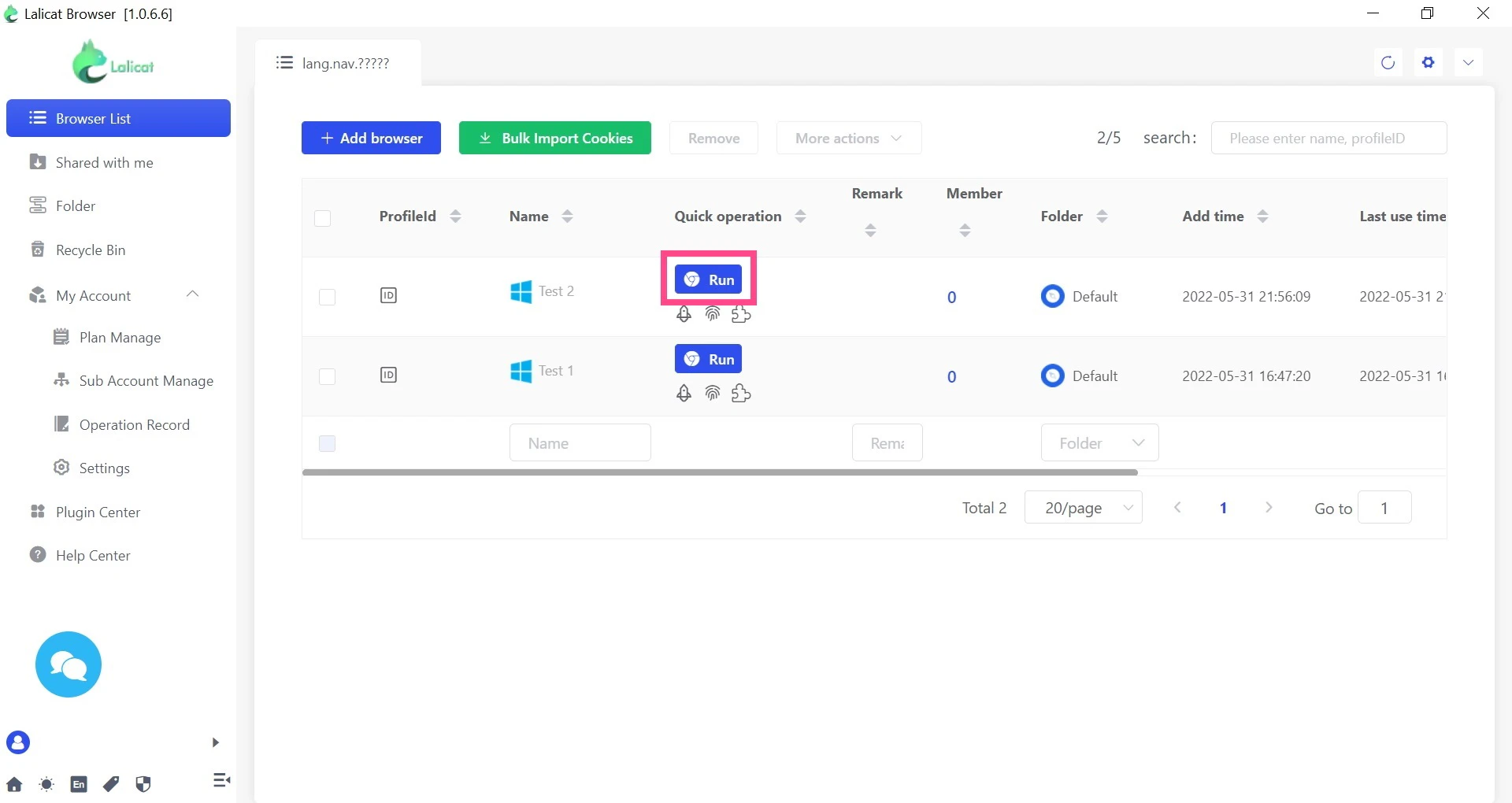
**步骤 6。** 最后,点击 **保存** 完成配置,然后要运行浏览器,请点击 **运行。**
就是这样!你已成功将 Oxylabs 代理集成到 Lalicat Browser 中。
查找原始的 Lalicat Browser 集成博客文章 [这里](https://oxylabs.io/resources/integrations/lalicat).
---
# Agent Instructions
This documentation is published with GitBook. GitBook is the documentation platform designed so that both humans and AI agents can read, navigate, and reason over technical content effectively. Learn more at gitbook.com.
## Querying This Documentation
If you need additional information that is not directly available in this page, you can query the documentation dynamically by asking a question.
Perform an HTTP GET request on the current page URL with the `ask` query parameter:
```
GET https://developers.oxylabs.io/integrations/cn/proxy-integrations/dedicated-datacenter-proxies-guides/enterprise/lalicat-browser.md?ask=
```
The question should be specific, self-contained, and written in natural language.
The response will contain a direct answer to the question and relevant excerpts and sources from the documentation.
Use this mechanism when the answer is not explicitly present in the current page, you need clarification or additional context, or you want to retrieve related documentation sections.