> For the complete documentation index, see [llms.txt](https://developers.oxylabs.io/llms.txt). Markdown versions of documentation pages are available by appending `.md` to page URLs; this page is available as [Markdown](https://developers.oxylabs.io/dashboard/product-instances.md).
# Product Instances
Learn how to create, configure, and manage product instances in the Oxylabs Dashboard.
A product instance is a specific configuration of a service (e.g., Residential Proxies, Web API) that includes a unique name, authentication credentials, and an optional spending limit.
## Creating a product instance
{% stepper %}
{% step %}
### Start the instance creation
Click **+ Add product instance** from the Overview page. New products can be activated instantly – no account manager or waiting required.
New users are prompted to create their product instance on their first visit:
 Existing users can find the instance creation option as shown below:
 {% endstep %}
{% step %}
### Select a product
Choose a product from the list. Products are grouped into categories:
* **Data Collection** (Web API)
* **Proxies & Advanced Proxy Solutions** (Residential, Mobile, Datacenter, ISP Proxies, Web Unblocker)
* **Browsers** (Agent Browser)
{% endstep %}
{% step %}
### Select a product
Choose a product from the list. Products are grouped into categories:
* **Data Collection** (Web API)
* **Proxies & Advanced Proxy Solutions** (Residential, Mobile, Datacenter, ISP Proxies, Web Unblocker)
* **Browsers** (Agent Browser)
 {% endstep %}
{% step %}
### Set instance name and credentials
**Instance name**: Choose a descriptive name.
**Authentication settings:**
* **Username & password** (auto-generated, the password can be edited later)
* **Whitelisted IPs** (a list of trusted IPs to authenticate with)
{% endstep %}
{% step %}
### Set instance name and credentials
**Instance name**: Choose a descriptive name.
**Authentication settings:**
* **Username & password** (auto-generated, the password can be edited later)
* **Whitelisted IPs** (a list of trusted IPs to authenticate with)
 {% endstep %}
{% step %}
### Configure limits & notifications (optional)
To cap usage on the new instance, set up a limit with:
**Limit type**:
* `USD/EUR` (Monetary)
* `Results`
* `GB` (Traffic)
**Period**: `Daily`, `Weekly`, `Monthly`, or `Lifetime`
{% hint style="info" %}
**Limit type** choice differs by product.
{% endhint %}
Then choose an **Action for exceeded limit**:
* **Disable instance** when the limit is reached.
* **Send email** alerts without disabling the instance.
{% endstep %}
{% step %}
### Configure limits & notifications (optional)
To cap usage on the new instance, set up a limit with:
**Limit type**:
* `USD/EUR` (Monetary)
* `Results`
* `GB` (Traffic)
**Period**: `Daily`, `Weekly`, `Monthly`, or `Lifetime`
{% hint style="info" %}
**Limit type** choice differs by product.
{% endhint %}
Then choose an **Action for exceeded limit**:
* **Disable instance** when the limit is reached.
* **Send email** alerts without disabling the instance.
 {% hint style="info" %}
Instance limits control spending on that specific instance only. They're separate from your overall account credit balance – see [Credit-Based Billing](/dashboard/credit-based-billing.md) for how the shared balance works.
{% endhint %}
{% endstep %}
{% step %}
### Finish instance setup
Click **Create instance** to complete the setup.
{% endstep %}
{% endstepper %}
## Managing instances
Click any instance to open its detail page. From there, you can:
* Edit the instance name
* Enable, disable, or delete the instance
* Adjust limits
* View or edit passwords
* Access integration examples
* View usage statistics and the spending limit progress bar
{% hint style="info" %}
Instance limits control spending on that specific instance only. They're separate from your overall account credit balance – see [Credit-Based Billing](/dashboard/credit-based-billing.md) for how the shared balance works.
{% endhint %}
{% endstep %}
{% step %}
### Finish instance setup
Click **Create instance** to complete the setup.
{% endstep %}
{% endstepper %}
## Managing instances
Click any instance to open its detail page. From there, you can:
* Edit the instance name
* Enable, disable, or delete the instance
* Adjust limits
* View or edit passwords
* Access integration examples
* View usage statistics and the spending limit progress bar
 ## Granular alerts
Team owner can set spending alerts at the `50%`, `80%`, or `100%` level so you're notified before a product instance or your overall account hits its limit.
{% hint style="info" %}
By default, alerts are set at `80%` and `100%` of your plan limit.
{% endhint %}
Team owner can manage who receives these alerts (recipient email addresses) from the Email notifications settings – see [Team & Account Settings](/dashboard/team-and-account-settings.md).
## Monitoring spending and usage
### Real-time spending
The top bar on the Overview page shows real-time spending for the current billing cycle.
## Granular alerts
Team owner can set spending alerts at the `50%`, `80%`, or `100%` level so you're notified before a product instance or your overall account hits its limit.
{% hint style="info" %}
By default, alerts are set at `80%` and `100%` of your plan limit.
{% endhint %}
Team owner can manage who receives these alerts (recipient email addresses) from the Email notifications settings – see [Team & Account Settings](/dashboard/team-and-account-settings.md).
## Monitoring spending and usage
### Real-time spending
The top bar on the Overview page shows real-time spending for the current billing cycle.
 ### Historical data
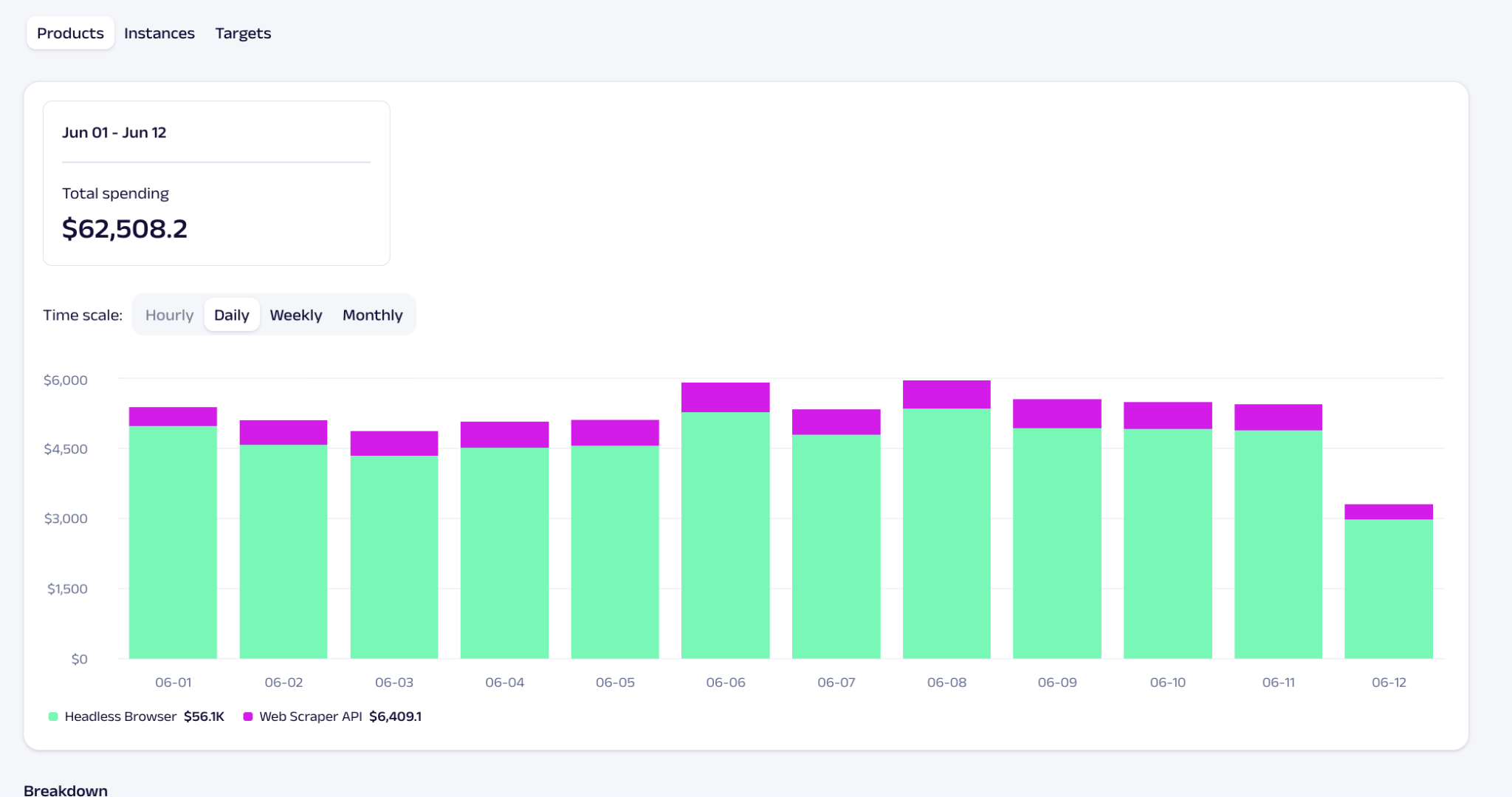
In the **Spending** tab, view historical data by **Products**, **Instances**, or **Targets**. Switch between `Hourly`, `Daily`, `Weekly`, or `Monthly` views for different granularities.
### Historical data
In the **Spending** tab, view historical data by **Products**, **Instances**, or **Targets**. Switch between `Hourly`, `Daily`, `Weekly`, or `Monthly` views for different granularities.
 ### Usage
The **Usage** tab displays success rates, response time, and other metrics per time interval or target, depending on the chosen product.
### Usage
The **Usage** tab displays success rates, response time, and other metrics per time interval or target, depending on the chosen product.
 You can also compare daily usage breakdowns:
 {% hint style="info" %}
To pull usage statistics programmatically instead of viewing them in the dashboard, see the [Dashboard API](/dashboard/dashboard-api.md).
{% endhint %}
---
# Agent Instructions
This documentation is published with GitBook. GitBook is the documentation platform designed so that both humans and AI agents can read, navigate, and reason over technical content effectively. Learn more at gitbook.com.
## Querying This Documentation
If you need additional information that is not directly available in this page, you can query the documentation dynamically by asking a question.
Perform an HTTP GET request on the following URL with the `ask` and `goal` query parameters:
```
GET https://developers.oxylabs.io/dashboard/product-instances.md?ask=&goal=
```
`ask` is the immediate question: it should be specific, self-contained, and written in natural language.
`goal` is what the user is ultimately trying to achieve, the reason they need the answer. Sharing it helps GitBook give you a better, more relevant answer. A goal is most helpful when it describes the outcome the user wants rather than restating the question. For example, with `ask=how do I create an API token`, a goal like `build a script that syncs our docs to a CMS` lets GitBook tailor the answer to that use case.
The response will contain a direct answer to the question and relevant excerpts and sources from the documentation.
Use this mechanism when the answer is not explicitly present in the current page, you need clarification or additional context, or you want to retrieve related documentation sections.
{% hint style="info" %}
To pull usage statistics programmatically instead of viewing them in the dashboard, see the [Dashboard API](/dashboard/dashboard-api.md).
{% endhint %}
---
# Agent Instructions
This documentation is published with GitBook. GitBook is the documentation platform designed so that both humans and AI agents can read, navigate, and reason over technical content effectively. Learn more at gitbook.com.
## Querying This Documentation
If you need additional information that is not directly available in this page, you can query the documentation dynamically by asking a question.
Perform an HTTP GET request on the following URL with the `ask` and `goal` query parameters:
```
GET https://developers.oxylabs.io/dashboard/product-instances.md?ask=&goal=
```
`ask` is the immediate question: it should be specific, self-contained, and written in natural language.
`goal` is what the user is ultimately trying to achieve, the reason they need the answer. Sharing it helps GitBook give you a better, more relevant answer. A goal is most helpful when it describes the outcome the user wants rather than restating the question. For example, with `ask=how do I create an API token`, a goal like `build a script that syncs our docs to a CMS` lets GitBook tailor the answer to that use case.
The response will contain a direct answer to the question and relevant excerpts and sources from the documentation.
Use this mechanism when the answer is not explicitly present in the current page, you need clarification or additional context, or you want to retrieve related documentation sections.