> For the complete documentation index, see [llms.txt](https://developers.oxylabs.io/llms.txt). Markdown versions of documentation pages are available by appending `.md` to page URLs; this page is available as [Markdown](https://developers.oxylabs.io/dashboard/billing-and-subscriptions.md).
# Billing & Subscriptions
Manage your Oxylabs billing information: learn how to update payment methods, edit billing details, and manage subscriptions.
The [**Oxylabs dashboard**](https://dashboard.oxylabs.io/en/registration) allows you to manage your billing information, including payment methods and subscription details. This page will walk you through the process of:
* [**Accessing billing information**](#accessing-billing-information)
* [**Managing payment methods**](#managing-payment-methods)
* [**Updating billing information**](#updating-billing-information)
* [**Canceling a subscription**](#canceling-a-subscription)
{% hint style="info" %}
Any changes to billing information will apply only to the selected subscription. If you have multiple subscriptions, you'll need to update them individually.
{% endhint %}
## Accessing billing information
To begin managing your billing information:
1. Log in to your [**Oxylabs dashboard**](https://dashboard.oxylabs.io/en/registration).
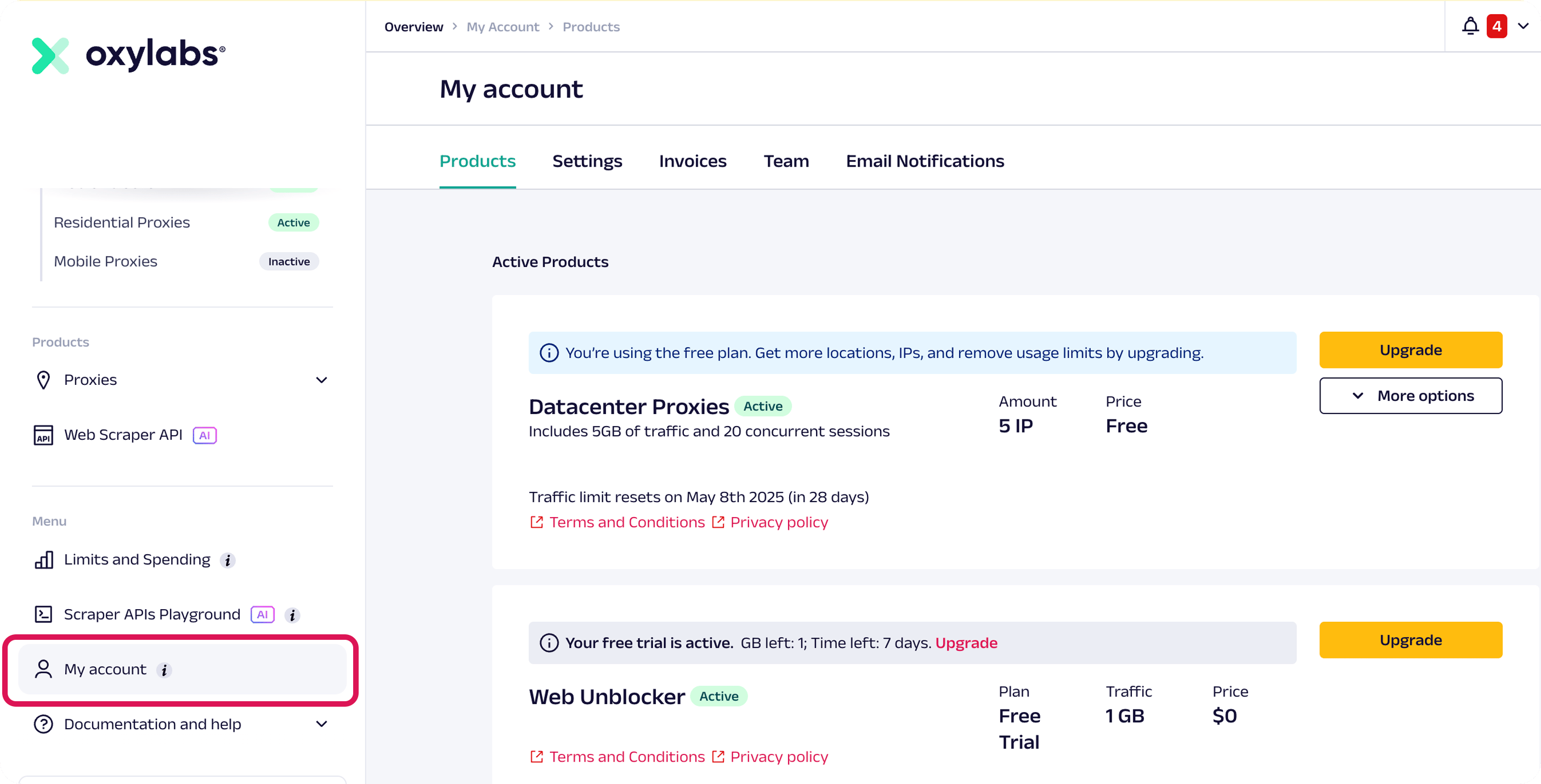
2. Click on `My Account` in the left navigation menu.
3. From the top navigation bar, click on `Products`.
In the **Products** section, you'll see:
* A list of all your products with status indicators showing which services are active.
* Information about your current plans, traffic allocation, and pricing.
* Upgrade options for each product.
## Managing payment methods
In your [**Oxylabs dashboard**](https://dashboard.oxylabs.io/en/registration) you can **add**, **update**, or **remove** payment methods.
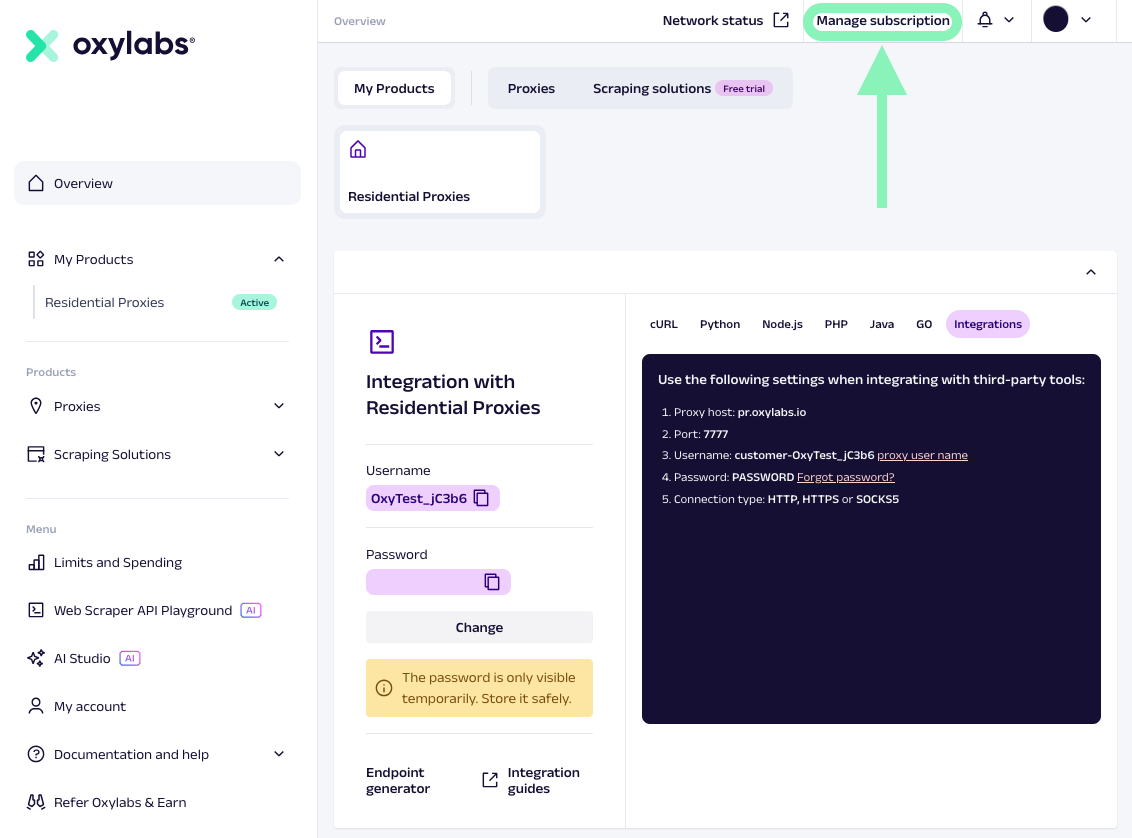
To manage your account payment methods, click the `Manage subscription` button on the top right of the screen:
{% hint style="warning" %}
**Note:** the `Manage subscription` option only appears for paid products, not free trials or free products.
{% endhint %}
### Adding a new payment method
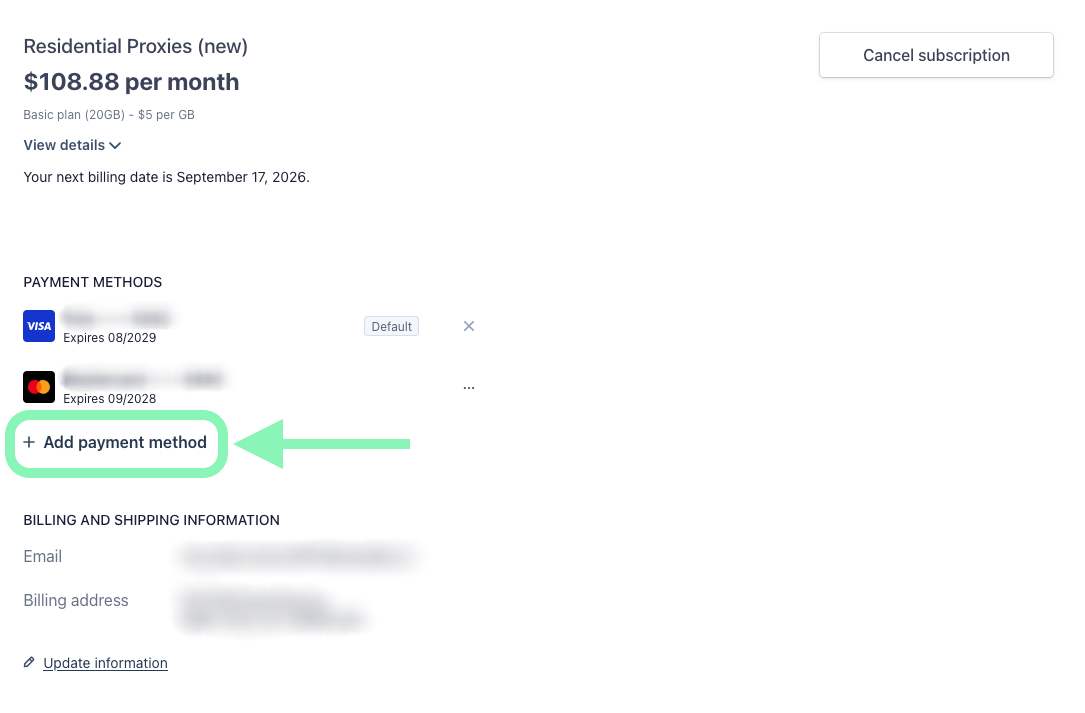
1. In the payment management system, click **+ Add payment method**.
2. A new form will appear with payment options (Card, PayPal, US bank account).
3. Select your preferred method and enter the required information.
4. (Optional) Check/uncheck the box to make your new payment method the default.
5. Click `Add` to save your new payment method. Your new payment method will appear in the list.
### Setting a default or removing payment method
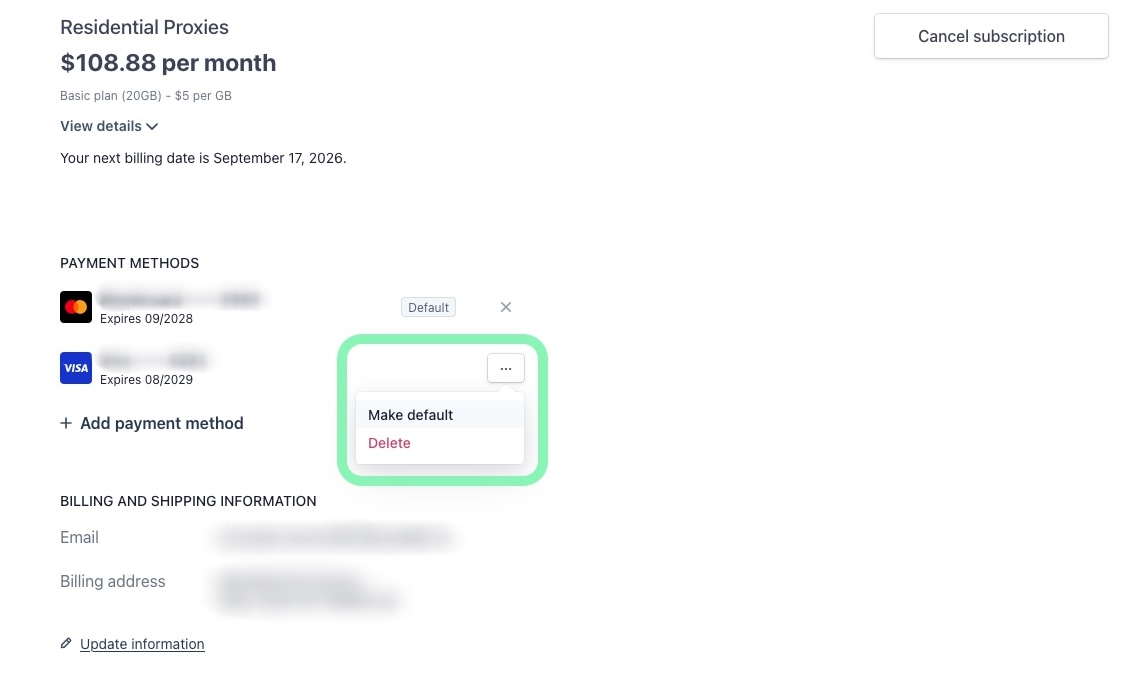
In the payment management system, your current default payment method appears at the top of the list. To change it, click the triple-dot menu next to another payment method from your list and select **Make default**.
To remove a payment method from the list, use the same triple-dot menu and select **Delete**.
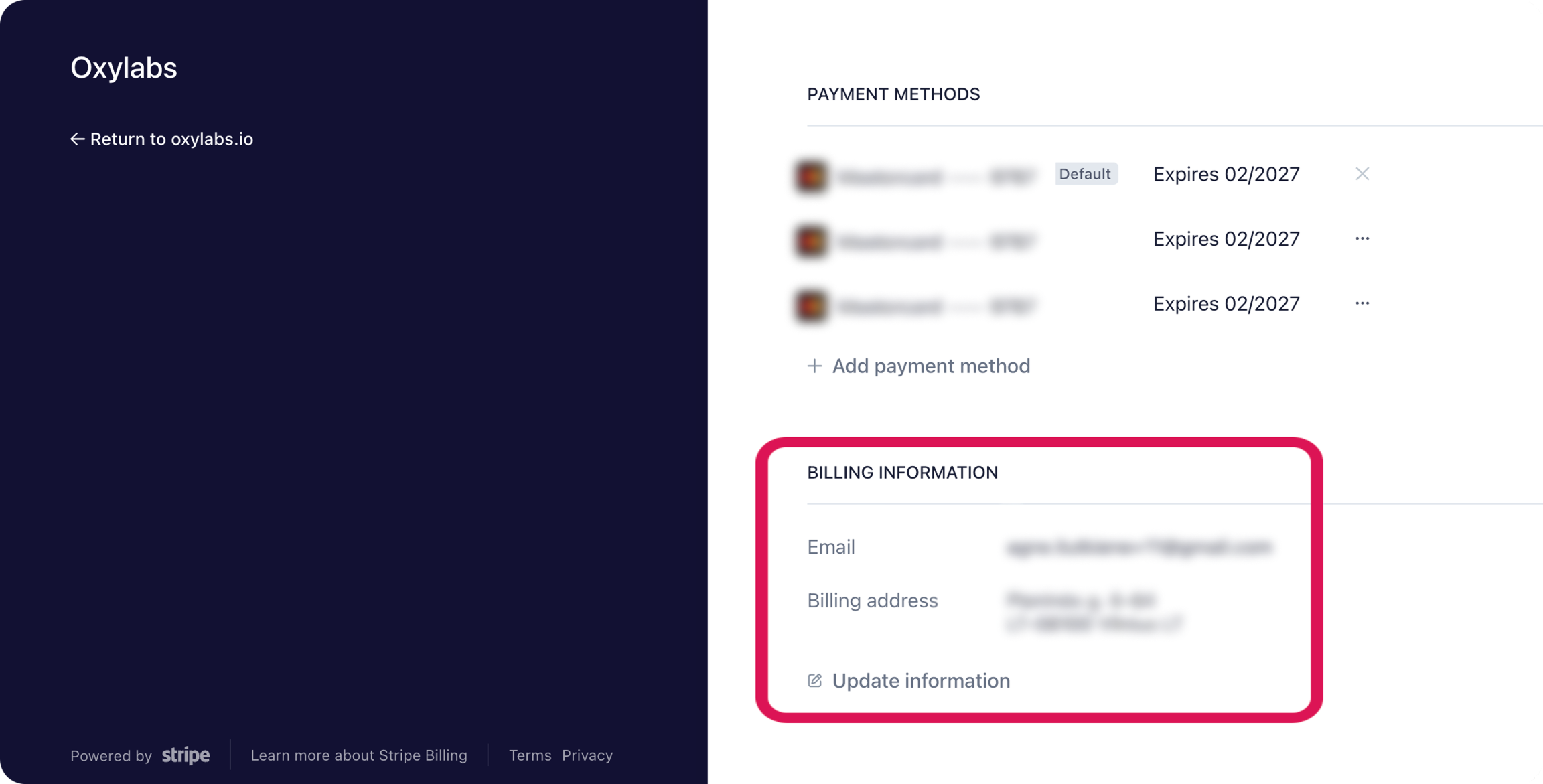
## Updating billing information
1. Select **Manage subscription** in your product page of the [**Oxylabs dashboard**](https://dashboard.oxylabs.io/en/registration)**.**
2. Locate the **BILLING INFORMATION** section.
3. Click `Update information`.
4. Edit your email, billing address, phone number, and tax ID, as needed.
5. Save changes.
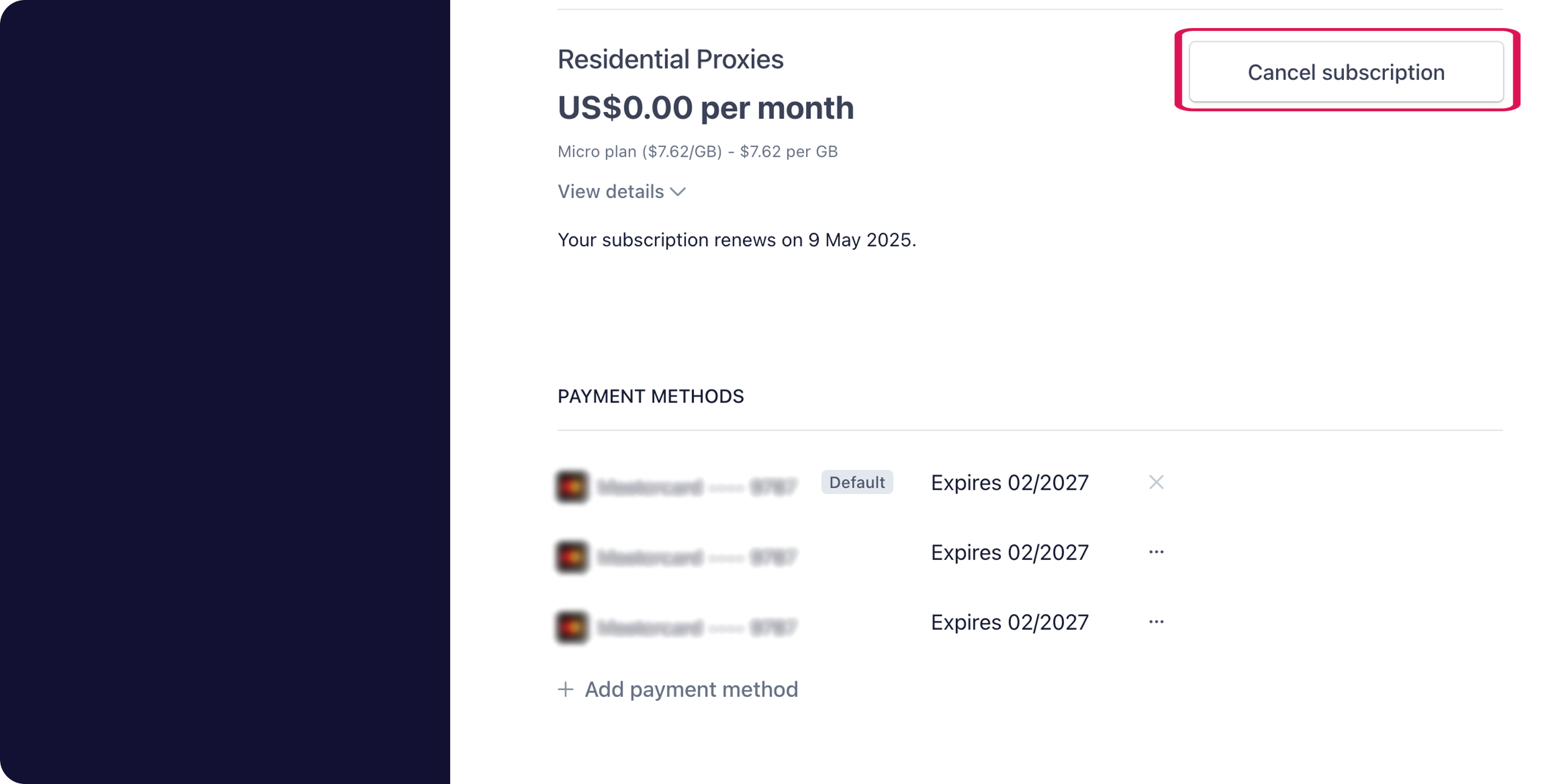
## Canceling a subscription
1. In the top-right corner of the subscription management page, click `Cancel subscription`.
2. Confirm your cancellation when prompted.
3. Your subscription will remain active until the end of the current billing period.
4. For inactive subscriptions, you'll see a `Resubscribe` option instead of Cancel.
---
# Agent Instructions
This documentation is published with GitBook. GitBook is the documentation platform designed so that both humans and AI agents can read, navigate, and reason over technical content effectively. Learn more at gitbook.com.
## Querying This Documentation
If you need additional information that is not directly available in this page, you can query the documentation dynamically by asking a question.
Perform an HTTP GET request on the current page URL with the `ask` query parameter, and the optional `goal` query parameter:
```
GET https://developers.oxylabs.io/dashboard/billing-and-subscriptions.md?ask=&goal=
```
`ask` is the immediate question: it should be specific, self-contained, and written in natural language.
`goal` is optional and describes the broader end goal you are ultimately trying to accomplish on behalf of the user. GitBook uses it to tailor the answer towards what is most useful for that goal.
The response will contain a direct answer to the question and relevant excerpts and sources from the documentation.
Use this mechanism when the answer is not explicitly present in the current page, you need clarification or additional context, or you want to retrieve related documentation sections.